

Audit Trails
Last updated: May 20, 2026
Vault provides a robust audit trail of all actions performed on a document or object record. Vault also allows you to export this information in order to facilitate reporting and filtering at a more granular level. The audit trail window displays the following:
- Timestamp: Date and time that the action was performed, adjusted to your own timezone. Timestamps also indicate the time of year an event occurred using daylight savings time. For example, audit trails in Vaults using the PST timezone show PST times during the fall and winter and PDT time during the spring and summer.
- User Name: Login name for the user who performed the action; this sometimes shows System to indicate that the action was performed automatically by Vault. System actions include state changes and field updates performed as part of a workflow, as well as initiating an auto-start workflow.
- Version: (Document audit trail only) Version of the document on which the action occurred.
- Event Description: Description of the action that occurred, for example, Status changed from “Approved for Production” to “Approved for Distribution”. Note that when data changes, the description shows both the previous value and the new value.
Note
Audit logs support a precision to one second. Events occurring within a single second may appear in an unexpected order.
Include Related Objects
By default, a record’s audit trail only displays changes made directly to its own standard fields. However, many critical actions—such as assigning roles, linking documents, or mapping relationships—happen via related objects.
To capture these hidden changes and ensure full inspection readiness, you can use the Include related objects field to pull secondary object histories into your view.
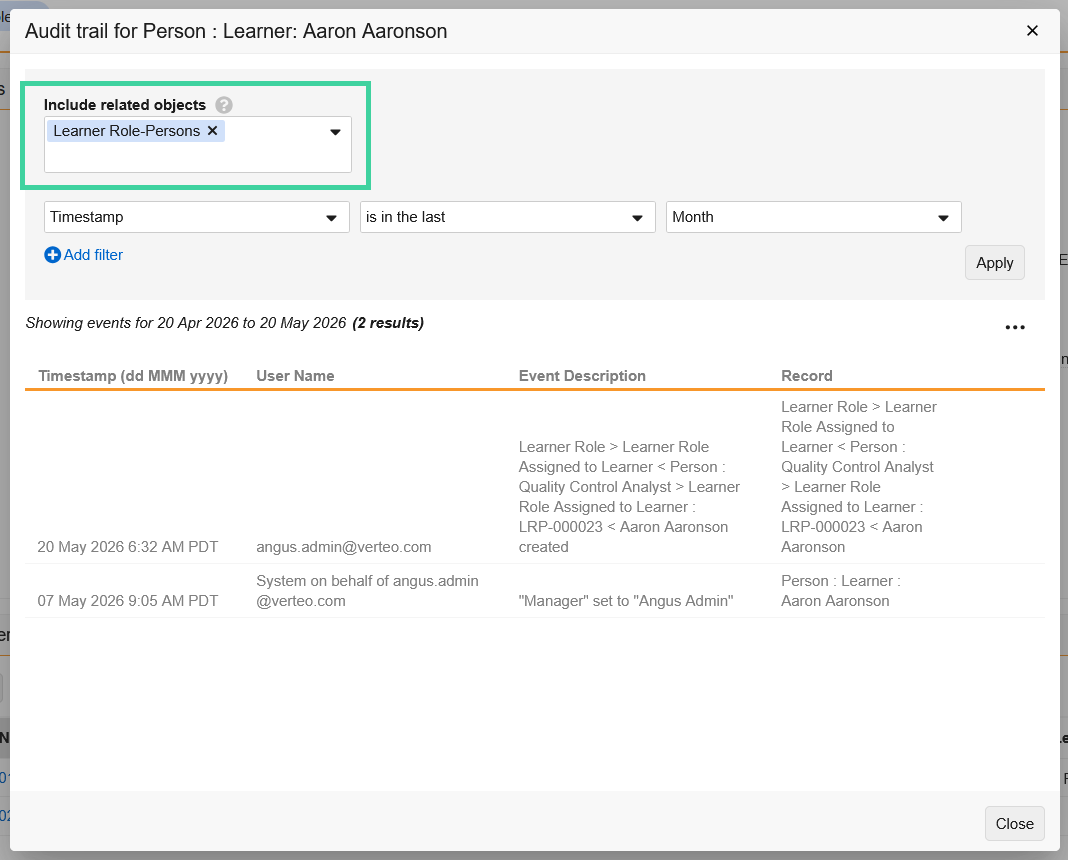
For example, in Quality Basics: Training, you might add the “Learner Role-Persons” related object to see when a Learner Role was added or removed to a Learner.
Interpreting Audit Trail Information
It is important to understand these items when reviewing audit trail information.
Yes/No Fields
Vault allows Yes/No fields to display as a checkbox or radio buttons. These options do not affect the way the data is stored or the way the data displays in the audit trail:
- Yes or selected fields = True
- No or cleared fields = False
Empty Fields
Empty fields (blank or null) display as double quotes ("") in the audit trail.