Upload & Classify a Document
Last updated: Apr 16, 2026
Who can complete this task?
Veeva Clinical Basics: Vault Admin, TMF Manager, Study Contributor, Study Manager, Monitor
The simplest and most common way is to upload a file from your computer into your Library’s Inbox. This is a great option for documents that have been created outside of Vault and need to be added to your Studies. You can drag and drop up to 250 documents at a time into the Document Inbox.
To upload and classify a document using the Document Inbox of your Library:
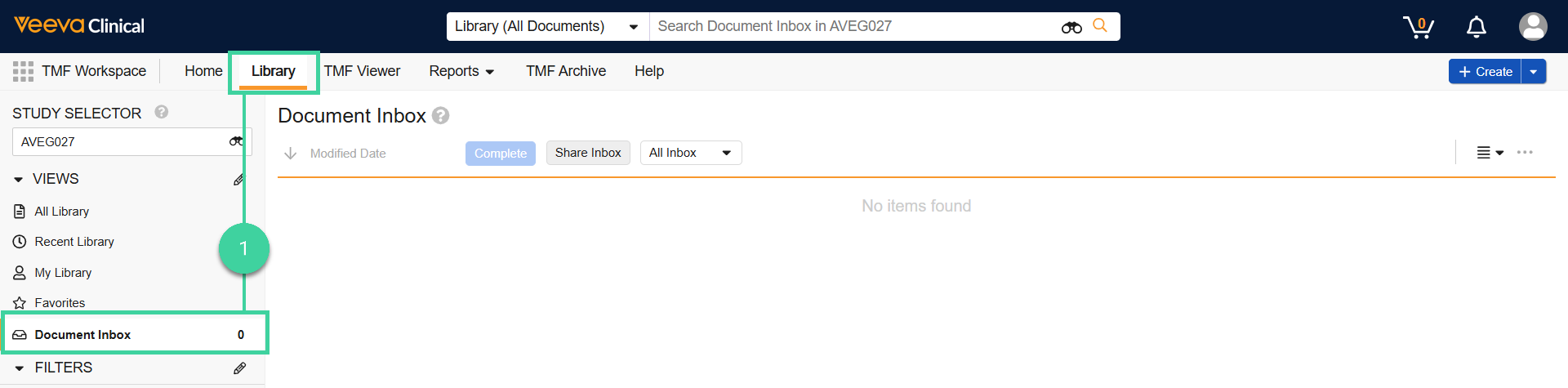
Navigate to TMF Workspace > Library and select the Document Inbox view.
Drag and drop the documents into the Document Inbox.
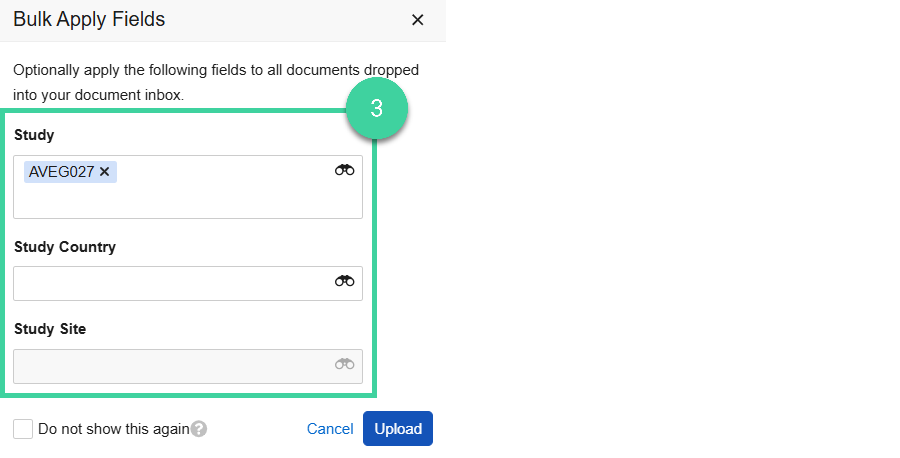
If all of the documents you are loading into the inbox belong to the same Study, Study Country and/or Study Site, you can specify those now.
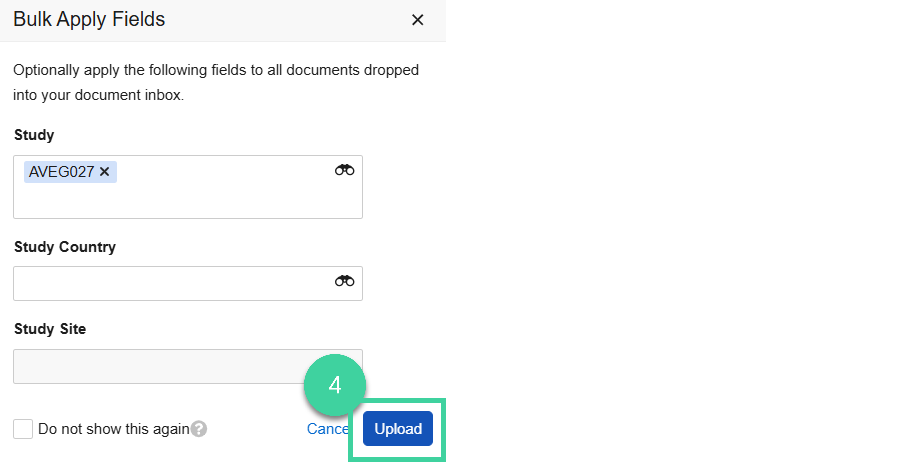
Click Upload.
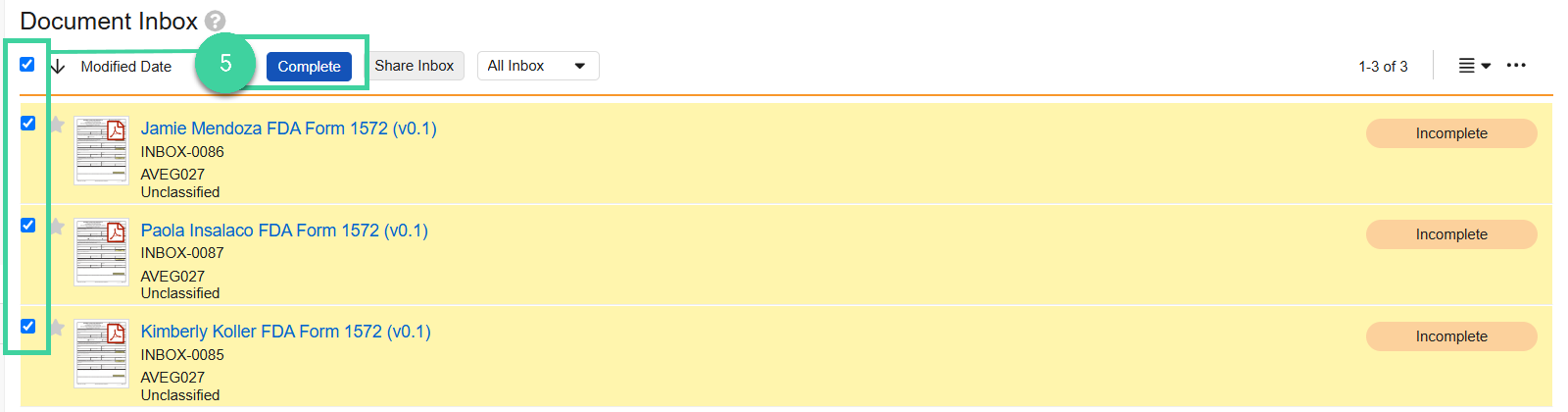
Select one or more documents to classify and click Complete. (All documents you select must belong to the same classification.)
 Note If desired, you can check the documents to upload for the presence of duplicate documents prior to classifying.
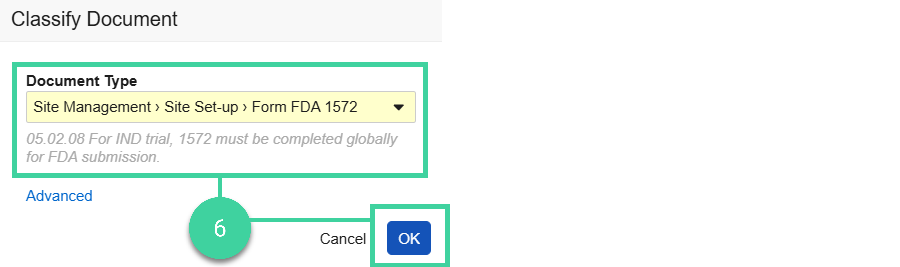
Select the Document Type and click OK.
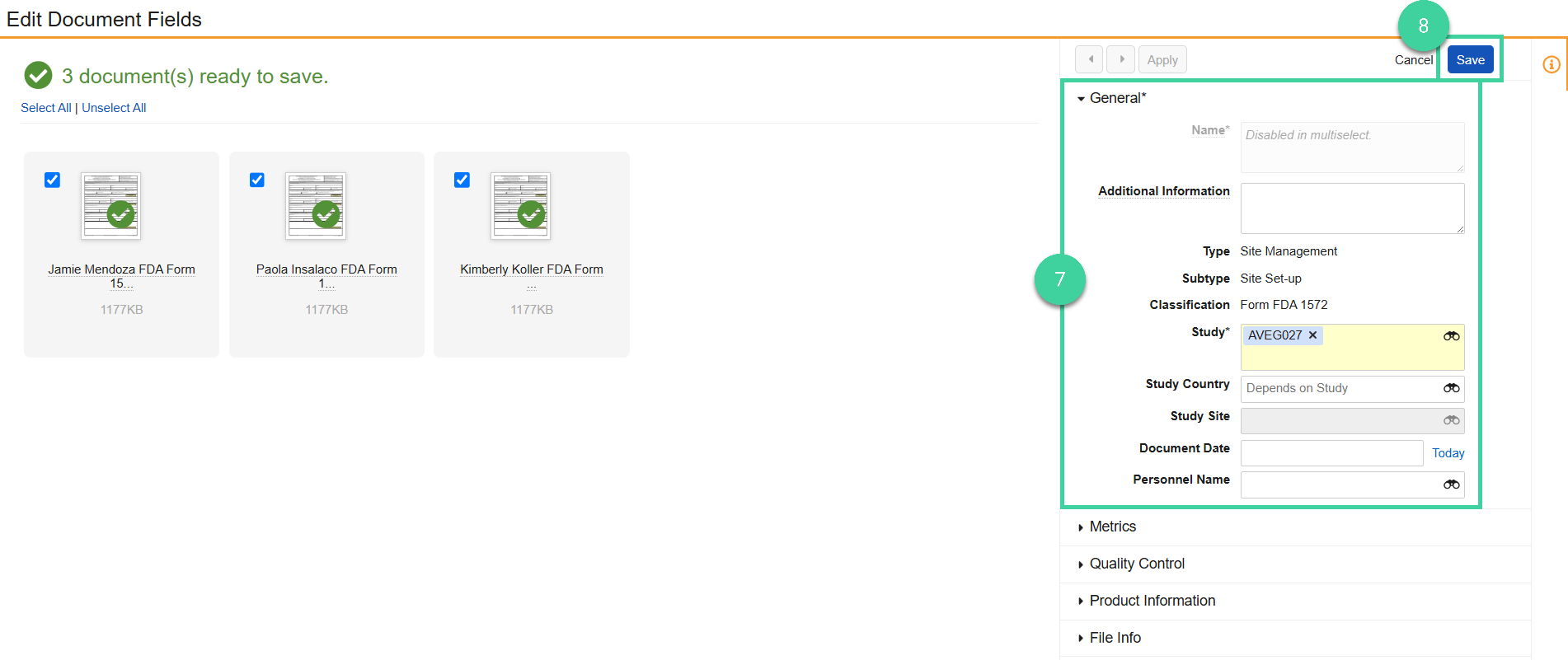
Fill in fields for the documents. Required fields are yellow. You can apply values across all selected documents at once or save unique values to individual documents.
Once all fields have been populated, click Save.
Check for Duplicates
Vault does not automatically detect duplicate documents when uploading them through the Document Inbox. However, you can check the Document Inbox for the presence of duplicate documents prior to clasifying.
To detect duplicates:
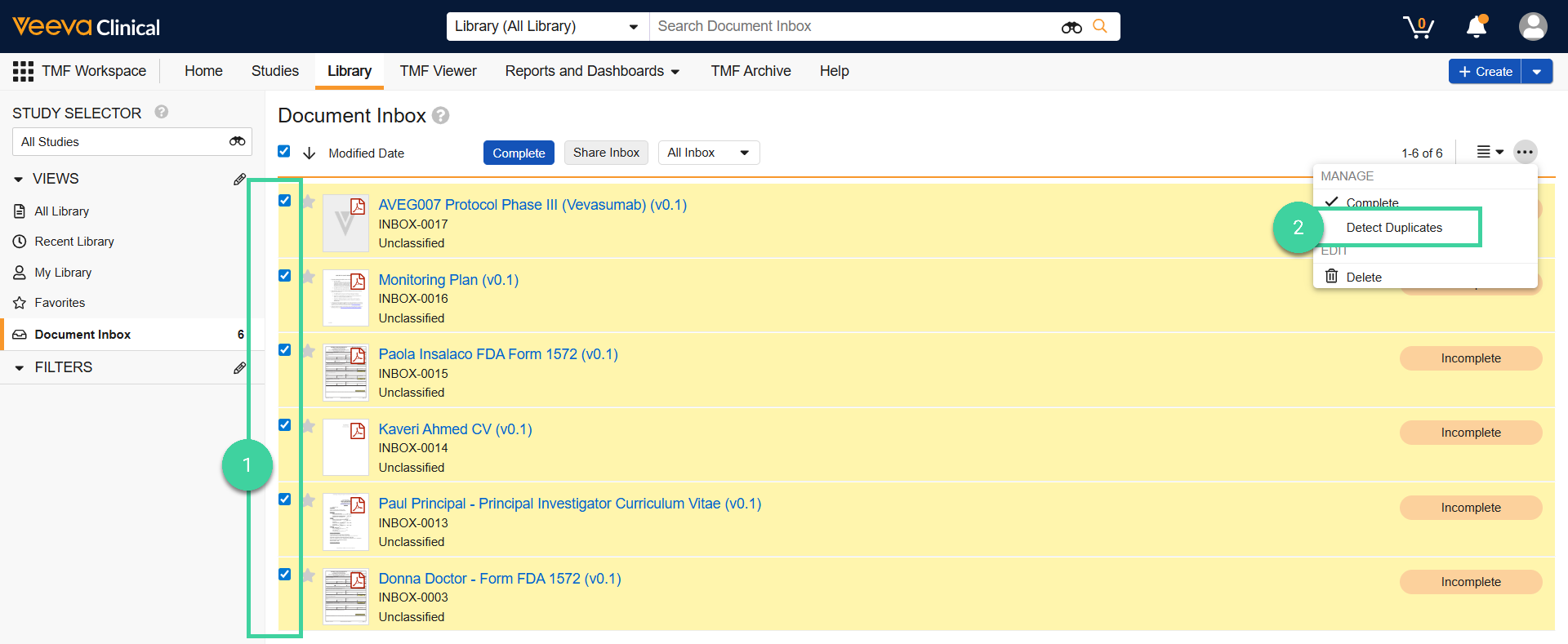
From the Document Inbox, select multiple documents.
Select Detect Duplicates from the All Actions menu.
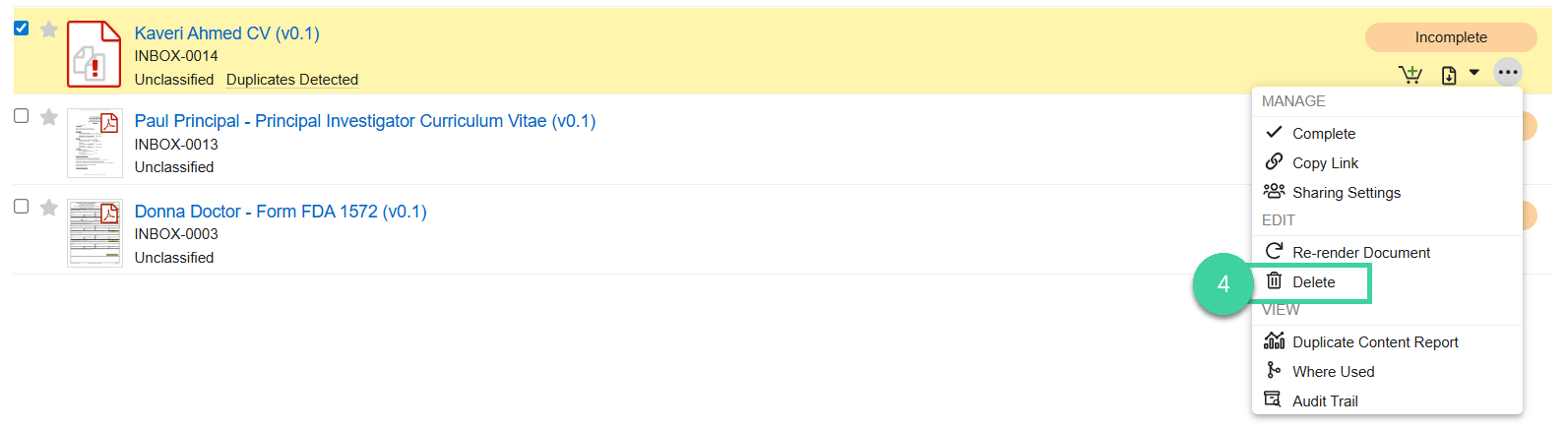
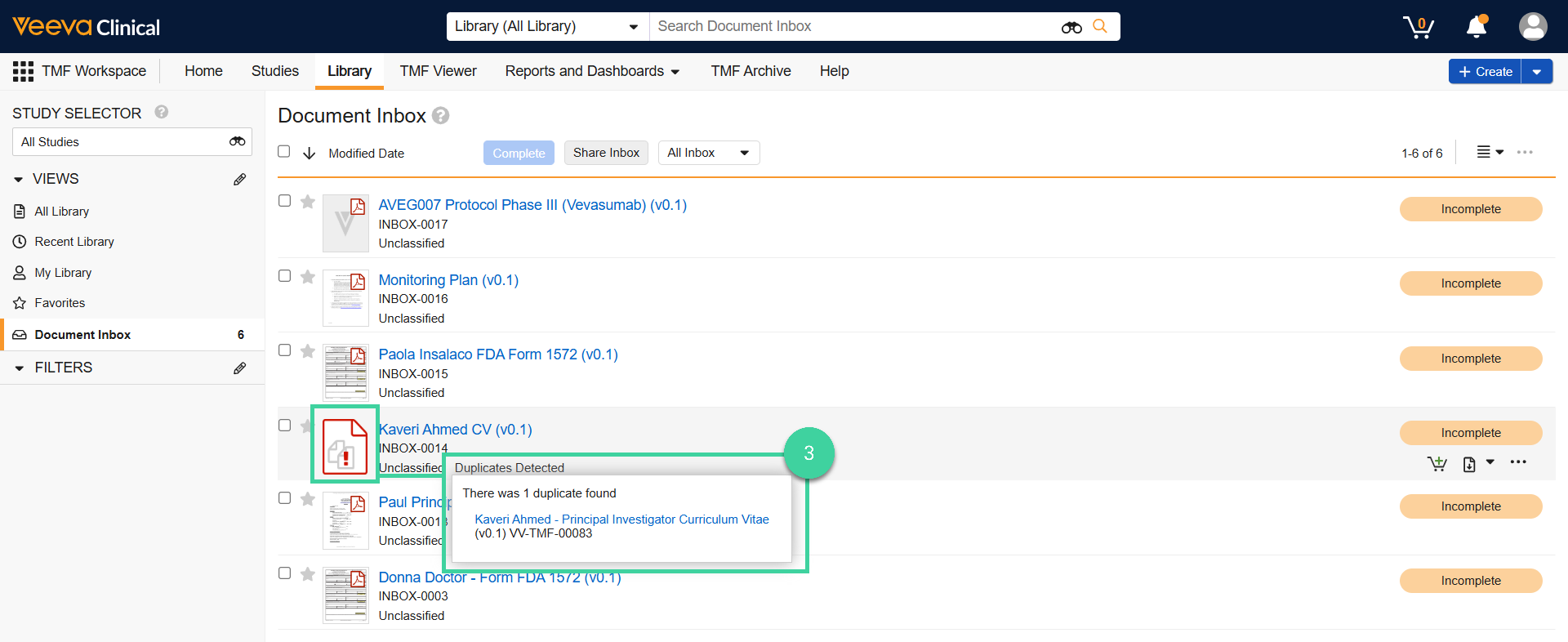
You will see a red thumbnail for documents with duplicates as well as a Duplicates detected message. Hover over the message to see the documents that share the same source file.
Delete any duplicate documents from the Inbox, as applicable.