

Migrate from Legacy Collaborative Authoring
Last updated: Apr 30, 2026
With 25R1, the collaborative authoring configuration is enhanced to allow Admins to configure collaborative authoring without requiring a Microsoft 365 service account. Customers with collaborative authoring configured prior to 25R1 can migrate from the legacy configuration to the enhanced configuration and can revert back to the legacy settings if needed. Customers who have never configured collaborative authoring must use the enhanced configuration available with 25R1.
Before you begin, download the Legacy Migration .ZIP file, which contains the necessary migration script (Basics_SitePnP_LegacyUpdate) that you’ll be modifying according to the below guide.
Update existing app registration
Log into Microsoft Admin Center.
Go to Applications > App Registration > and find your current Collaborative Authoring Veeva App Registration.
Go to API permissions.
Click + Add Permissions
Click Microsoft Graph > Application permissions. In the Select permission search bar, search for and add following:
Sites.Selected
User.ReadBasic.AllOptional: For external user access, add a Microsoft Graph permission with the following Application permissions:
User.Invite.All
User.ReadWrite.All
Directory.ReadWrite.AllClick Add permissions.
You should see Status: Not Granted for {tenant} for all the permissions.
Click Grant admin consent for {tenant} next to the + Add a permission button.
Click Yes in the Grant admin consent confirmation popup.
You should now see the status change to Granted for {tenant} for all selected Microsoft Graph permissions.
Note Type should display Application for Sites.Selected and other permissions you’ve added.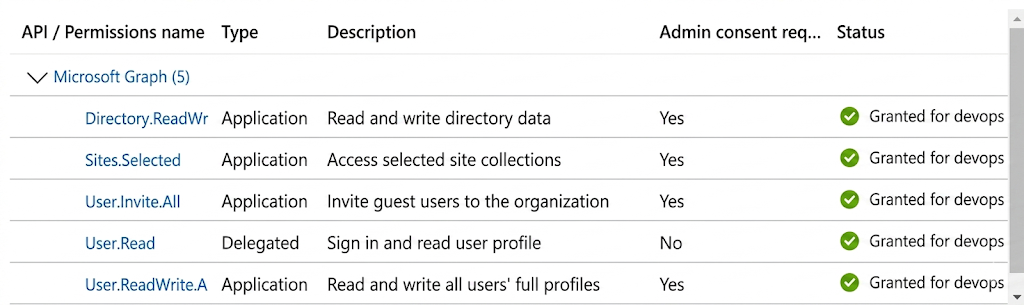
Create Admin Application and grant permissions to the Application for site access via Powershell Script.
- Use the Basics_SitePnP_LegacyUpdate.ps1 script to create the Admin Application and grant permissions to the Application for site access.
- Prior to running the script:
- Ensure the Administrator executing the script has admin access to Existing Veeva Collaborative Authoring sharepoint site and Administrator access to Entra
- Install PowerShell 7.0
1winget install --id Microsoft.PowerShell --source winget - Install PnP module in PowerShell 7 by running PowerShell 7 and executing the following command
1Install-Module PnP.PowerShell -RequiredVersion 2.12 - Confirm PnP.PowerShell module 2.12 is installed by running:
1Get-Command -Module PnP.PowerShell
Important
If you see any version other than 2.12 displayed after running the above command, you need to uninstall all versions prior to installing 2.12. Run the following commands to uninstall all versions, then install PnP module 2.12:
Uninstall-Module PnP.PowerShell -Force –AllVersionsInstall-Module PnP.PowerShell -RequiredVersion 2.12
Populate the following variables in the script:
- Get adminDomainUrl by going to Sharepoint Admin Center and getting the domain of your URL
1$adminDomainUrl = "client-admin.sharepoint.com" - Get from Entra Admin Center > Home > Primary domain
1$primaryDomain = "domain.com" - Get by going to Entra app registration Veeva Vault Collaborative Authoring > Overview > Application (client) ID
1$appId = "xxx-xxx-xxx-xxx" - Get by going to Entra app registration Veeva Vault Collaborative Authoring > Overview > Display name
1$displayName = "Veeva Vault Collaborative Authoring" - Get created sharepoint site URL by going to Shareoint Admin Center > Site > Active Sites > Find your Vault Site > Site Address – copy the full site Address
1$siteUrl = "https://test.sharepoint.com/sites/siteAlias"
- Get adminDomainUrl by going to Sharepoint Admin Center and getting the domain of your URL
Ensure the person executing Basics_SitePnP_LegacyUpdate.ps1 script is added as the owner of the share point site used by Collaborative Authoring.
- SharePoint Admin Center > Site > Active Sites > Find your Vault Site > Membership
Once step 2 is completed, execute the script Basics_SitePnP_LegacyUpdate.ps1. You will have multiple prompts to authenticate.
NoteIf the script returns an error because it is not signed, you can resolve it using either Windows Explorer or Command Line:
- Via Windows Explorer: Right click on the script > Properties > General tab > Security section. If the file is blocked, you will see a checkbox labeled Unblock. Check the unblock checkbox.
- Via Command Line:
powershell -ExecutionPolicy Bypass -File "C:\Path\To\Your\Script\Basics_SitePnP_LegacyUpdate.ps1"
Update Checkout Settings in your Vault using new settings:
When updating your checkout settings, ensure that you use the same SharePoint drive URL to ensure that you do not lose access to the documents checked out to this library.
To migrate from the legacy to enhanced configuration:
- In your Vault, navigate to Settings > General Settings > Checkout Settings.
Note
If you don’t see the Checkout Settings tab, contact the Global Service Desk (GSC) to request that the Technical User Setup role be assigned to you.
- Click Edit in the Collaborative Authoring with Microsoft Office section.
- Select the Remove Service Account from Collaborative Authoring checkbox. The Collaborative User field is removed from the configuration settings.
- Enter the Client Secret. (this value was generated in the initial setup, if you don’t have it, a new client secret may need to be generated by going to Admin Center > Applications > App Registration > Collaborative Authoring Veeva > Certificates and Secrets)
- The Integration Status changes to Not Authorized.
- Click Authorize to reauthorize the collaborative authoring configuration. The Integration Status changes to Verified.
- Click Save.
To revert from the enhanced to legacy configuration:
- In your Vault, navigate to Settings > General Settings > Checkout Settings.
- Click Edit in the Collaborative Authoring with Microsoft Office section.
- Deselect the Remove Service Account from Collaborative Authoring checkbox. The Collaborative User field is added to the configuration settings.
- Enter the Client Secret. The Integration Status changes to Not Authorized.
- Enter the Collaboration User used in your legacy configuration.
- Click Authorize to reauthorize the collaborative authoring configuration. The Integration Status changes to Verified.
- Click Save.
Troubleshooting
PowerShell Script Execution Errors
| Error Message | Likely Cause | Resolution |
|---|---|---|
| No reply address is registered for the application | The script is not executing in PowerShell 7. | Ensure PowerShell 7 is installed and used to execute the script. Review the setup steps here: Grant Access Steps |
| Failed to connect to SharePoint site: The term ‘Register-PnPEntraIDAppForInteractiveLogin’ is not recognized as the name of a cmdlet, function, script file, or operable program. Check the spelling of the name, or if a path was included, verify that the path is correct and try again | PnP Module Mismatch. The script requires version 2.12, but a different version is currently loaded. | Ensure PnP module version 2.12 is installed. (Note: Newer PowerShell versions may auto-install incompatible versions). See: Grant Access Steps |
| Connection Error - The Collaboration Drive provided is not a valid document library. | Invalid URL is used in Collaboration Drive field. Additionally, it could mean that the powershell script did not complete successfully. | Please confirm URL is correct and you can access it via browser, rerun the PowerShell script (may need to set $entraIDApp variable if part of the script executed previously). |
| Write-Error: Failed to connect to SharePoint site: The application with name {Veeva Vault Collaborative Authoring Application} already exists. | Script was executed previously and it partially ran creating an application which should be used in subsequent executions. | Log into Entra Admin Center > Applications > Find application with name listed in the error message > Overview > Application (client) ID. Add to your updated powershell script the following line replacing, xxx-xxx-xxx-xxx with the Application ID you’ve just identified. You can add this line right before “DO NOT UPDATE BELOW THIS LINE” line in the script: $entraIDApp="xxx-xxx-xxx-xxx" - then save the script and execute the script again. |
| Write-Error: Failed to grant permission to site: {“error”: {“code”: “itemNotFound”, “message”: “The provided path does not exist, or does not represent a site”}} | The SharePoint site URL is incorrect or contains hidden special characters introduced during copying and pasting. | Confirm the correct site URL by navigating to SharePoint Admin Center > Sites > Active Sites, locating your Vault site, and copying the full value from the Site Address column. |
Vault Authorization Errors
| Error Message | Likely Cause | Resolution |
|---|---|---|
| Connection Error - Unable to retrieve security tokens, please check Office Application Settings | Invalid Client Secret. You are likely using the Client Secret ID instead of the Client Secret Value. | Confirm you are using the Value. If the Value is lost or was not saved, you must generate a new one. |
| Connection Error - Vault Does not have permissions to access the specified Collaboration Drive | Sites.Selected API Permission was added as Delegated Type Permissions and/or Grant Admin consent was not completed for the created Collaborative Authoring Application in Entra. | Ensure Sites.Selected and other added API permissions are added as Application Type (only User.Read should be listed as Delegated Type, other API permissions should be Application Type). Once permissions are updated re-execute the PowerShell script. |