

Create an Account
Last updated: Jun 2, 2026
Who can complete this task?
Vault CRM Basics: Medical User
There are two primary methods of creating an account: creating a new account manually, and creating an account from OpenData, a comprehensive global database of healthcare information.
Create an Account Manually
- Perform a search to ensure it does not already exist.
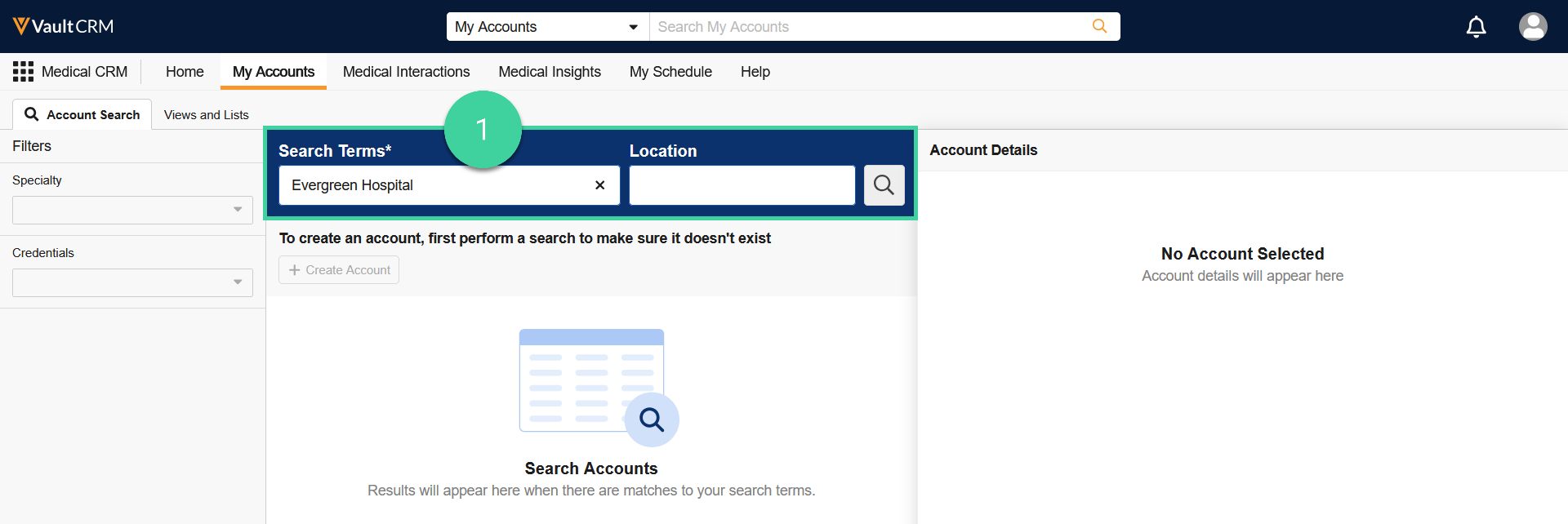
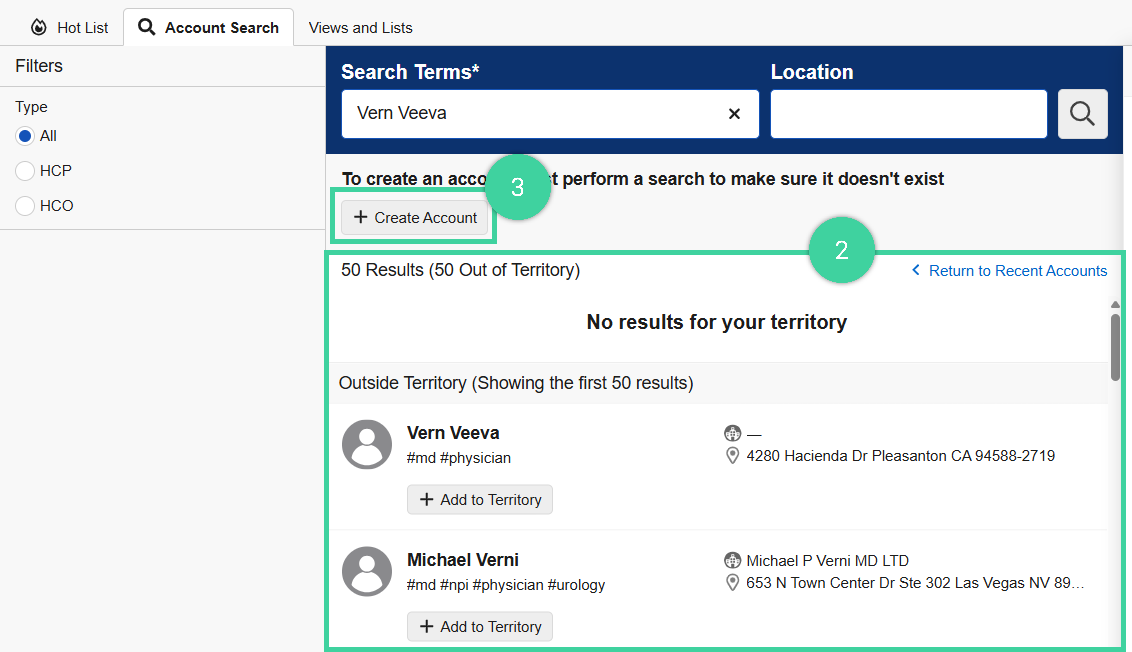
- Review the results to ensure the account doesn’t already exist. Inside Territory accounts are those that exist within your Vault, while Outside Territory accounts are sourced from OpenData.
- Click Create Account.
- Select the Object Type of new record, which determines what fields need to be populated on the record. Then, click Next.

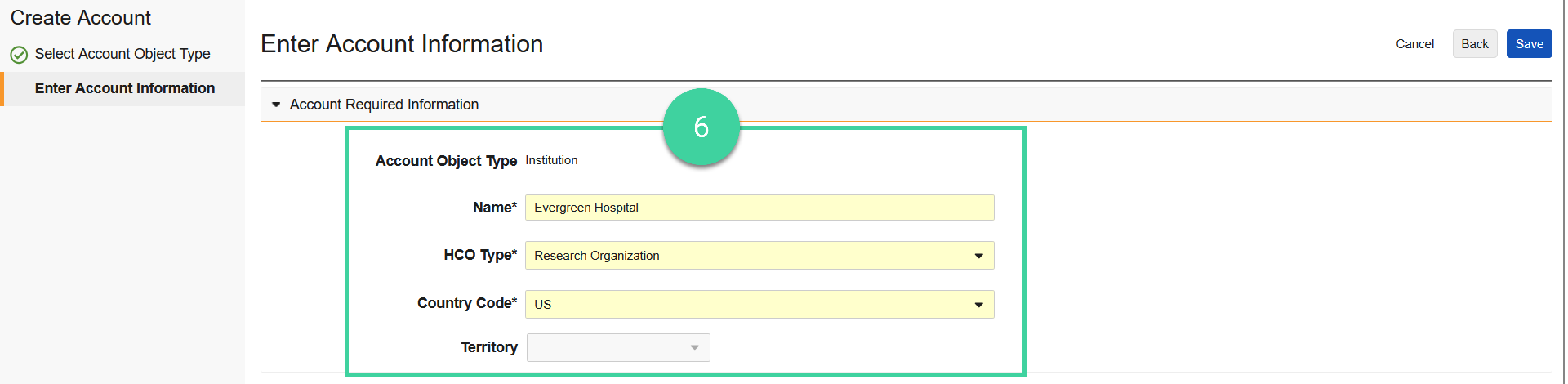
- Enter the Account Required Information required fields. The available fields vary depending upon the Object Type.

- Either select an existing parent to auto-fill the address fields, or manually enter the Address Required Information.Note If there are multiple addresses for the selected parent account, select the appropriate one from the list.
- Optional: Enter any relevant Notes (recommended) or Attachments.
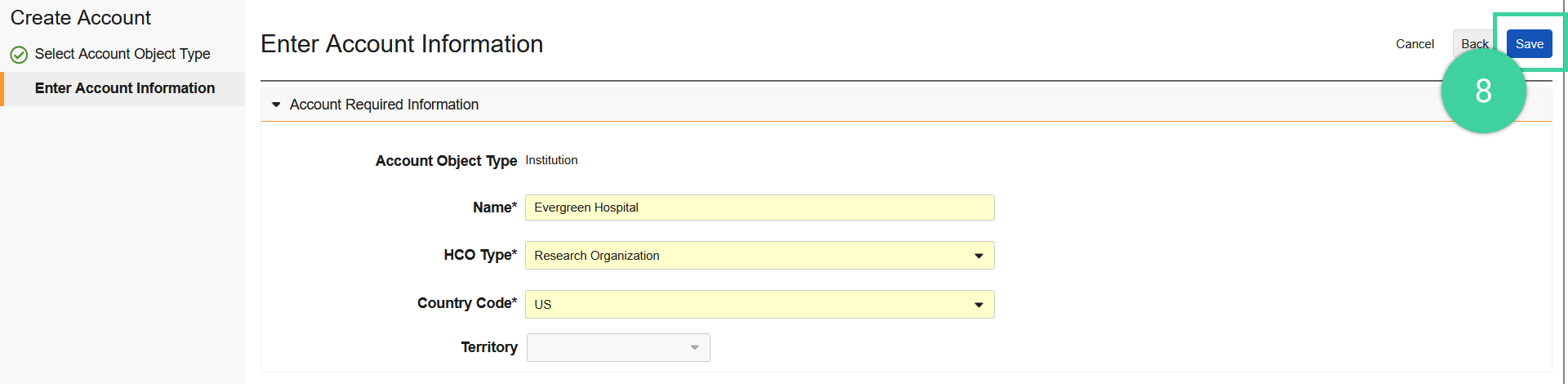
- Click Save.
Create an Account from OpenData
- Perform a search for the account.
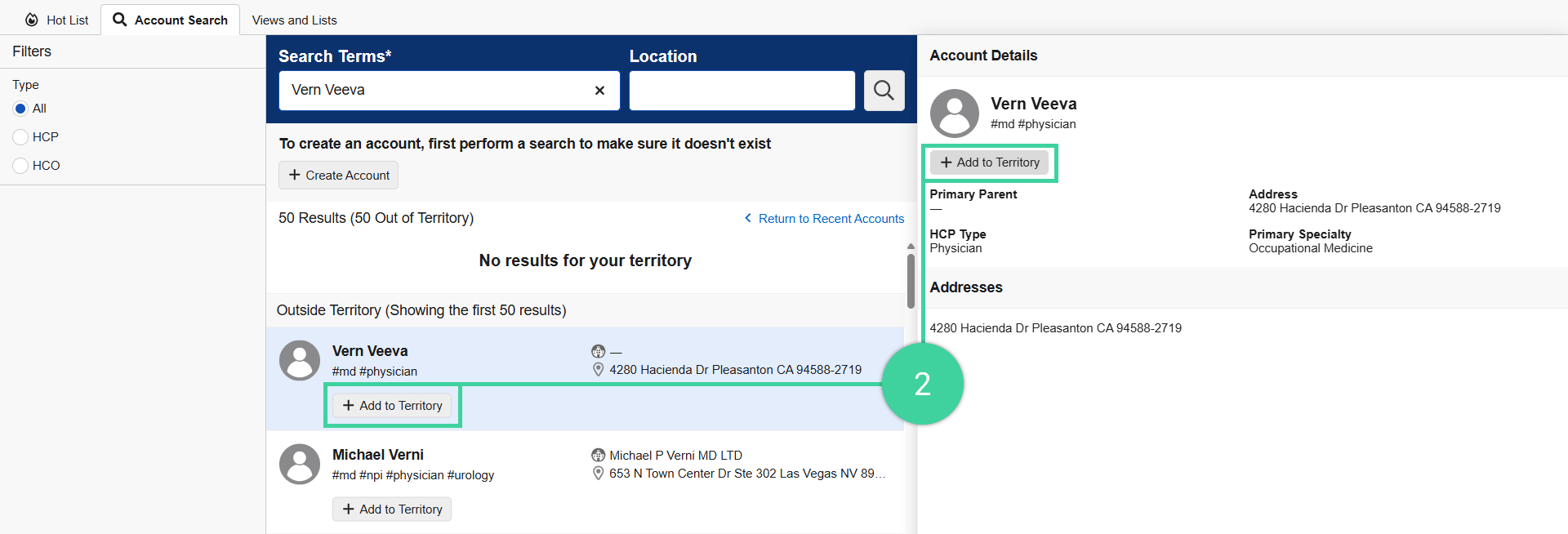
- Select the Account from the Outside Territory (OpenData) section, then click Add to Territory.
- If the selected account has a parent account, you can optionally select to add the parent account to your territory in the prompt.
- If the selected account has a parent account, you can optionally select to add the parent account to your territory in the prompt.
- Click Yes.