

Cancel a Spec Ex, Sample, or Test
Last updated: Apr 17, 2026
You may need to cancel a release spec ex or a stability spec ex:
Release Spec Ex
If you need to cancel a Batch after it has been created, you can cancel it by cancelling the associated Spec Execution record.
Note The Batch ID field is unique. If you plan to log another batch with the same Batch ID (for example, because this batch was created with the wrong material or the wrong spec data was assigned), first update the Batch ID before cancelling the spec execution.If needed, you can cancel a Sample or Test without cancelling the entire Spec Ex.
Note The Spec Execution record must be in the Not Started or Logged state in order to cancel it. The Sample or Test record must be in the Not Started state in order to cancel it.Stability Spec Ex
If you need to cancel a stability timepoint after it has initiated, you can cancel the associated Spec Execution record.
Cancel a Spec Execution
Who can complete this task?
Veeva LIMS Basics: Batch Creator, QA User (release spec exes)
Veeva LIMS Basics: Stability Design & Study Admin, Stability Approver (stability spec exes)
Veeva LIMS Basics: Stability Design & Study Admin, Stability Approver (stability spec exes)
Cancelling a Spec Ex will also cancel any associated Samples and Tests.
To cancel a spec execution record:
Open the Spec Execution record you want to cancel and select Cancel Spec Execution from the All Actions menu.

Click Start.
You will receive a task to provide a reason for cancellation. Click Complete to complete the task.
Provide your verdict.
Select Cancel Spec Execution, provide the Reason for Cancellation, your e-signature, and click Complete. The Spec Ex and associated Batch (for release testing), Sample(s), and Test(s) change to Cancelled.
Select Do not Cancel Spec Execution and click Continue if you don’t want to proceed with the cancellation of the spec ex and all of its associated samples and tests.
Cancel a Sample
Who can complete this task?
Veeva LIMS Basics: Results Entry, QA User (release samples)
Veeva LIMS Basics: Results Entry, Stability Design & Study Admin, Stability Approver (stability samples)
Veeva LIMS Basics: Results Entry, Stability Design & Study Admin, Stability Approver (stability samples)
Cancelling a Sample will also cancel any associated Tests.
To cancel a sample:
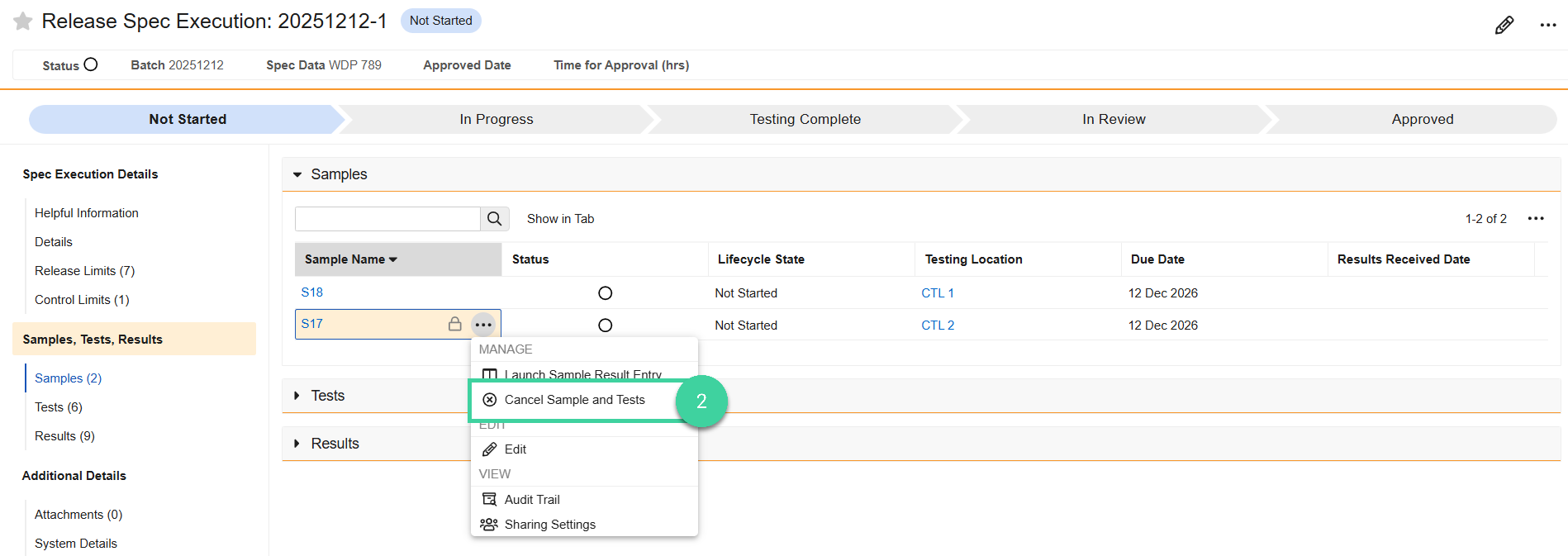
From the associated Spec Execution record, open the Samples section.
Hover your mouse over the sample you want to cancel and select Cancel Sample and Tests from the Actions menu.
Click Start.
You will receive a task to provide a reason for cancellation. Click into the Sample. Click Complete to complete the task.
Provide your verdict.
Select Cancel Sample, provide the Reason for Cancellation, your e-signature, and click Complete. The Sample and associated Test(s) change to Cancelled.
Select Do not Cancel Sample and click Continue if you don’t want to proceed with the sample and tests cancellation.
Cancel a Test
Who can complete this task?
Veeva LIMS Basics: Results Entry, QA User (release tests)
Veeva LIMS Basics: Results Entry, Stability Approver (stability tests)
Veeva LIMS Basics: Results Entry, Stability Approver (stability tests)
To cancel a test:
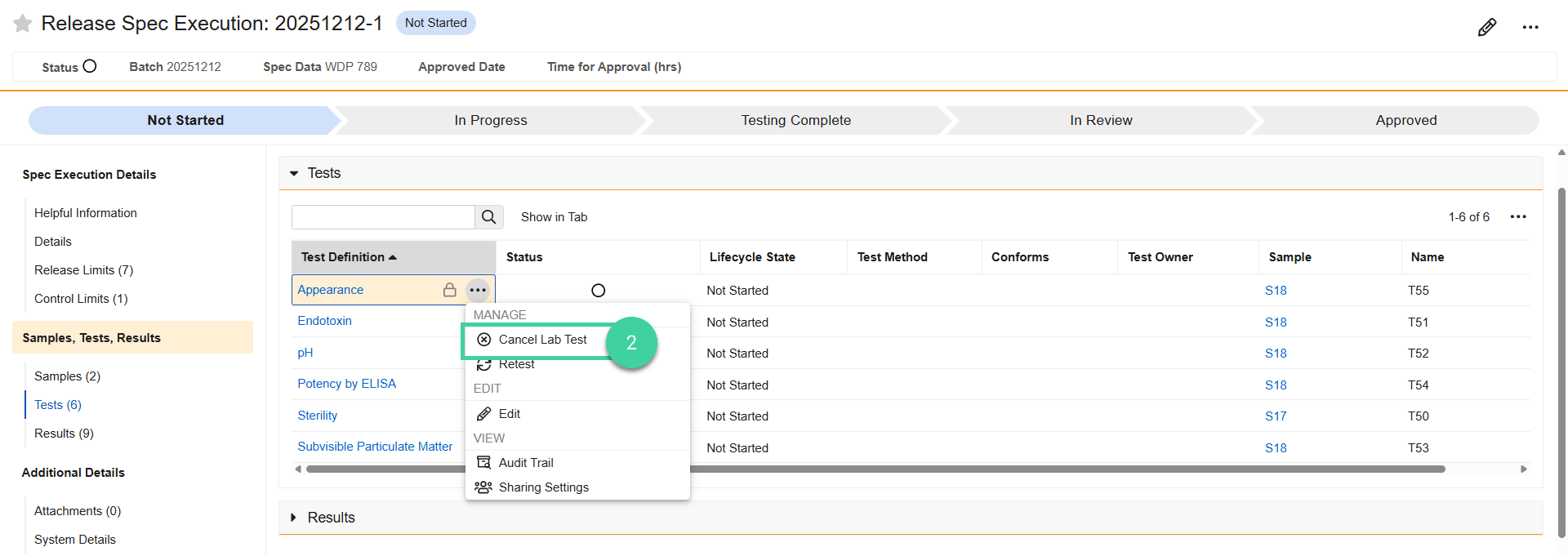
From the associated Spec Execution record, open the Tests section.
Hover your mouse over the test you want to cancel and select Cancel Lab Test from the Actions menu.
Click Start.
You will receive a task to provide a reason for cancellation. Click into the Test. Click Complete to complete the task.
Provide your verdict.
Select Cancel Test, provide the Reason for Cancellation, your e-signature, and click Complete. The Test changes to Cancelled.
Select Do not Cancel Test and click Continue if you don’t want to proceed with the test cancellation.