

Initiate a Stability Study
Last updated: Apr 17, 2026
Who can complete this task?
Veeva LIMS Basics: Stability Design & Study Admin
There are two options to start a study:
Using batch release results for the T0/Initial timepoint that are already in the system
Without using batch results if you don’t have the appropriate batch release results in the system
Start Study
Using Batch Results
First, ensure the Start Date is populated
To initiate a stability study using batch results:
Navigate to Design & Admin > Stability > Studies and select the stability study record you want to initiate.
Select Start Study (using batch results) from the All Actions menu.
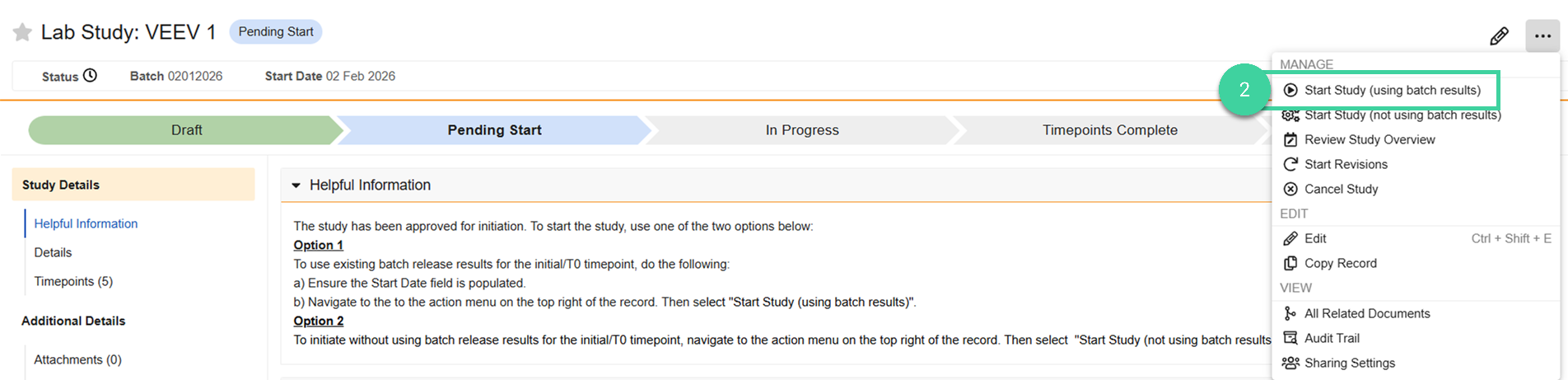
Review the tests that are expected to be completed for the study. The system will check each test against the associated batch to see if there is a corresponding test to pull results from. Click Next to advance through each test. Click Skip to Confirm to jump to the summary for all tests. Possible statuses include:
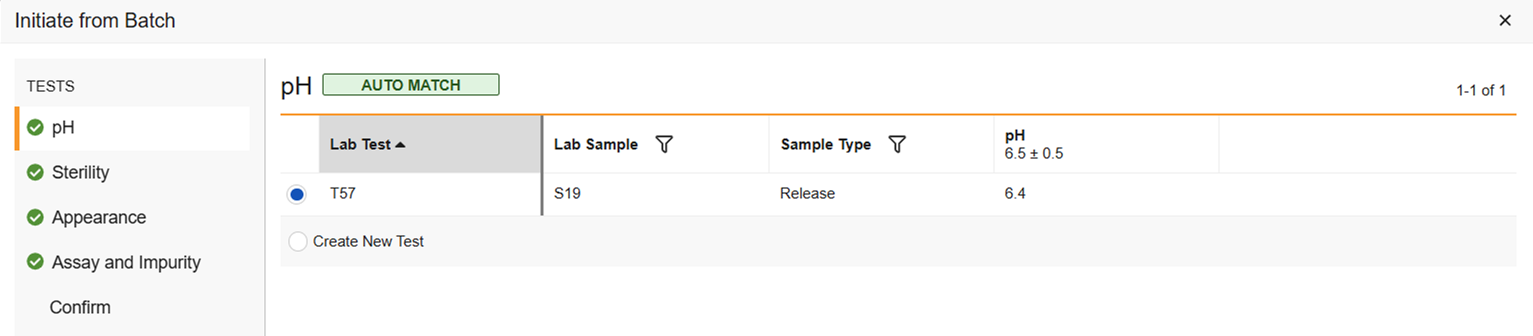
Auto Match: Select the auto matched test if you want to use those results for the T0/Initial timepoint or select Create New Test if you don’t want to use those results and create a new test for the T0/Initial timepoint.
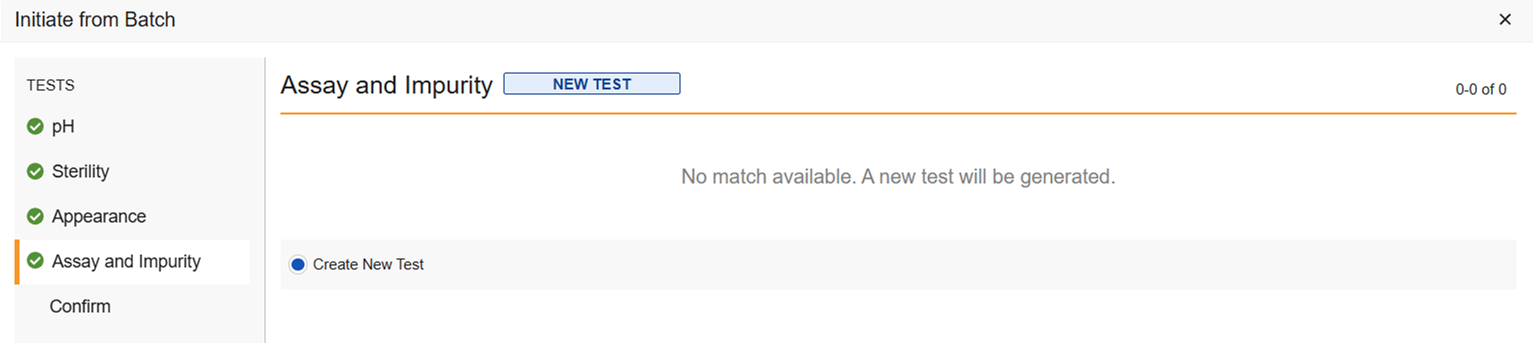
New Test: If no match was found because that test wasn’t done during release testing, Create New Test is the only option.
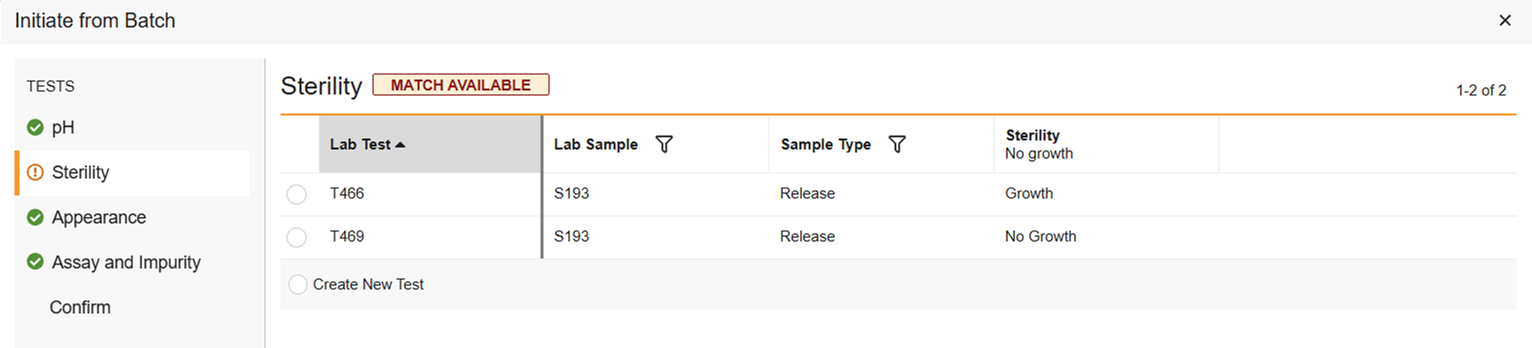
Match Available: If there are multiple test results in one batch, for example, there was a retest and one of the tests was not rejected, the test will not auto match, but you can select which of the test results you want to use. Or select Create New Test if you don’t want to use any of them.
Click Confirm.
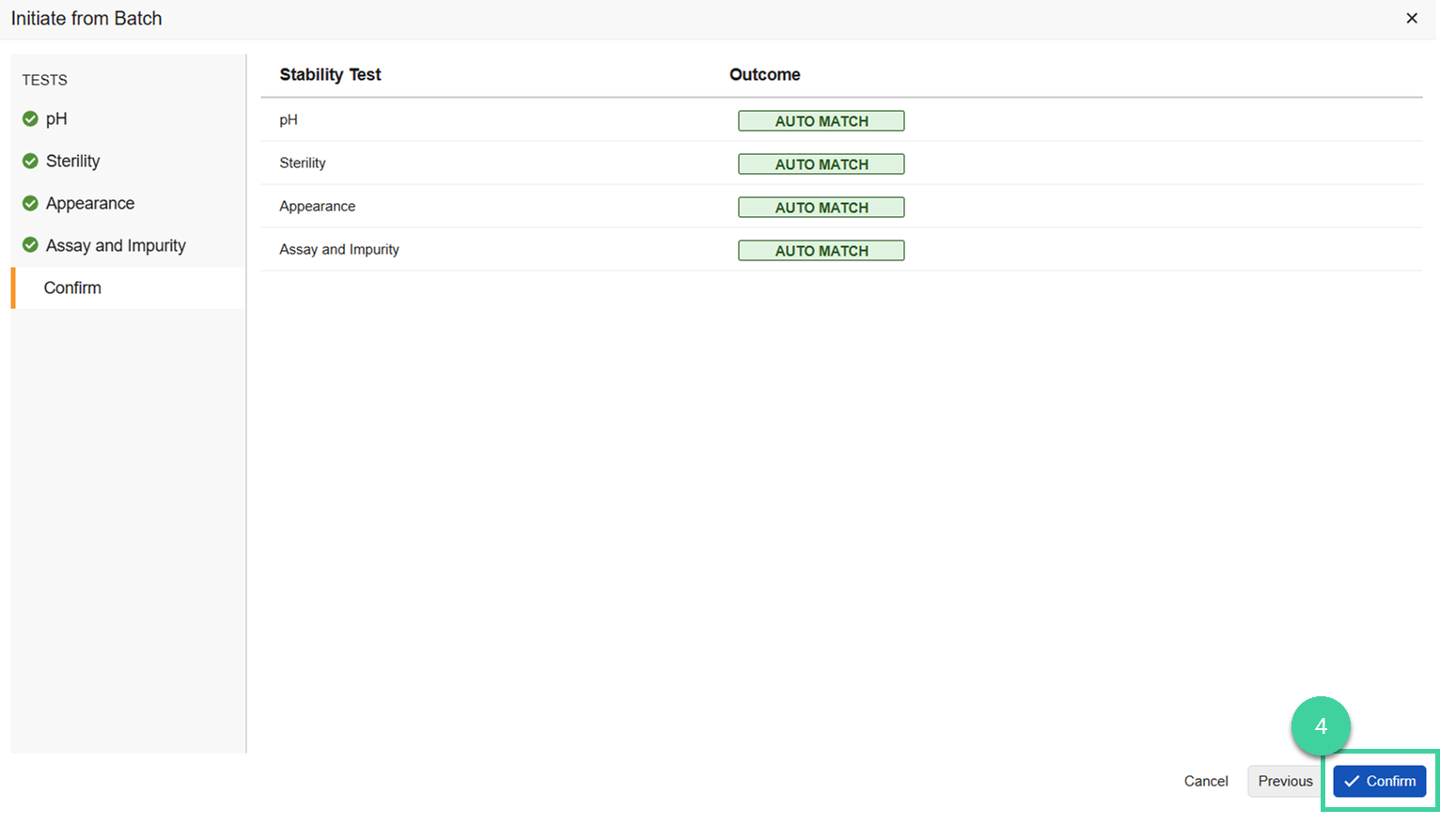
The study changes to In Progress.
Not Using Batch Results
Navigate to Design & Admin > Stability > Studies and select the stability study record you want to initiate.
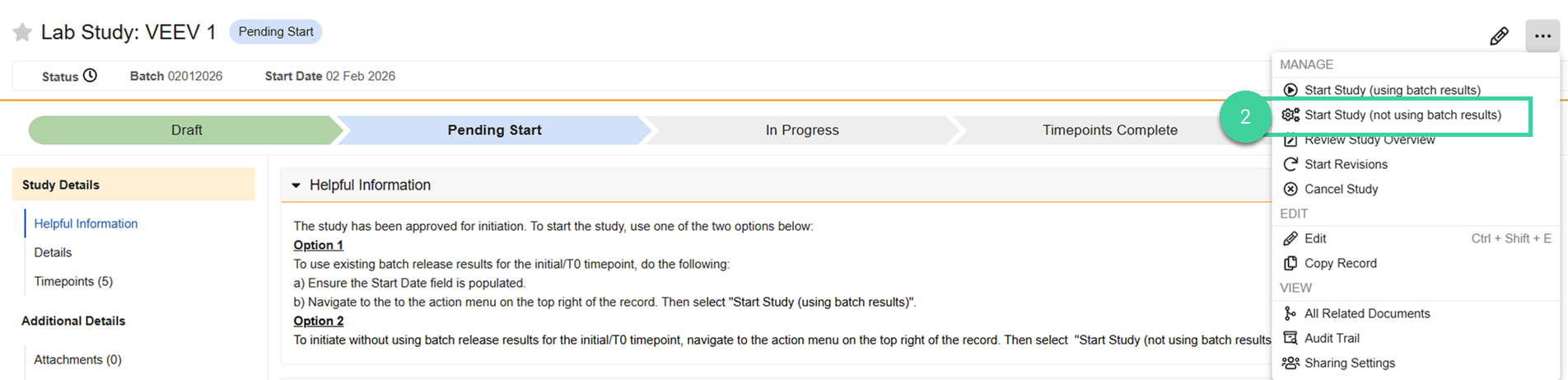
Select Start Study (not using batch results) from the All Actions menu.
Enter the Start Date. If left blank, it will be populated with today’s date.
Click Start.
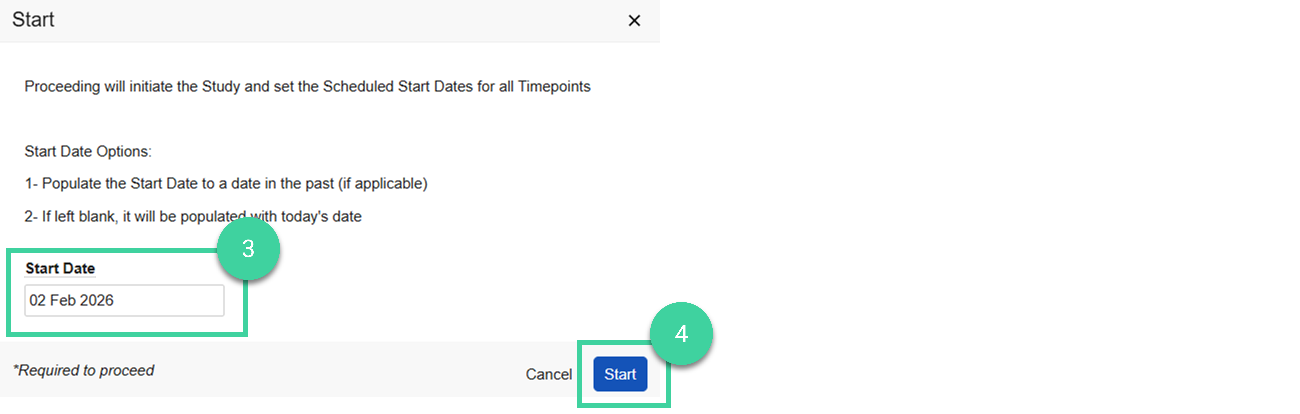
The study changes to In Progress.
Review Study
Timepoints
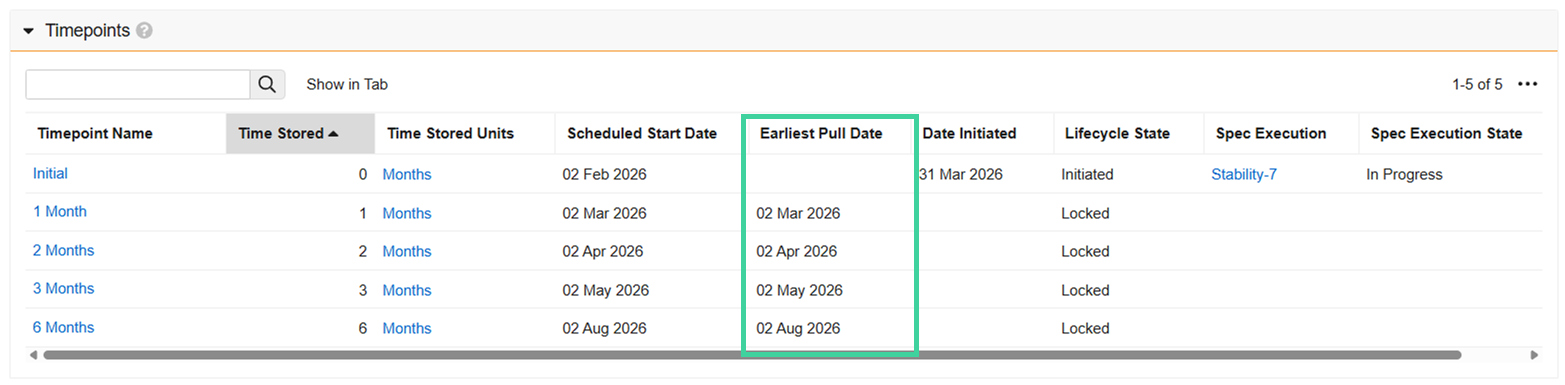
Regardless of the option used to start the study, once the study is In Progress, the Scheduled Start Dates are populated. This is the date the timepoint is expected to be logged.
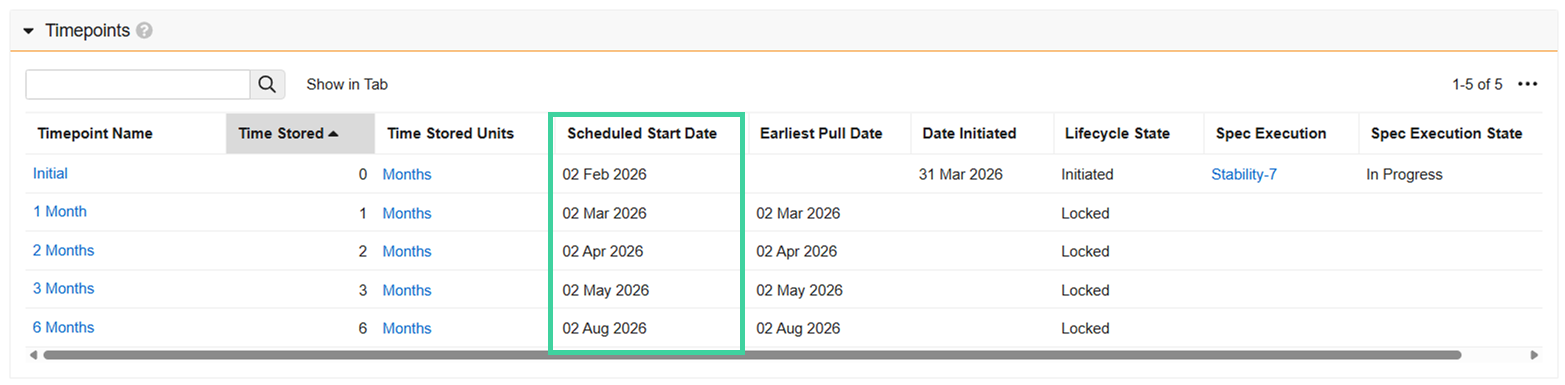
The Earliest Pull Date is the scheduled start date minus the lower pull window (if specified). Once the earliest pull date arrives, the timepoint will automatically initiate on its own once the hourly LIMS Study Timepoint Initiation job runs. You can initiate a timepoint before it automatically initiates if necessary.
Spec Executions
Each timepoint will have a spec execution record.
If you started the study using batch results and:
All tests matched: The spec ex for the T0/Initial timepoint goes to Testing Complete. No samples or tests will be created. The next step is to send the spec ex for review and approval.
Some tests matched: The results for the matched tests will be brought over to the spec ex. The necessary samples and tests will be created. The next step is to enter results for those tests.
If you started the study not using batch results:
- All necessary samples and tests will be created. The next step is to enter results for those tests.
Visual Study Overview
To visually review the study:
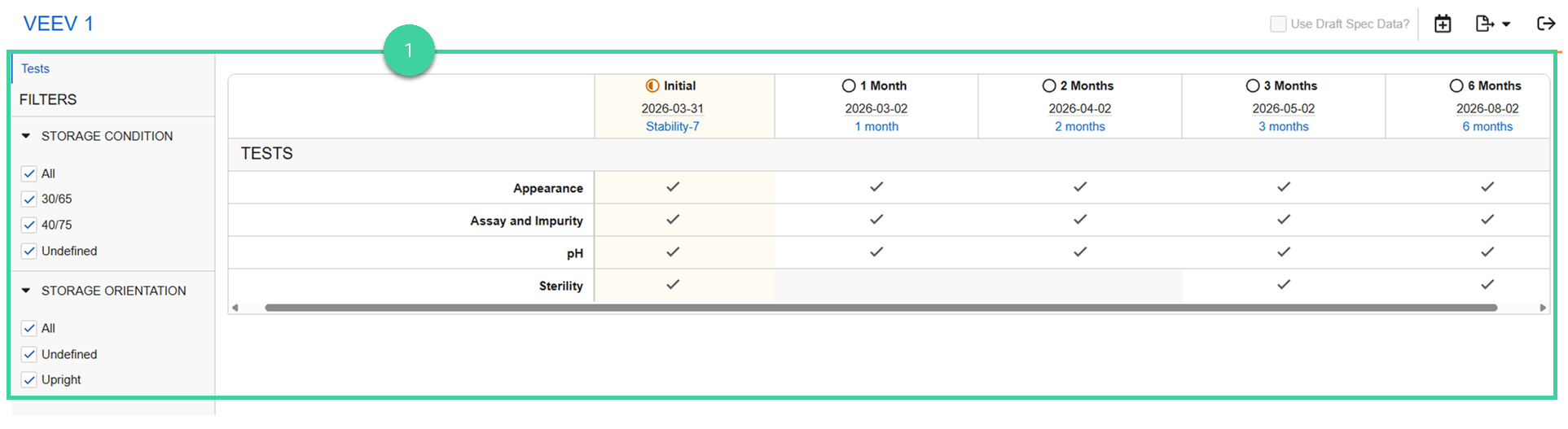
Select Review Study Overview from the All Actions menu to visually review the tests to be performed for each timepoint by storage condition and/or orientation.
For Initiated timepoints:
- Link is to the spec ex.
- Date is the date it was initiated.
For Non-Initiated timepoints:
- Link is to the spec data.
- Date is the scheduled start date.
When you are finished with your review, click the Exit Overview icon ().
Note
If revisions are required, for example, if you need to add a timepoint, you can revise the study.