

Reactivate a Spec Ex, Sample, or Test
Last updated: Apr 17, 2026
You can reactivate a Spec Ex, Sample, or Test record if it is in its final state: Approved, Cancelled, Rejected.
Note
Reactivation is not available for stability records if the study is in the Completed state. You must first reactivate the study, then reactivate any spec ex, sample, or test records.
Note
Reactivation will not be available for a stability record when the Spec Execution has been Cancelled.
Reactivation rolls up:
Reactivating a Test also reactivates the associated Sample, Spec Ex, and Batch (for release testing).
Reactivating a Sample also reactivates the associated Spec Ex and Batch (for release testing).
Reactivating a Release Spec Ex also reactivates the Batch (for release testing).
Best Practice
Need help understanding if you should reactivate the Test, Sample, or Spec Ex? Refer to the following examples.
Example 1
If a spec ex is Approved and you need to change a test result, start the Test reactivation workflow, which reactivates the test, as well as the sample and spec ex.
Example 2
If a spec ex is Rejected but it was rejected in error, start the Test reactivation workflow on all tests, which reactivates all sample(s) and the spec ex. Then start the Spec Ex approval workflow and approve the spec ex, which cascades down to the sample(s) and test(s).
Example 3
If a spec ex is Approved and you need to update the CoA Comment or Stability Report Comment, reactivate the Spec Ex.
Example 4
If a spec ex is Cancelled but it was cancelled in error, start the Test reactivation workflow on all tests.
Request Reactivation
Spec Ex
Who can complete this task?
Veeva LIMS Basics: Any LIMS Basics user
Reactivating a Release Spec Ex will only reactivate the Spec Ex and the associated Batch. Any associated Samples and Tests will remain in their current state.
Note
Reactivation is not available if a Stability Spec Execution is Cancelled.
To request reactivation of a spec ex:
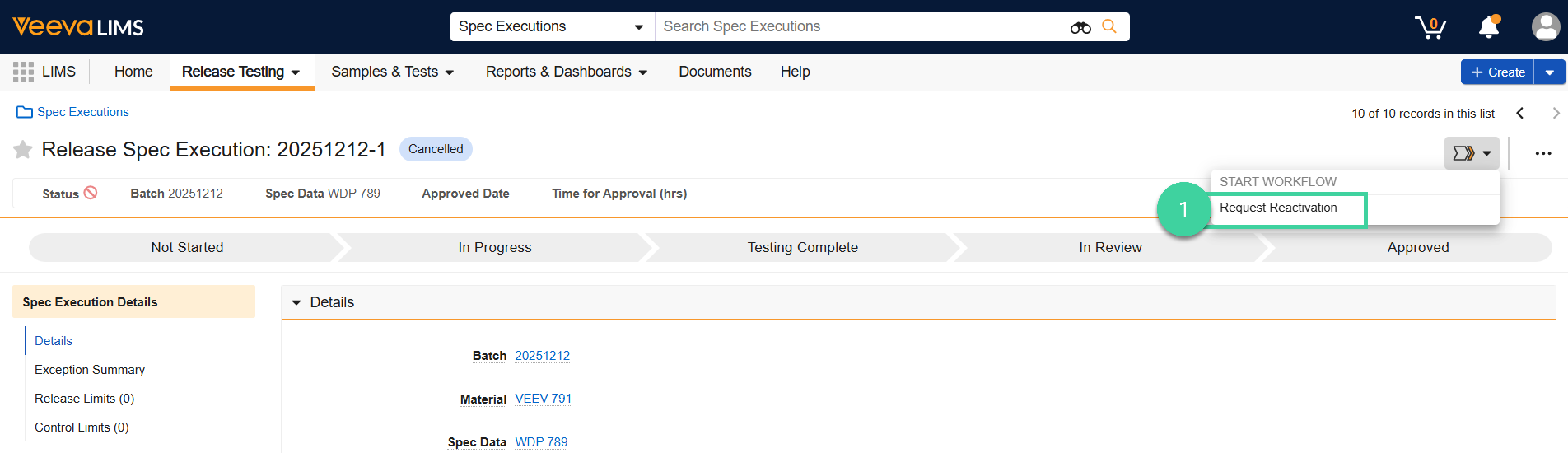
Open the Spec Execution record you want to reactivate and select Request Reactivation from the All Actions menu.
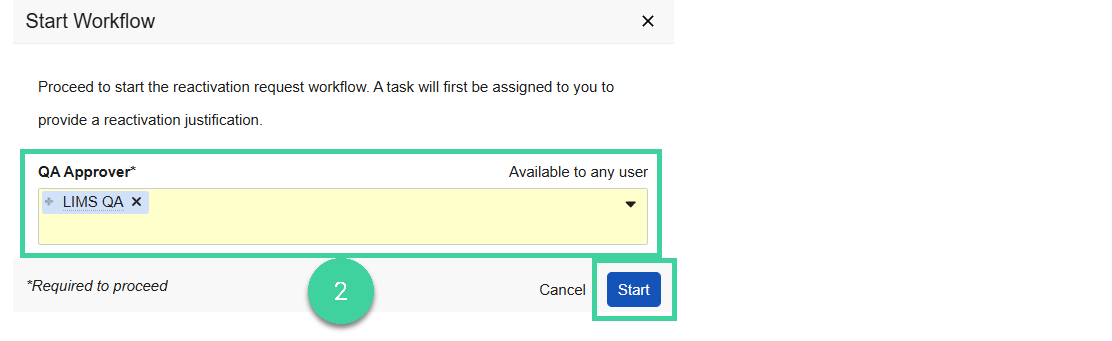
Select the reactivation approver(s) (can be an individual or a group). If you specify a group, only one person in that group will need to accept and complete the review and approval task. Click Start.
 Note
NoteThe person who completes the approval task is dependent on the type of the associated Spec Ex:
The task for reactivating a Release Spec Ex will be sent to QA.
The task for reactivating a Stability Spec Ex will be sent to the Stability Approver.
You will receive a task to provide a justification for reactivation. Click Complete to complete the task.
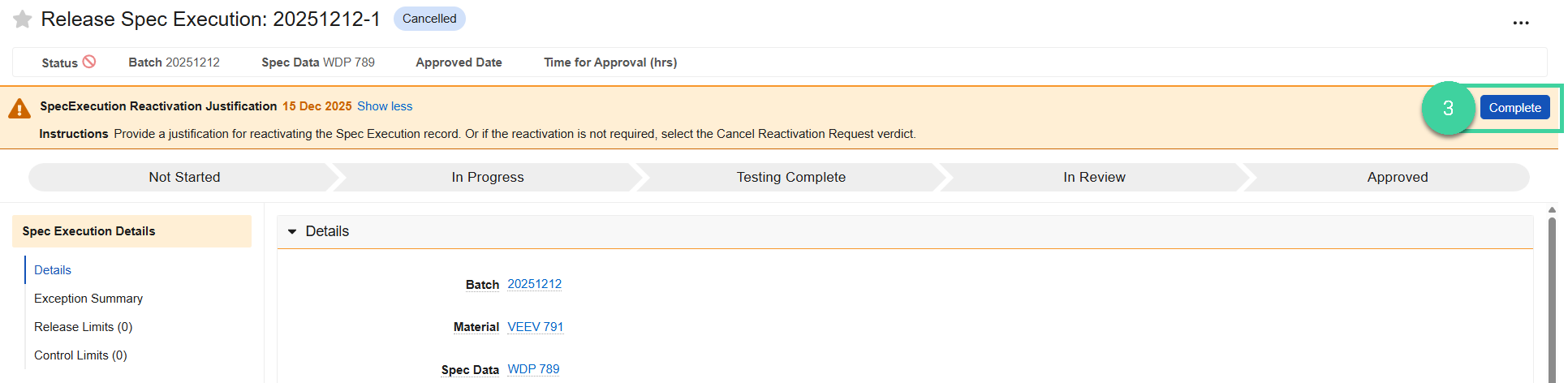
Provide your verdict.
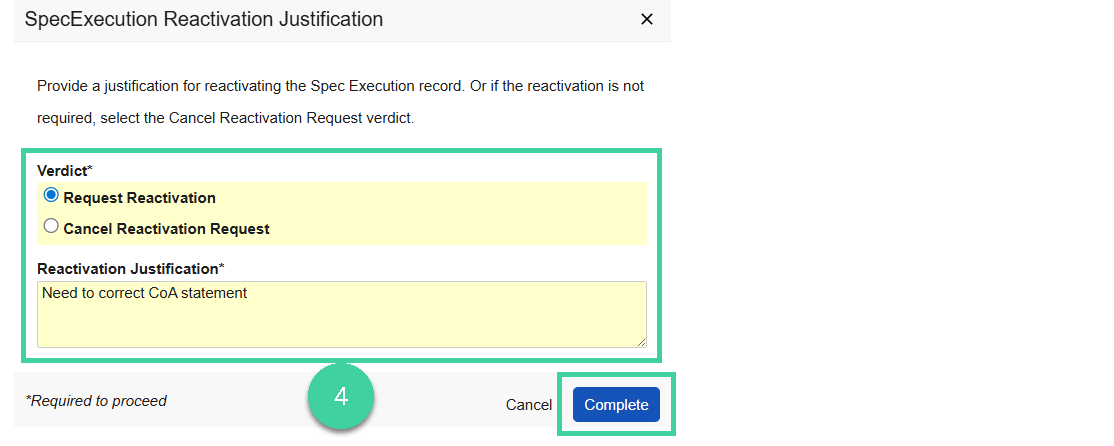
Select Request Reactivation, provide the Reactivation Justification and click Complete. A task will be sent to the reactivation approver(s).
Select Cancel Reactivation Request and click Complete if you don’t want to proceed with the reactivation of the spec ex.
Note
If you need to request reactivation on more than one record, you can do so by starting a multi-record workflow.
Sample
Reactivating a Sample will also reactivate the associated Spec Ex (if it is in a final state).
To request reactivation of a sample:
From the associated Spec Execution record, open the Samples section.
Hover your mouse over the sample you want to reactivate and select Request Reactivation from the Actions menu.
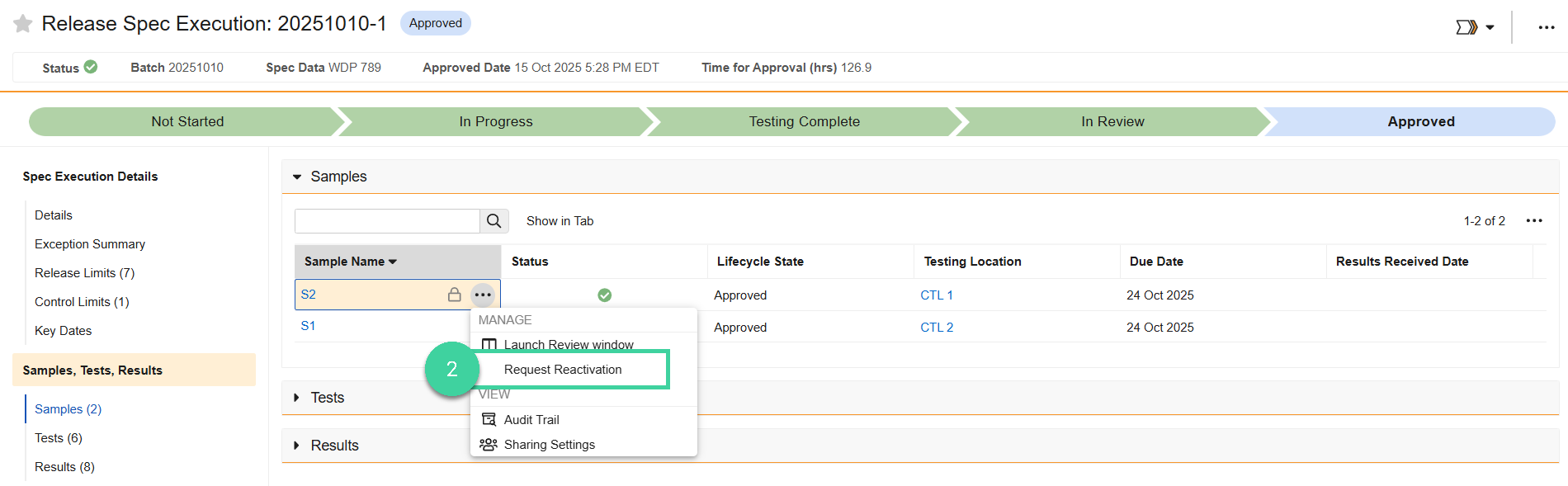
Select the reactivation approver(s) (can be an individual or a group). If you specify a group, only one person in that group will need to accept and complete the review and approval task. Click Start.
NoteThe person who completes the approval task is dependent on the type and state of the associated Spec Ex:
If the spec ex is final, the task for reactivating a sample or test for a Release Spec Ex will be sent to QA.
If the spec ex is final, the task for reactivating a sample or test for a Stability Spec Ex will be sent to Stability Approver.
If the spec is is not final, the task for reactivating a sample or test for either a Release Spec Ex or Stability Spec Ex will be sent to the Results Reviewer.
You will receive a task to provide a justification for reactivation. Click into the Sample. Click Complete to complete the task.
Provide your verdict.
Select Request Reactivation, provide the Reactivation Justification and click Complete. A task will be sent to the applicable Approver(s).
Select Cancel Reactivation Request and click Complete if you don’t want to proceed with the reactivation of the Sample and associated Spec Ex.
Note
If you need to request reactivation on more than one record, you can do so by starting a multi-record workflow.
Test
Reactivating a Test will also reactivate the associated Sample and Spec Ex (if either is in a final state).
To request reactivation a test:
From the associated Spec Execution record, open the Tests section.
Hover your mouse over the test you want to reactivate and select Request Reactivation from the All Actions menu.
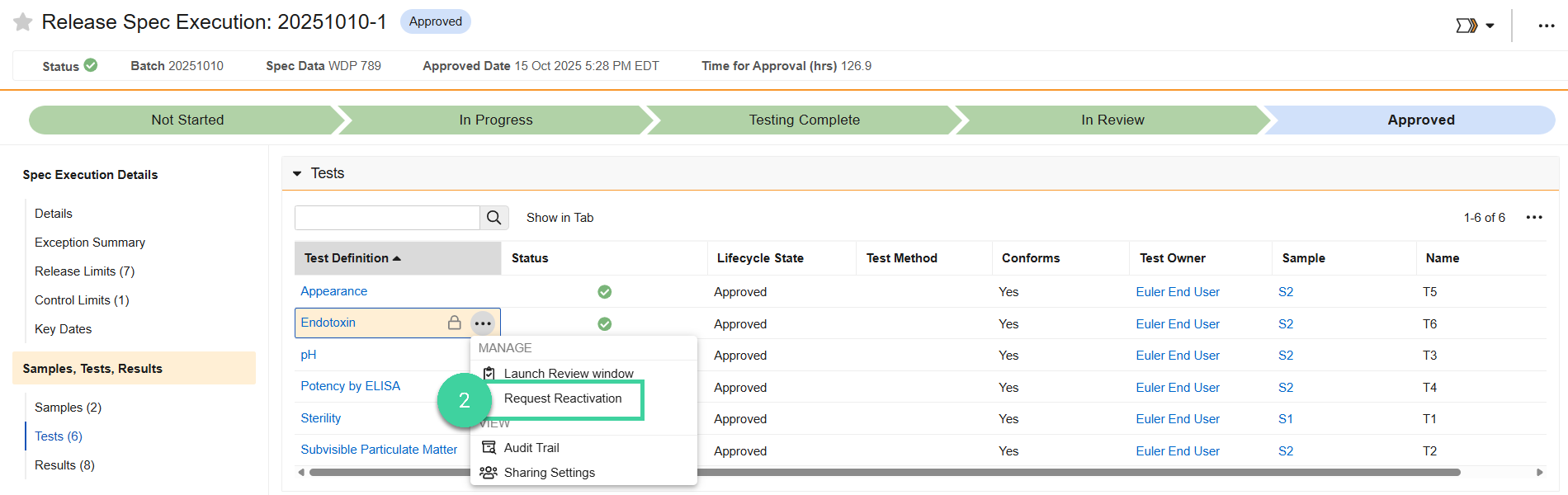
Select the reactivation approver(s) (can be an individual or a group). If you specify a group, only one person in that group will need to accept and complete the review and approval task. Click Start.
NoteThe person who completes the approval task is dependent on the type and state of the associated Spec Ex:
If the spec ex is final, the task for reactivating a sample or test for a Release Spec Ex will be sent to QA.
If the spec ex is final, the task for reactivating a sample or test for a Stability Spec Ex will be sent to Stability Approver.
If the spec is is not final, the task for reactivating a sample or test for either a Release Spec Ex or Stability Spec Ex will be sent to the Results Reviewer.
You will receive a task to provide a justification for reactivation. Click into the Test. Click Complete to complete the task.
Provide your verdict.
Select Request Reactivation, provide the Reactivation Justification and click Complete. A task will be sent to the applicable Approver(s).
Select Cancel Reactivation Request and click Complete if you don’t want to proceed with the reactivation of the Test and associated Sample and Spec Ex.
Note
If you need to request reactivation on more than one record, you can do so by starting a multi-record workflow.
Approve a Reactivation Request
Who can complete this task?
Veeva LIMS Basics: QA User, Results Reviewer, Stability Approver
Note
The person who completes the approval task is dependent on the type and state of the associated Spec Ex:
If the spec ex is final, the task for reactivating a sample or test for a Release Spec Ex will be sent to QA.
If the spec ex is final, the task for reactivating a sample or test for a Stability Spec Ex will be sent to Stability Approver.
If the spec is is not final, the task for reactivating a sample or test for either a Release Spec Ex or Stability Spec Ex will be sent to the Results Reviewer.
When reactivation is requested for a spec ex, sample, or test, a task is sent to the specified reactivation approver(s). Click the task link.

The task may have been sent to more than one person but only one person needs to complete it. Click Accept to accept the task.

Navigate to the Workflow Timeline and review the Reactivation Justification to decide if you will approve the request or not.
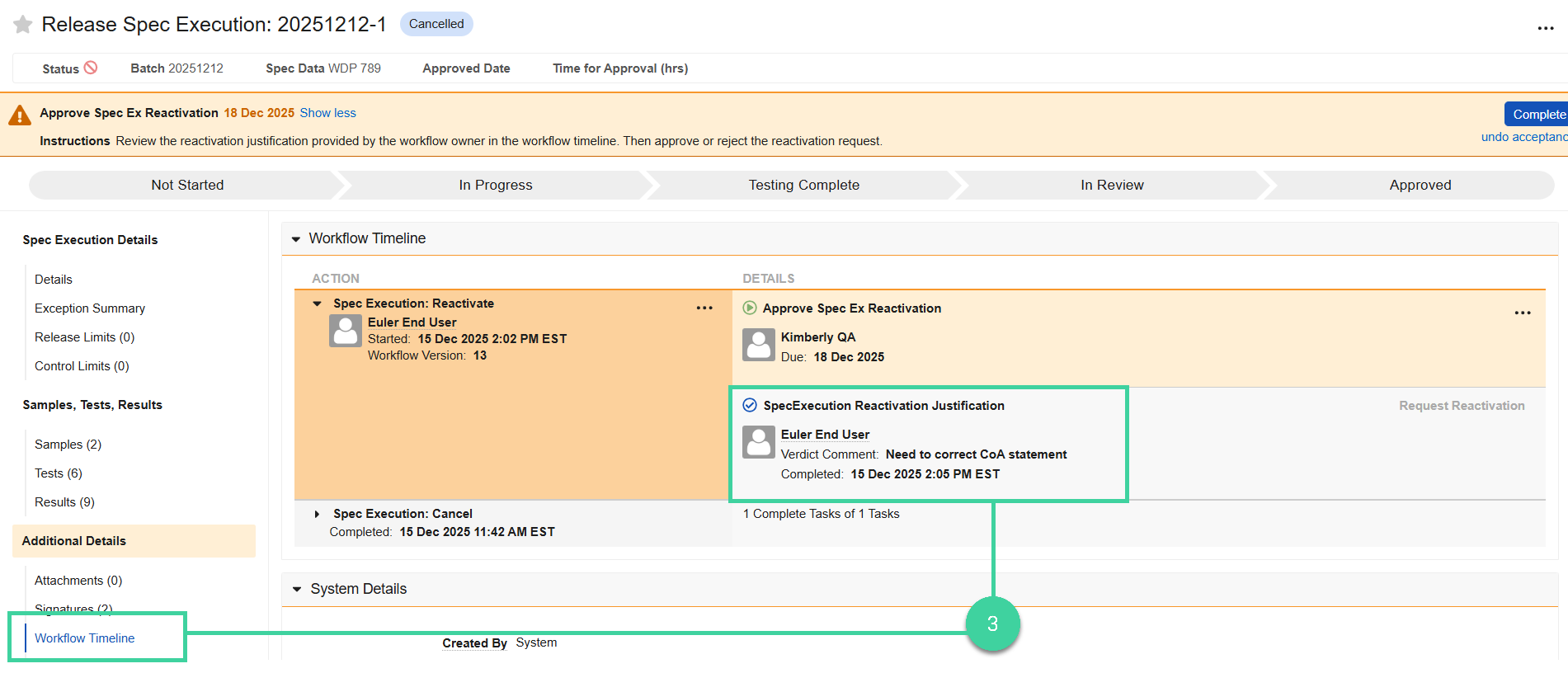
Click Complete to complete the task.

Provide your verdict.
Select Reject Reactivation if the spec ex, sample, or test should not be reactivated. Provide the Reason for Rejection and click Complete.
Select Approve Reactivation to reactivate the spec ex, sample, or test. Provide your e-signature, and click Complete. If approved, the reactivated record(s) return to the state they were in prior to reaching their final state (e.g., Not Started, Testing Complete, In Progress).
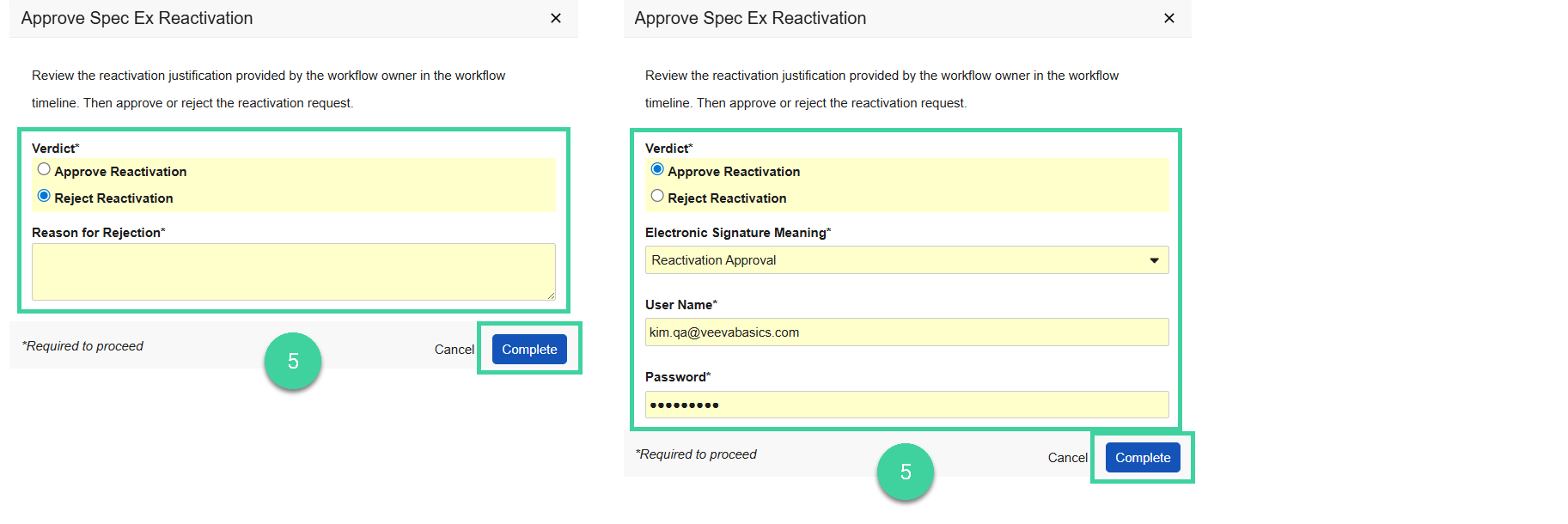
If a test was reactivated and requires edits, refer to Reopen & Edit a Completed Test.