

Reactivate a Stability Study
Last updated: Apr 17, 2026
There may be times when you need to reactivate a completed stability study, for example, if an edit to the stability study report is required.
Note
Reactivating a study will not affect any of the timepoint spec execution records and their related records (samples, tests, results, etc); if changes are needed for any of these records, you can reactivate the record.
Request Study Reactivation
Who can complete this task?
Any LIMS Basics user
To request reactivation of a stability study:
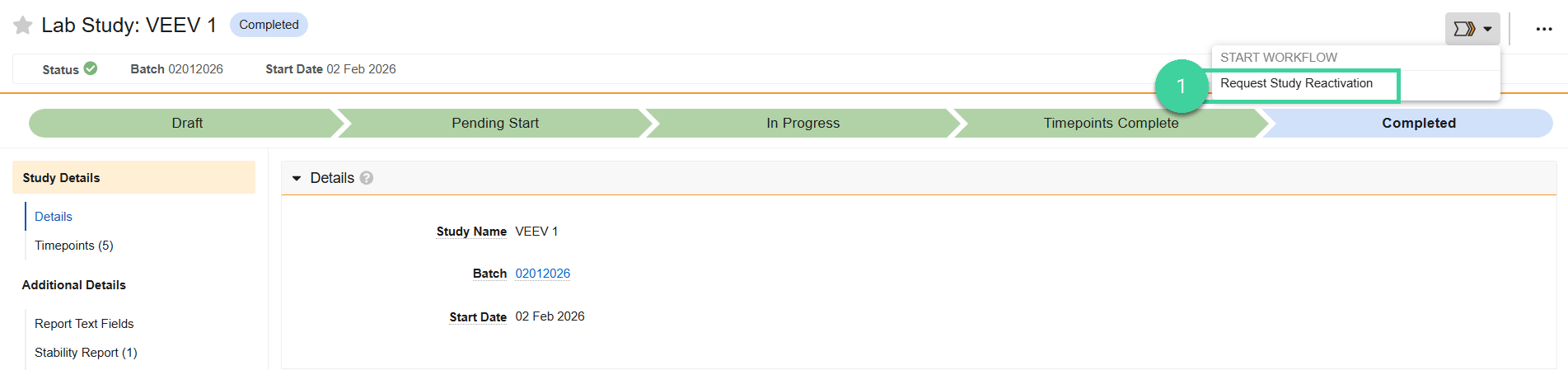
Open the Study record you want to reactivate and select Request Study Reactivation from the Workflow menu.
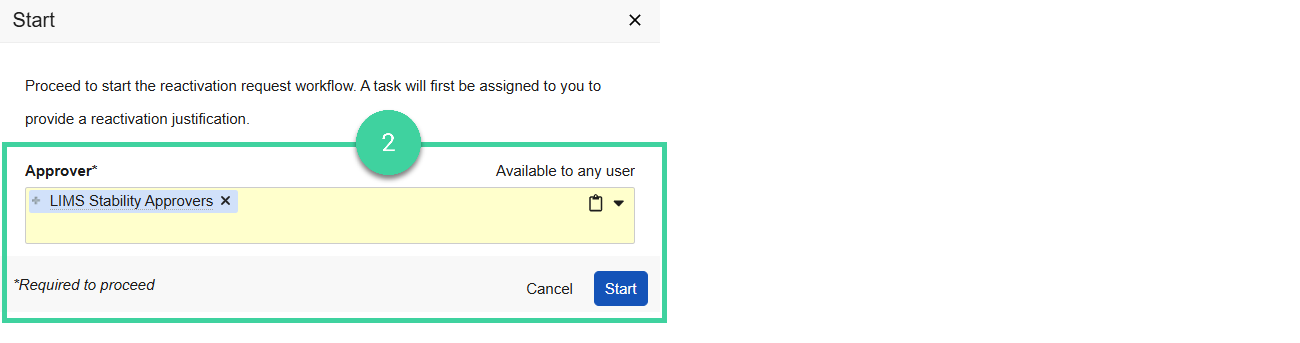
Select the Approver (can be an individual or a group). If you specify a group, only one person in that group will need to accept and complete the review and approval task. Click Start.
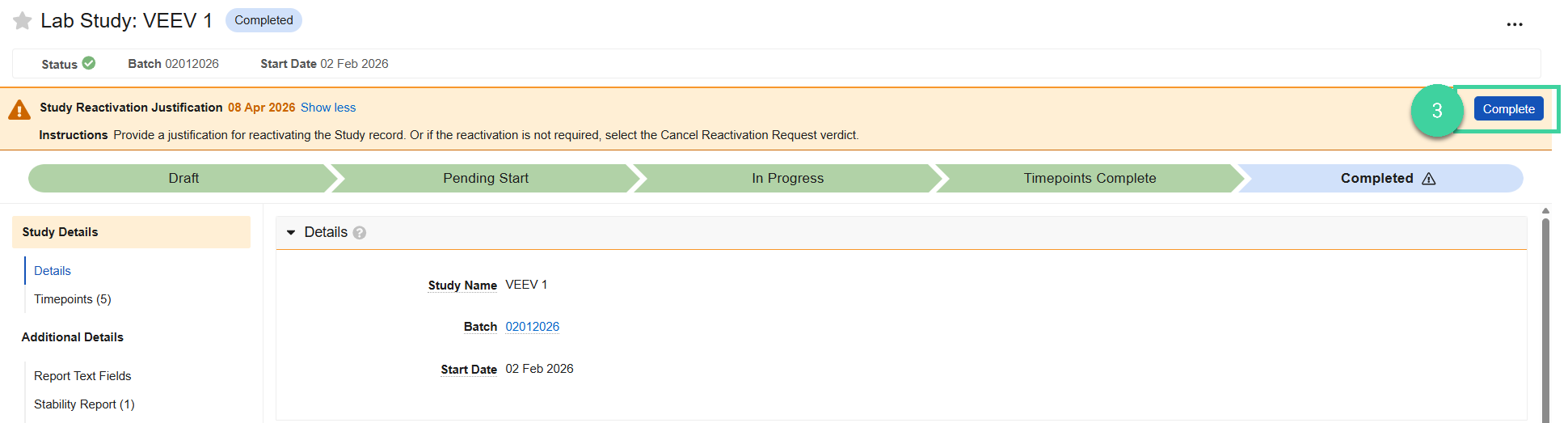
You will receive a task to provide a justification for reactivation. Click Complete to complete the task.
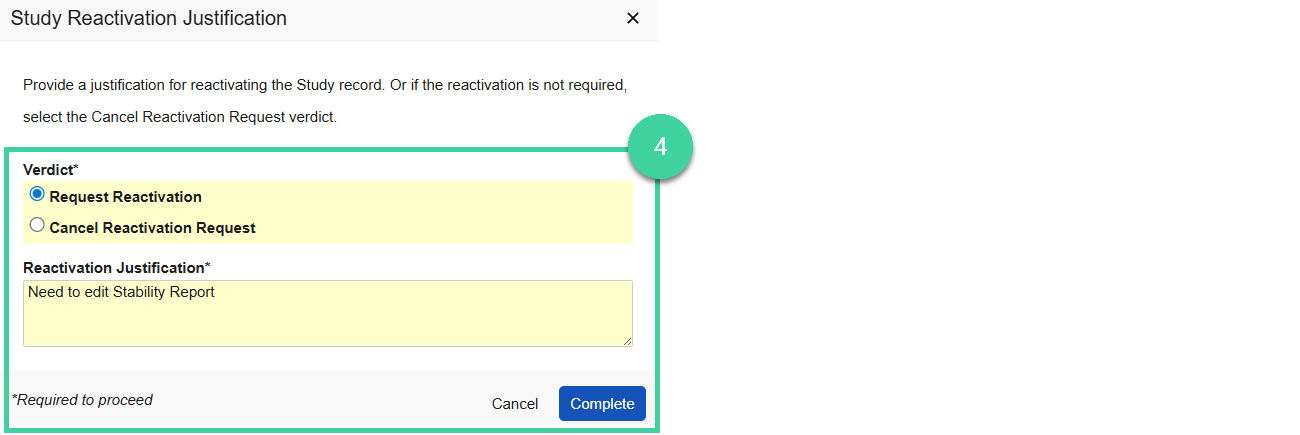
Provide your verdict.
Select Request Reactivation, provide the Reactivation Justification and click Complete. A task will be sent to the Approver(s).
Select Cancel Reactivation Request and click Complete if you don’t want to proceed with the reactivation of the study.
Approve Study Reactivation
Who can complete this task?
Veeva LIMS Basics Stability Approver
To approve reactivation of a stability study:
When reactivation is requested for a stability study, a task is sent to the specified approver(s). Click the task link.

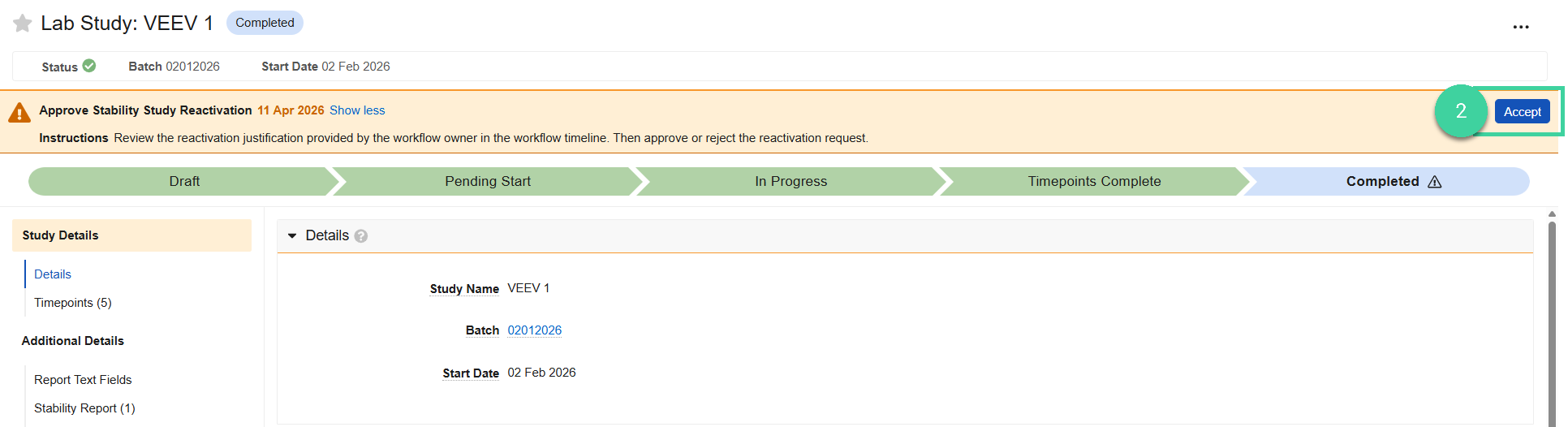
If the task was sent to a group for approval, click Accept to accept the task. Only one person needs to accept it.
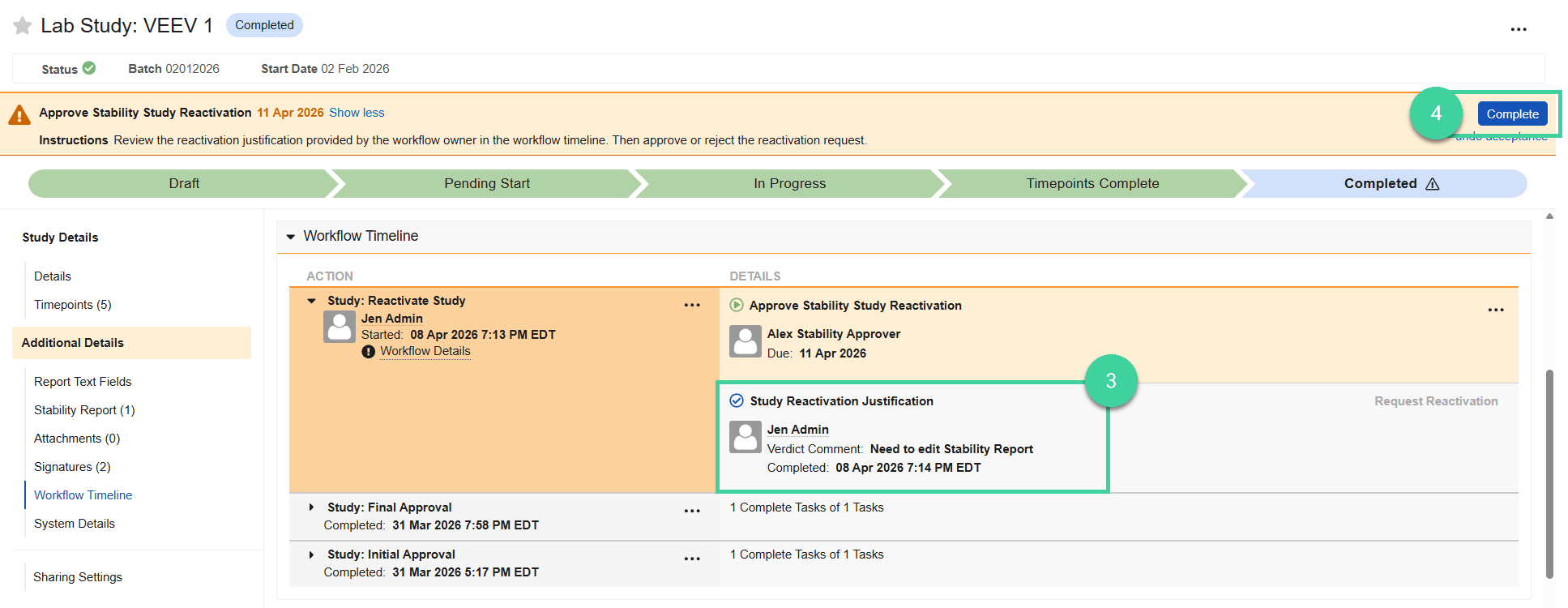
Expand the workflow timeline section and review the reactivation justification comment.
Click Complete.
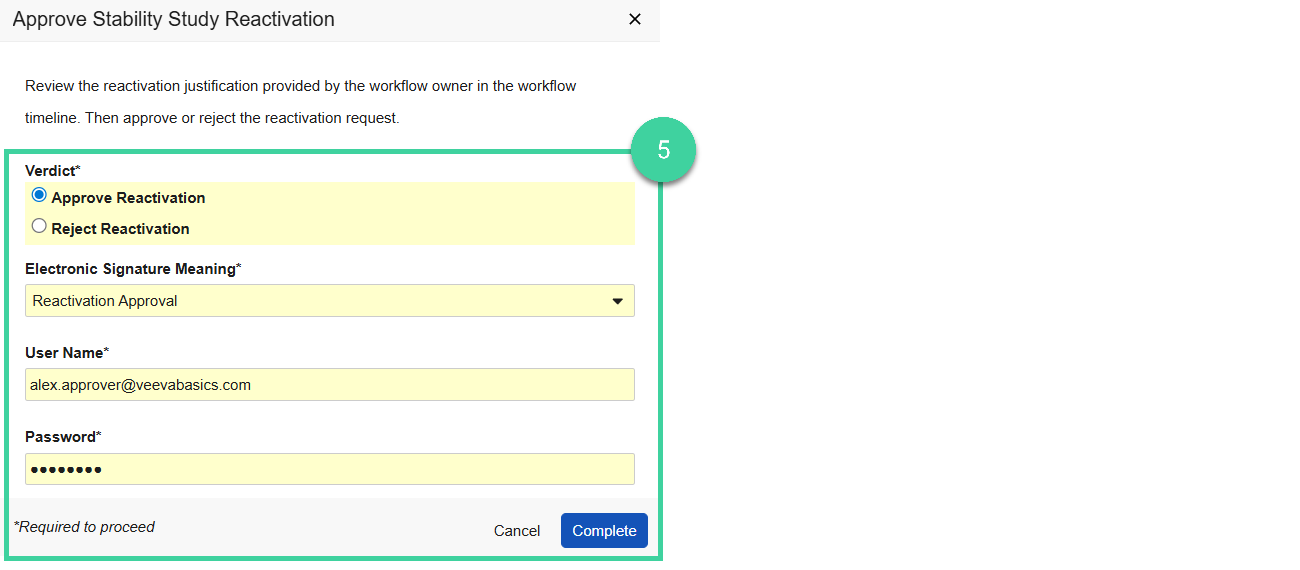
Provide your verdict.
Select Reject Reactivation if the study should not be reactivated. Provide the Reason for Rejection and click Complete.
Select Approve Reactivation to reactivate the study. Provide your e-signature, and click Complete. If approved, the reactivated study will move to the Timepoints Complete state.
If updates are required to the stability report, refer here for more details.