

Revise a Stability Study
Last updated: Apr 17, 2026
Initiated Study
You can revise a study after it has been initiated while it’s in the In Progress or Timepoints Complete state, for example, to add additional timepoints.
Best Practice
While a study is being revised, no timepoints will be initiated. Spec Data updates can be made at any point (e.g., even when a study is not in revision), however, if a Spec Data update is required for a timepoint that is scheduled to be initiated before the Spec Data update will be completed, we recommend that you start revisions on the study so that the affected timepoint(s) are not initiated.
Revise an Initiated Study
Who can complete this task?
Veeva LIMS Basics: Stability Design & Study Admin
To revise an initiated study:
Open the study record you want to revise and select Start Revisions (if the study is In Progress) or Start Revisions: Add Timepoint(s) (if the study is in Timepoints Complete) from the Workflow menu.

Click Start. The study moves to the In Revision state. Timepoints can be added and non-initiated timepoints can be edited.

Make the necessary changes to the study.
Send Study Revisions for Review
Who can complete this task?
Veeva LIMS Basics Stability Design & Study Admin
After the revisions are complete, you will need to send the study revisions for review.
To send study revisions for review:
From the revised study record, select Send for Revision Approval from the Workflow menu.

Select the Approver (can be an individual or a group). If you specify a group, only one person in that group will need to accept and complete the review and approval task.
Click Start.
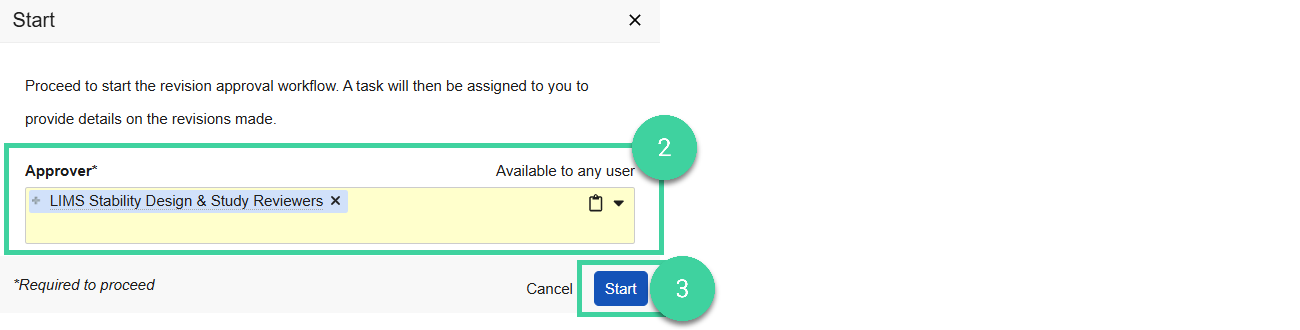
You will receive a task to enter study revision details. Click Complete to complete the task.

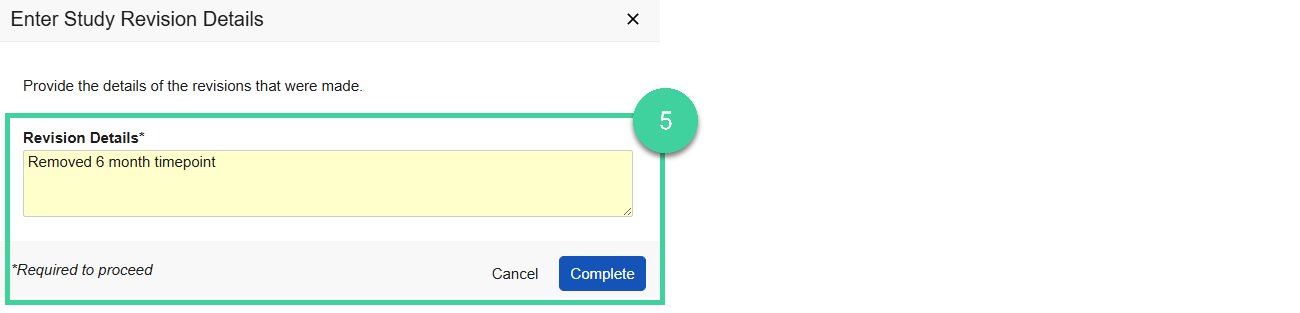
Enter revision details (e.g., summarize the changes you made) and click Complete.
Review/Approve Study Revisions
Who can complete this task?
Veeva LIMS Basics Stability Design & Study Reviewer
To review and approve study revisions:
When the Stability Design & Study Admin starts the study revision approval workflow, a task is sent to the specified approver(s). Click the task link.

If the study record was sent to a group for approval, click Accept to accept the task. Only one person needs to accept it.

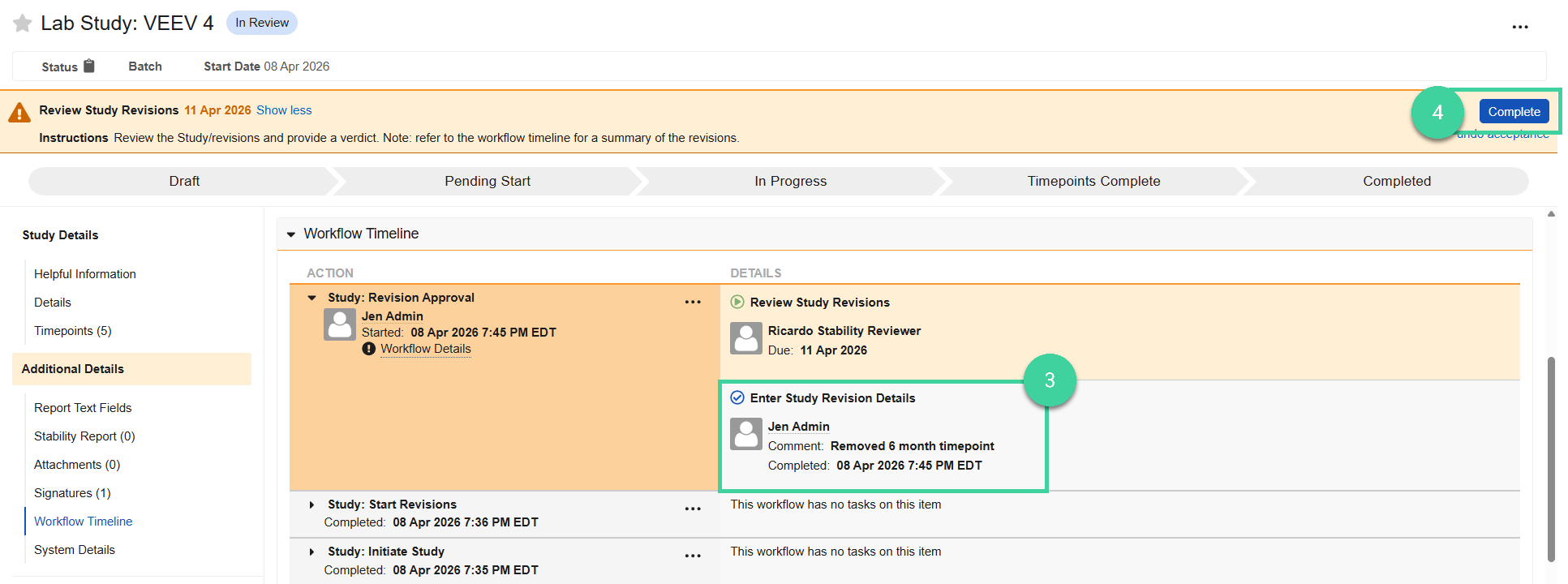
Expand the Workflow Timeline section and review the study revision details comment made by the Stability Design & Study Admin. Review the study fields and timepoints.
When your review is finished, click Complete.
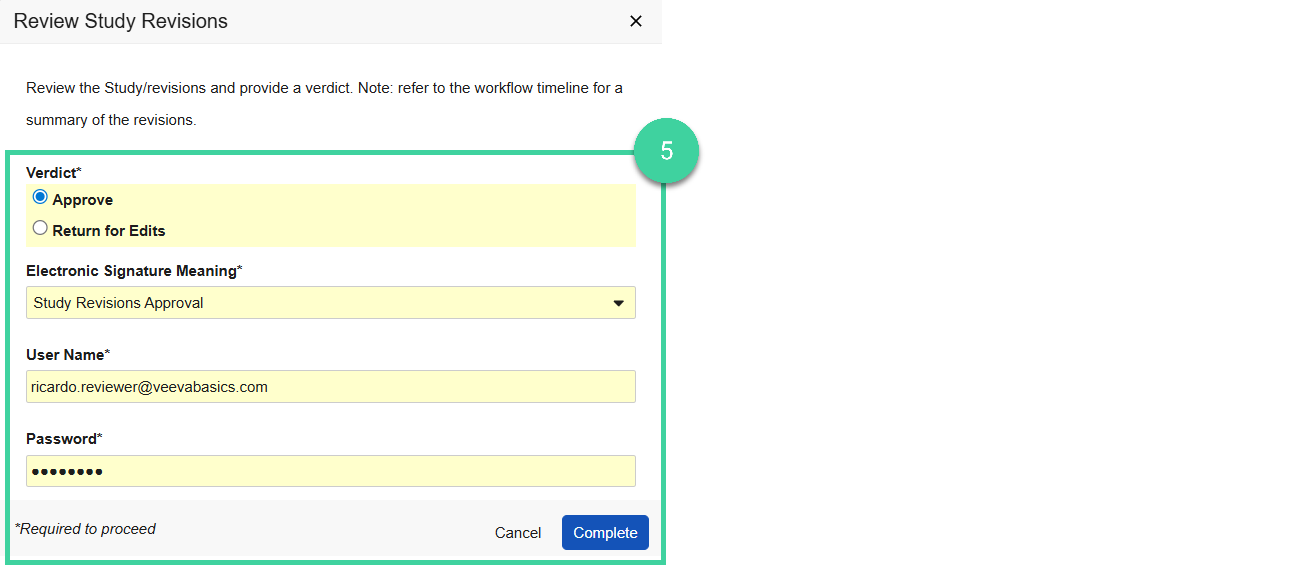
Provide your verdict.
If changes are required, select Return for Edits. Enter the Reason for return and click Complete. The study record will be returned to the Stability Design & Study Admin user to make updates and, when ready, send for approval again.
Select Approve to approve the study revisions. Provide your e-signature, and click Complete. The study moves to In Progress.
Non-Initiated Study
Who can complete this task?
Veeva LIMS Basics Stability Design & Study Admin
Revise a Non-Initiated Study
When a stability study has been initially approved but not yet initiated, if edits are required (e.g., add a timepoint, remove a timepoint) the study can be sent back to the draft state.
To send a study back to the draft state:
Open the study record you want to revise and select Start Revisions from the All Actions menu.
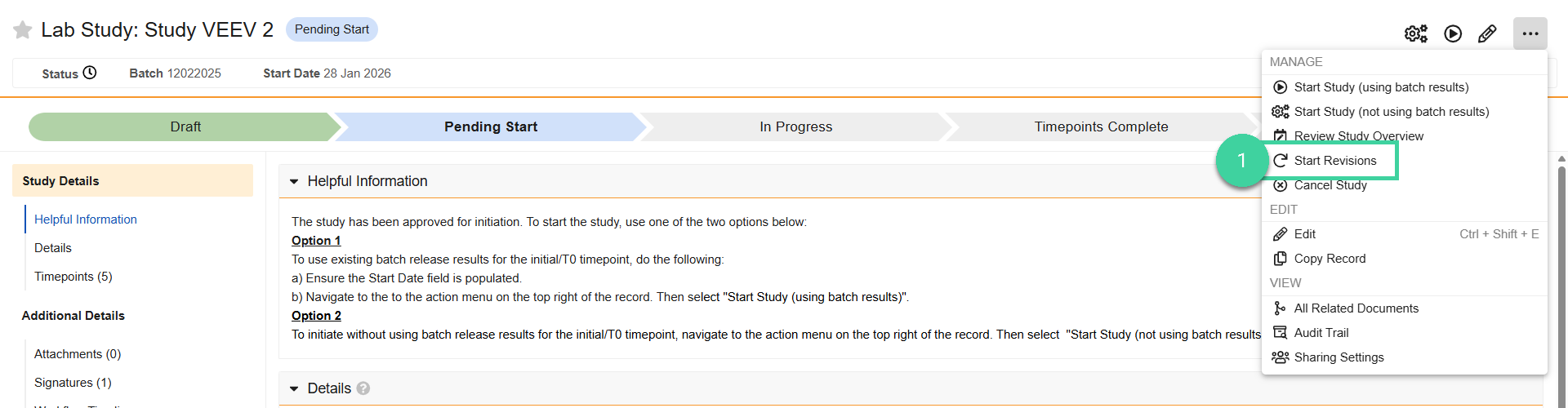
Click Start. The study moves to the in Draft state. Timepoints can be added, removed, or edited.

Once revisions are complete, start the study initial approval workflow. Or if the study is no longer required, it can be cancelled.