Create Scientific Communication Platform
Last updated: Apr 17, 2026
Who can complete this task?
Veeva MedComms Basics: Vault Admin, Medical Admin, Full-User
The Scientific Communication Platform (SCP) is a strategic resource used to drive internal alignment and ensure accuracy and consistency in how scientific data are communicated externally and follows a specific data model to organize the scientific information:
- The Platform: The overarching container for the product’s communication strategy.
- Pillars: High-level overarching themes, such as “Safety and Tolerability”
- Communication Objectives: A set of key messages that explain a desired strategic outcome.
- Scientific Statements: The specific, data-backed text that support the objective.
- References: Documents such as journal articles or publications used to substantiate the scientific statements.
Communication Platform
To create a communication platform:
In the Content Workspace, navigate to Communication Platforms from the Scientific Communications dropdown menu.

Click Create.

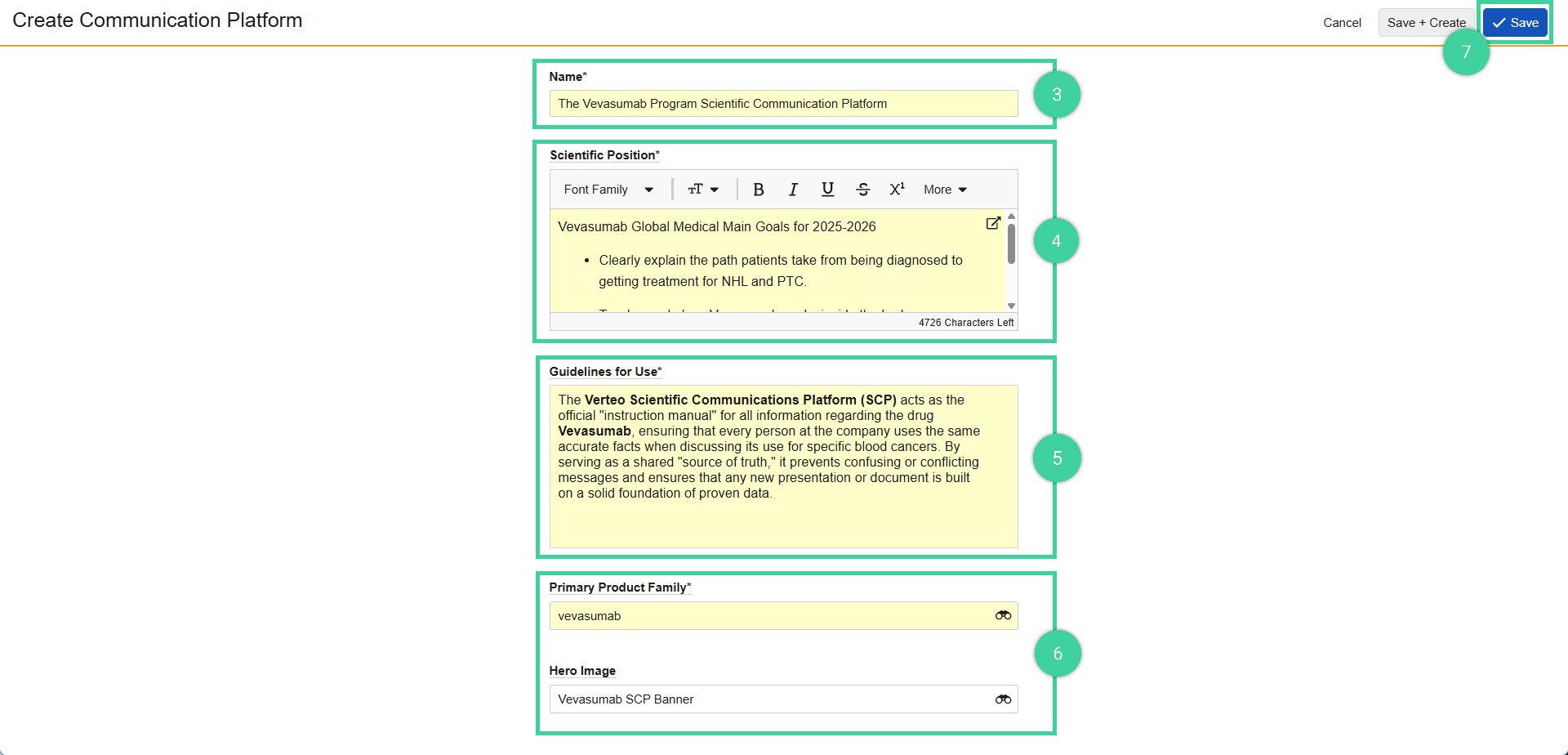
Enter the Name of the communication platform.
Enter the Scientific Position. This is the summary of the scientific narrative for the platform.
Enter the Guidelines for Use. This servers as instructions for the platform authors ands readers on its use.
Add the Primary Product Family related to the communication platform. Optionally add a Hero Image that will be displayed as the banner of the platform.
Click Save.
Pillars
In the Content Workspace, navigate to Communication Platforms from the Scientific Communications dropdown menu.
Select an existing communication platform.
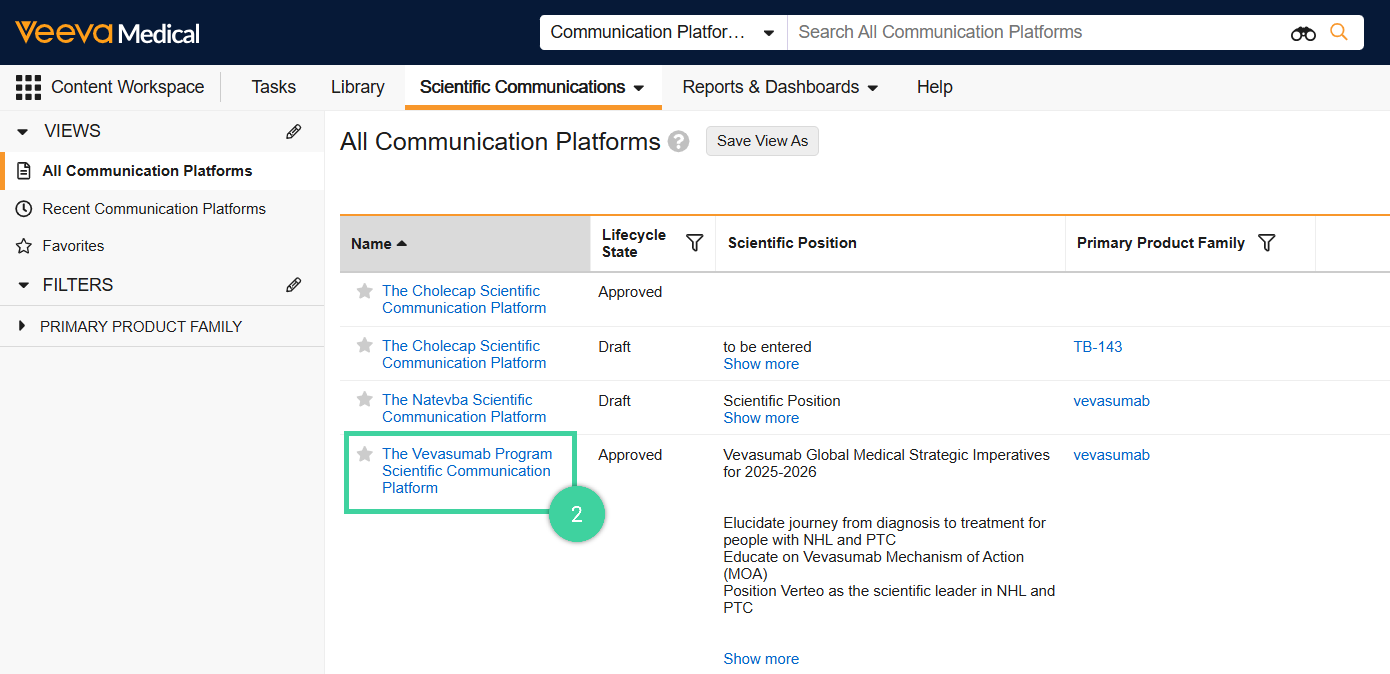
Click + Pillar.

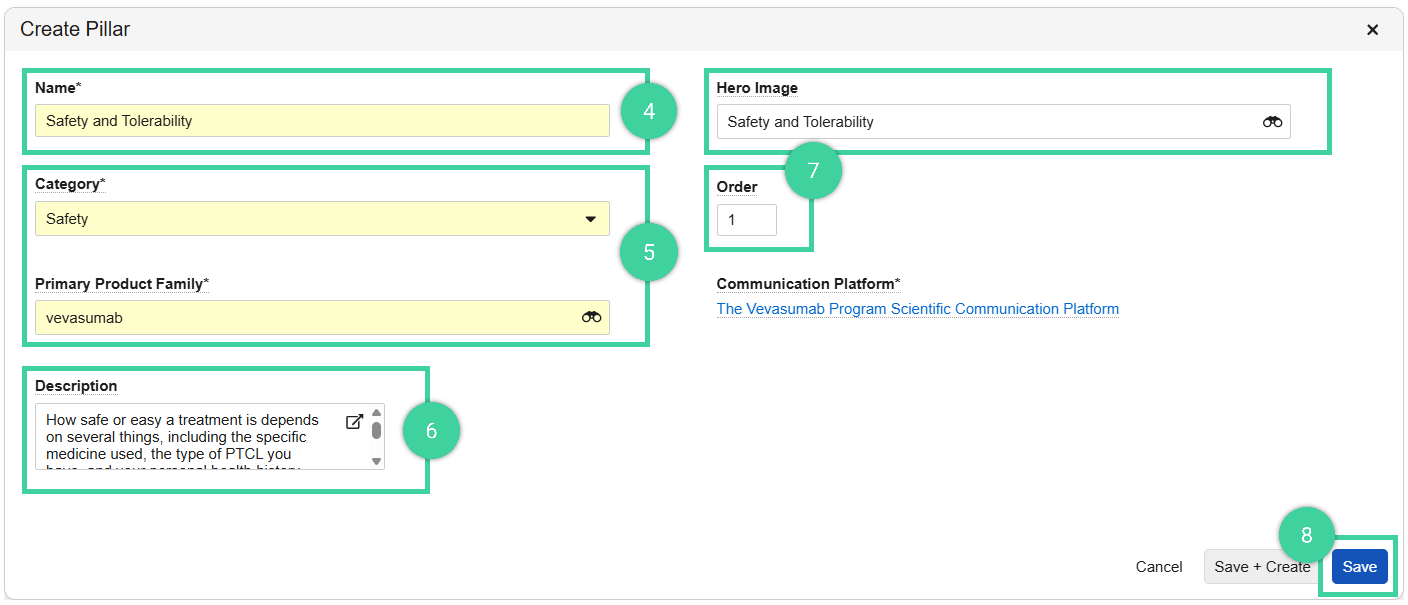
Enter the Name of the pillar.
Set the Category and Primary Product Family.
Optionally add a Description that will be displayed when the pillar is viewed.
Optionally set a Hero Image and display Order of the pillar.
Click Save.
Communication Objectives
In the Content Workspace, navigate to Communication Platforms from the Scientific Communications dropdown menu.
Select an existing communication platform.
Navigate to the Pillars Tab and click + Communication Objective.
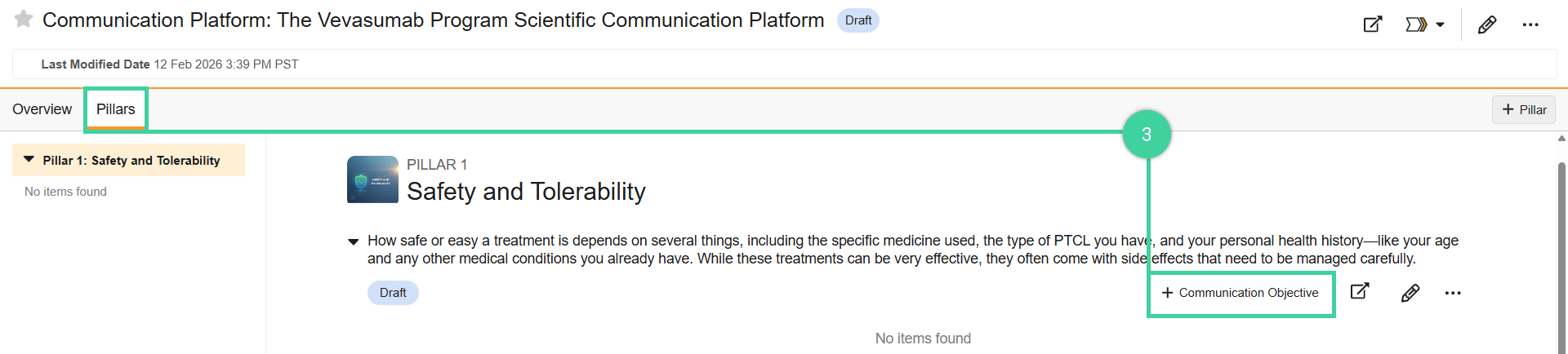
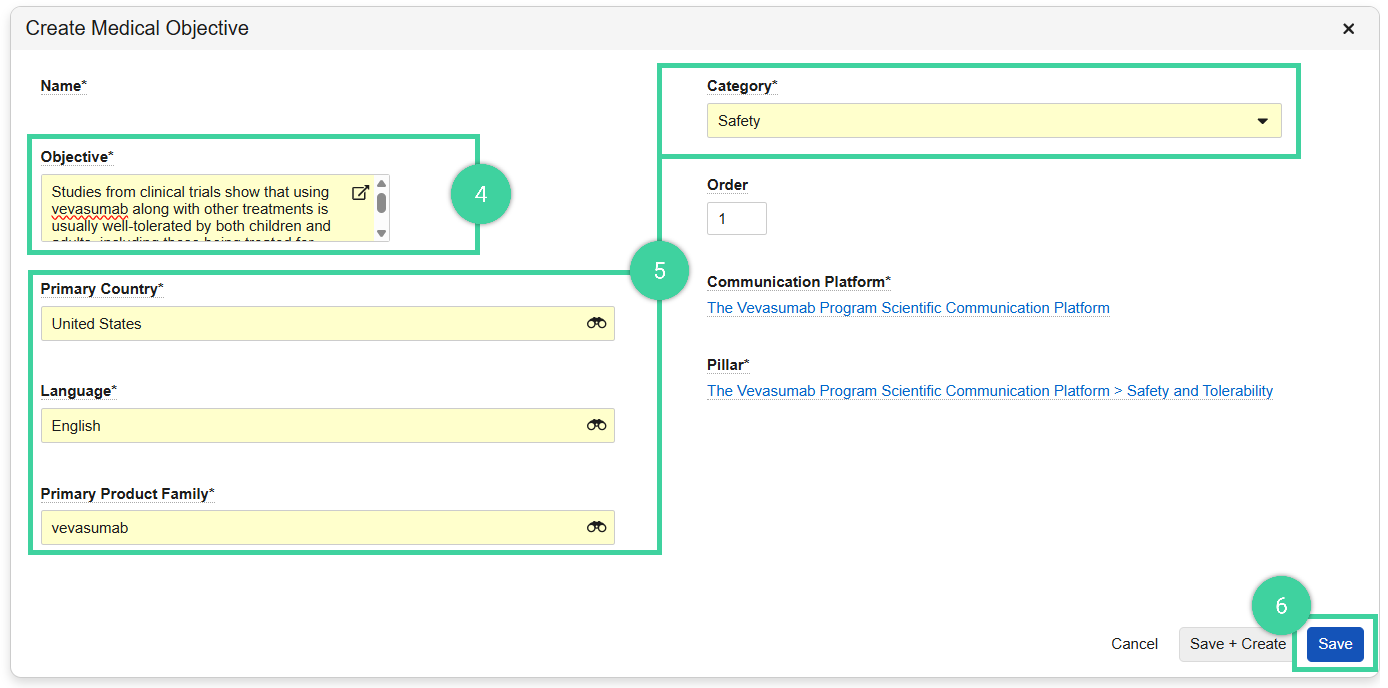
Enter the Objective. This is the objectives statement and will be displayed when viewing the objectives.
Set the Primary Country, Language, Primary Product Family, and Category. Optionally, set the display Order of the communication objective.
Click Save.
Scientific Statements
In the Content Workspace, navigate to Communication Platforms from the Scientific Communications dropdown menu.
Select an existing communication platform.
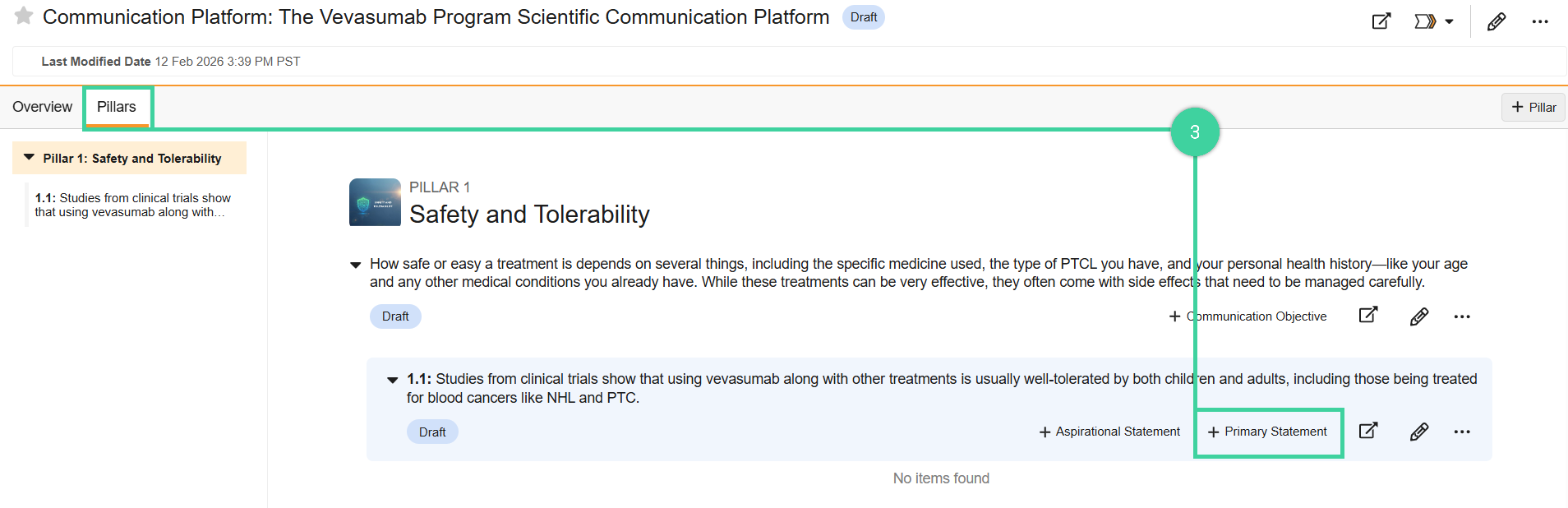
Navigate to the Pillars Tab and click + Primary Statement.
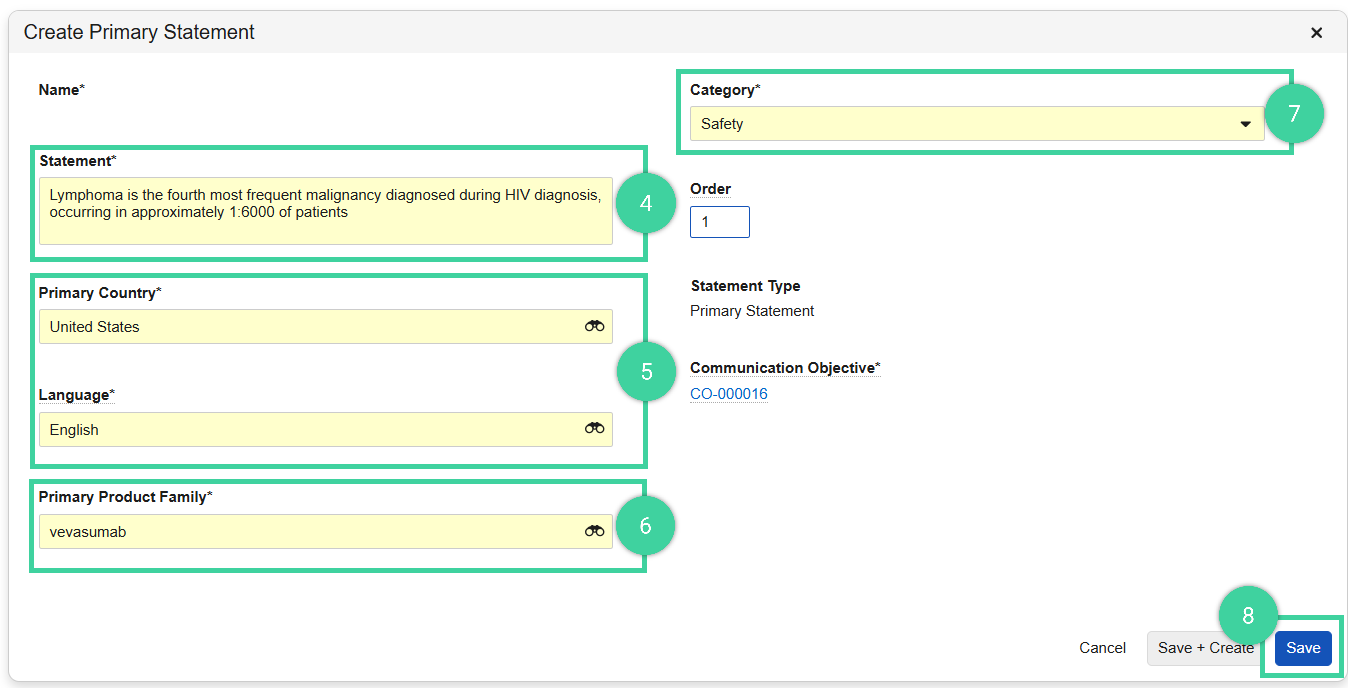
Enter the Statement primary description.
Select the Primary Country and Language.
Select the Primary Product Family.
Enter the scientific statement’s Category.
Click Save.
References
In the Content Workspace, navigate to Communication Platforms from the Scientific Communications dropdown menu.
Select an existing communication platform.
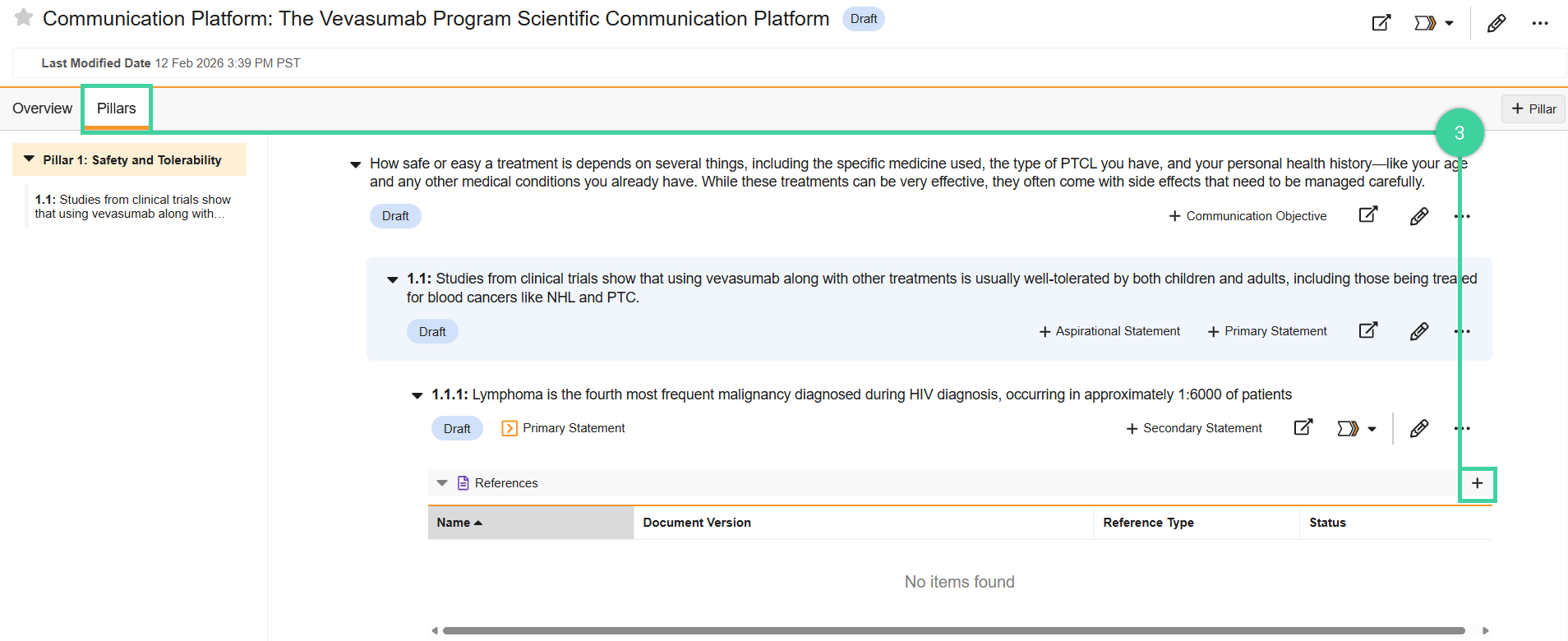
Navigate to the Pillars Tab. On the References section under a scientific statement, click +.
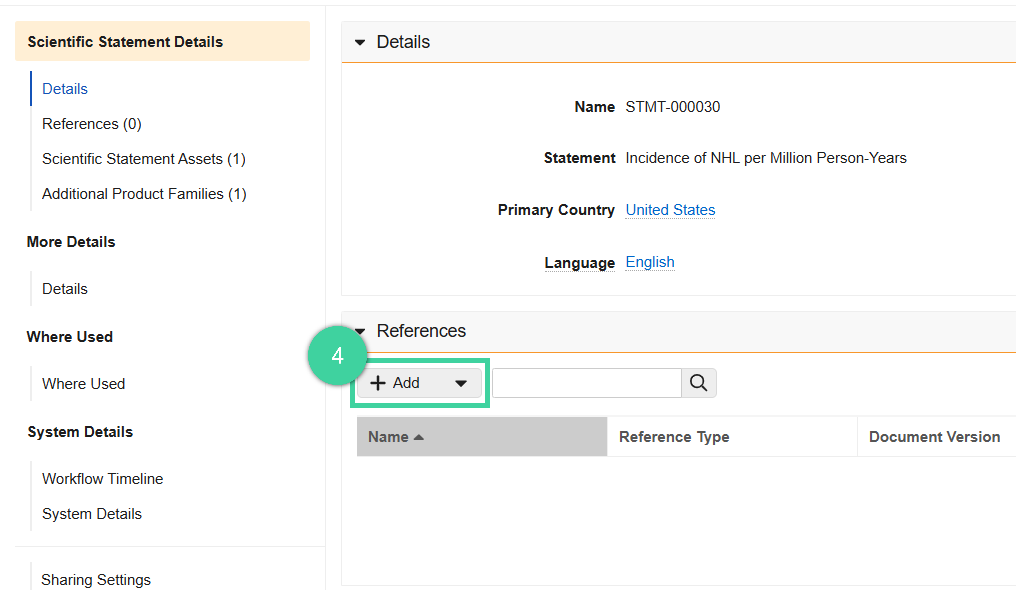
Click Add located under the References section.
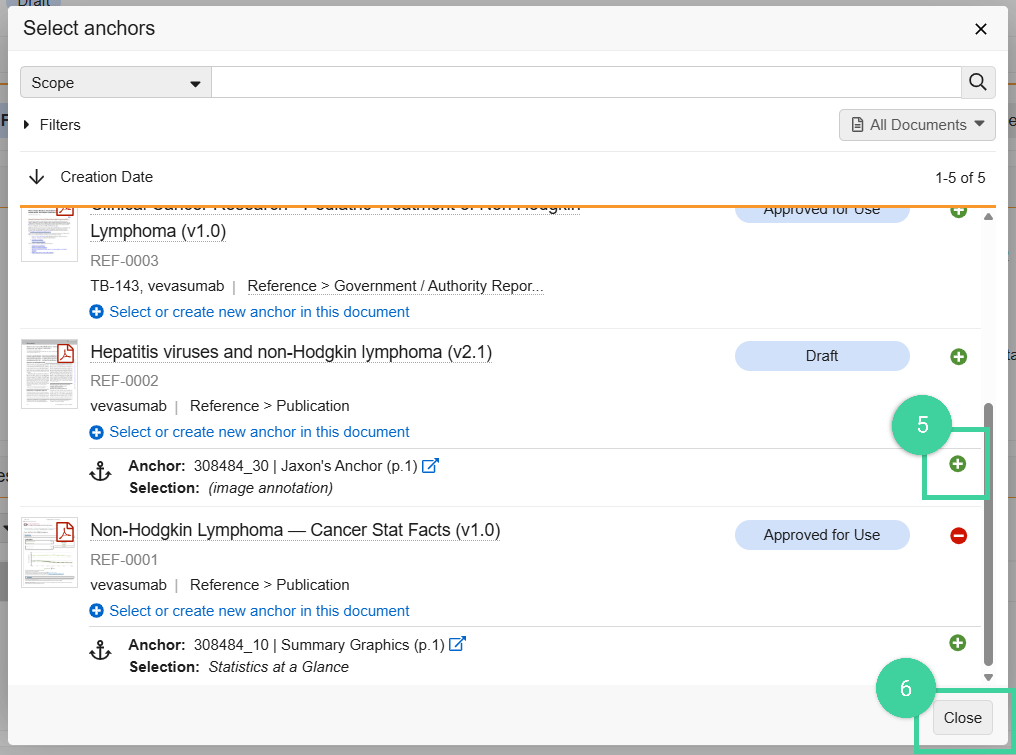
Select one or more anchors by clicking the Add Icon.
Click Close.
Scientific Statement Assets
In the Content Workspace, navigate to Communication Platforms from the Scientific Communications dropdown menu.
Select an existing communication platform.
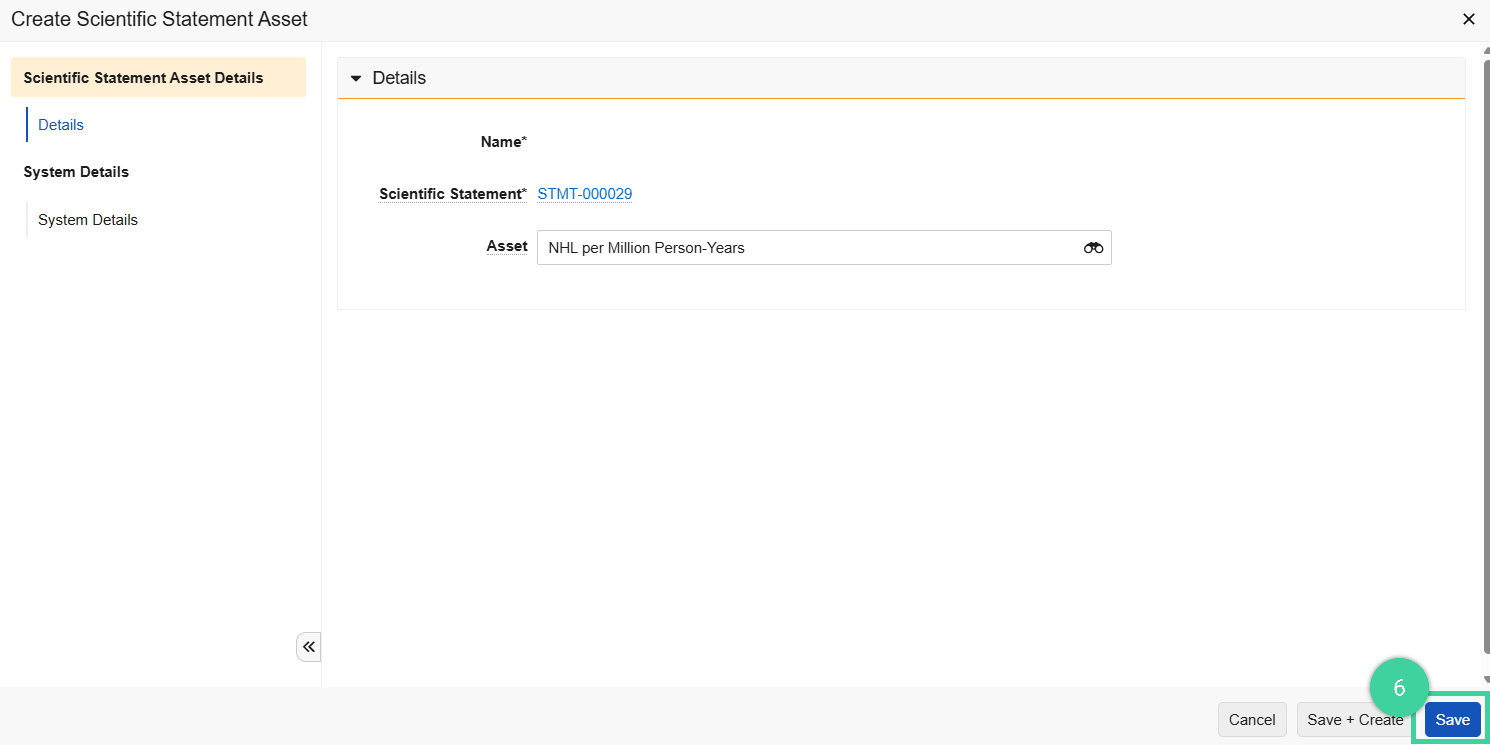
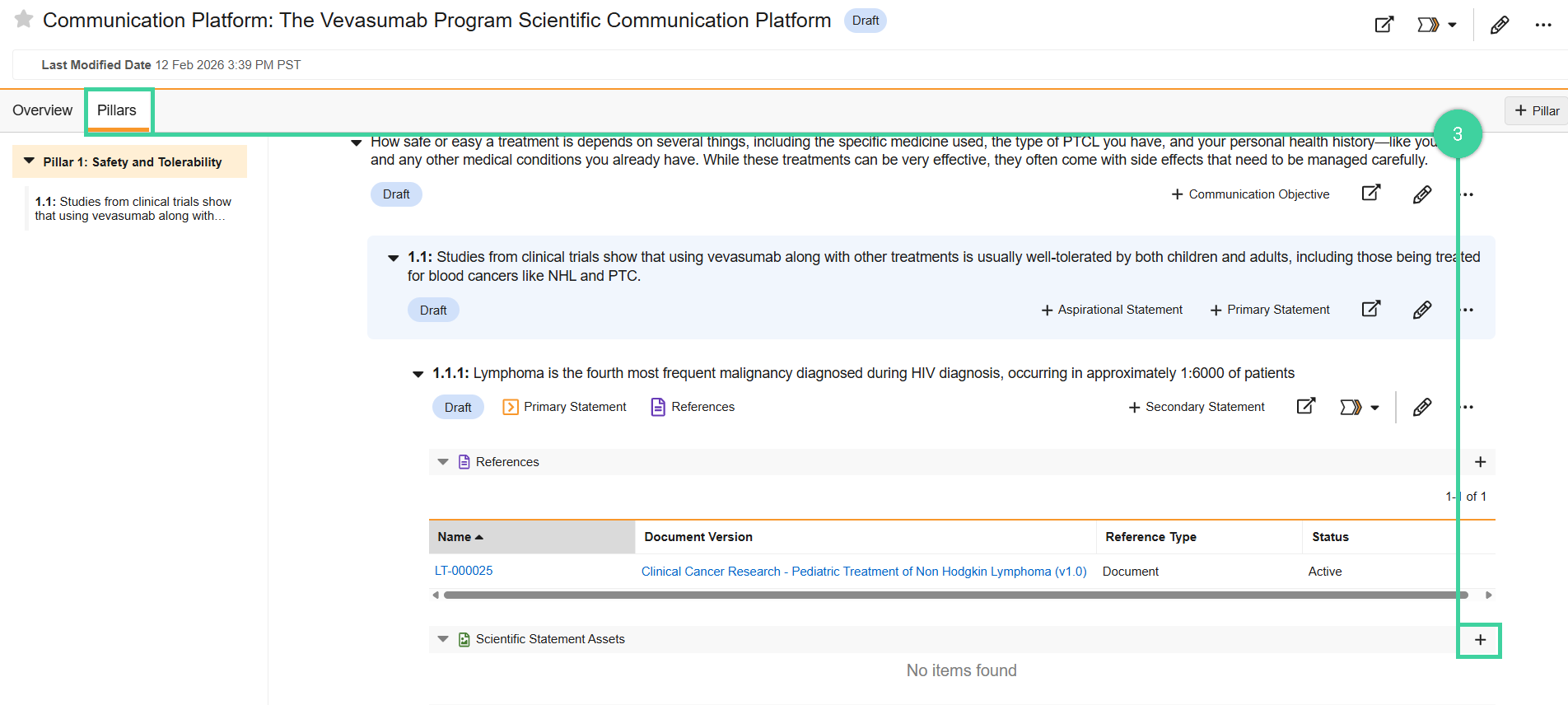
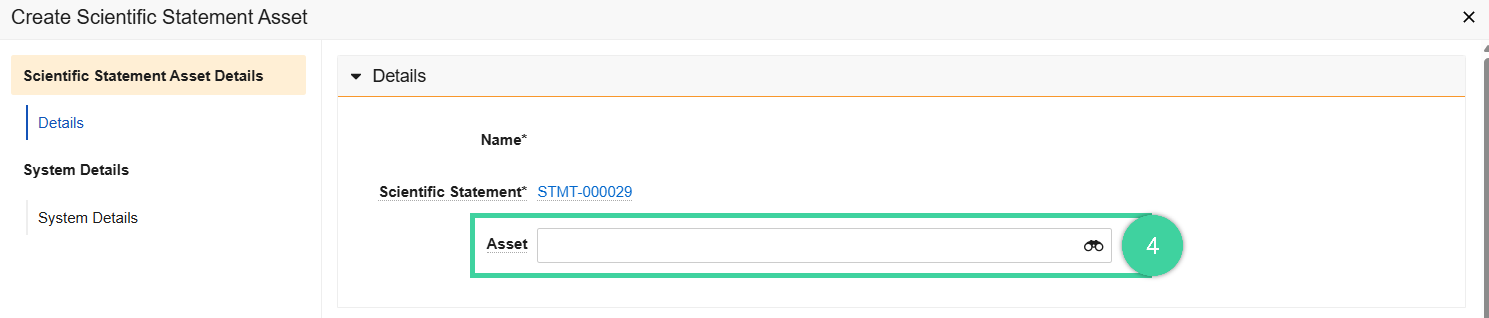
Navigate to the Pillars Tab. On the Scientific Statement Assets section under a scientific statement, click +.
Click Asset finder.
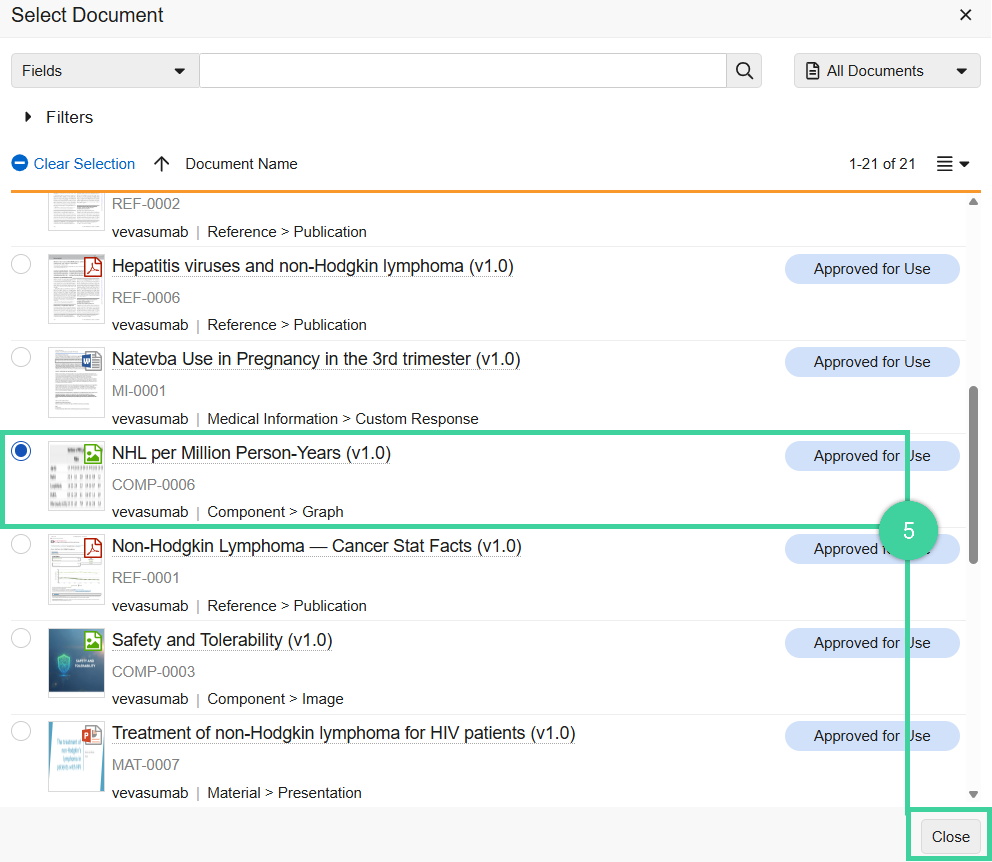
Select a statement component in the list. Click Close.
Click Save.