Change Country Settings
Last updated: Apr 17, 2026
Who can complete this task?
Veeva PromoMats Basics: Vault Admin, Medical Admin
Country Settings enable you to make country-specific changes to your material process in MedComms Basics.
Optional Approved with Changes
The Approved with Changes setting adds a new option during the approval process which allows approvers to indicate that a material is substantively approved, but requires minor edits, such as a typo.
Best Practice
It is recommended that Approved with Changes remain disabled. When disabled, the system mandates that the final, compliant version of the country is the exact version.
To enable Approved with Changes:
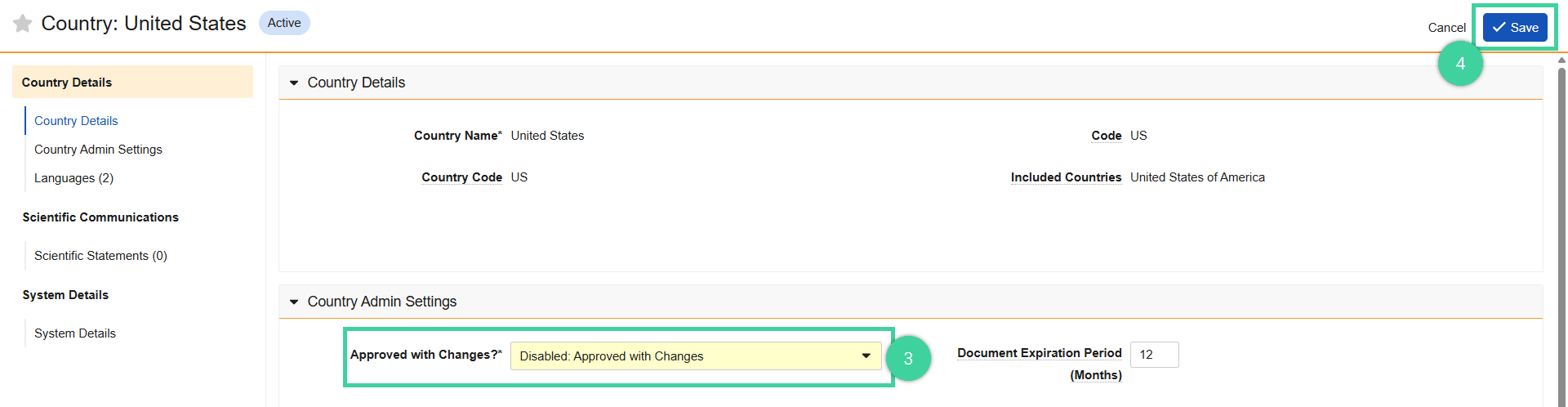
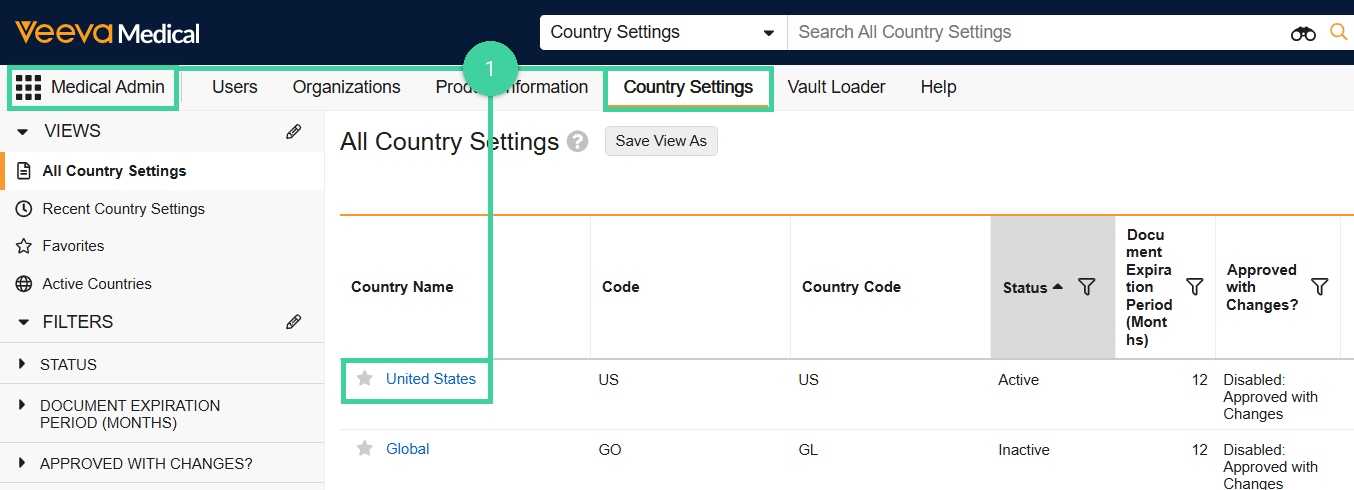
Navigate to the Country Settings tab of the Medical Admin tab collection to select the desired country.
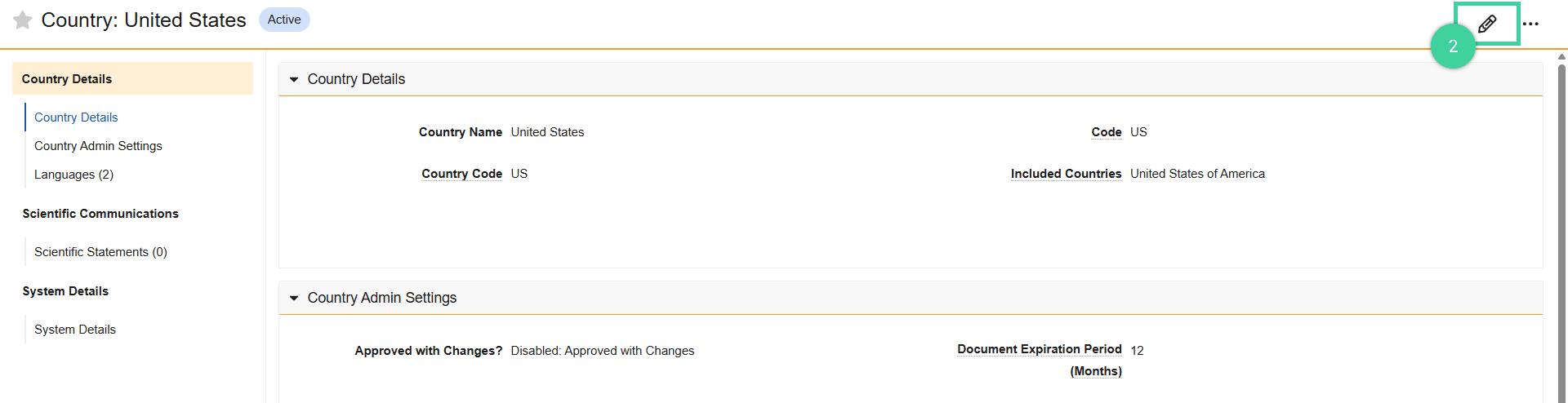
Click the edit pencil ().
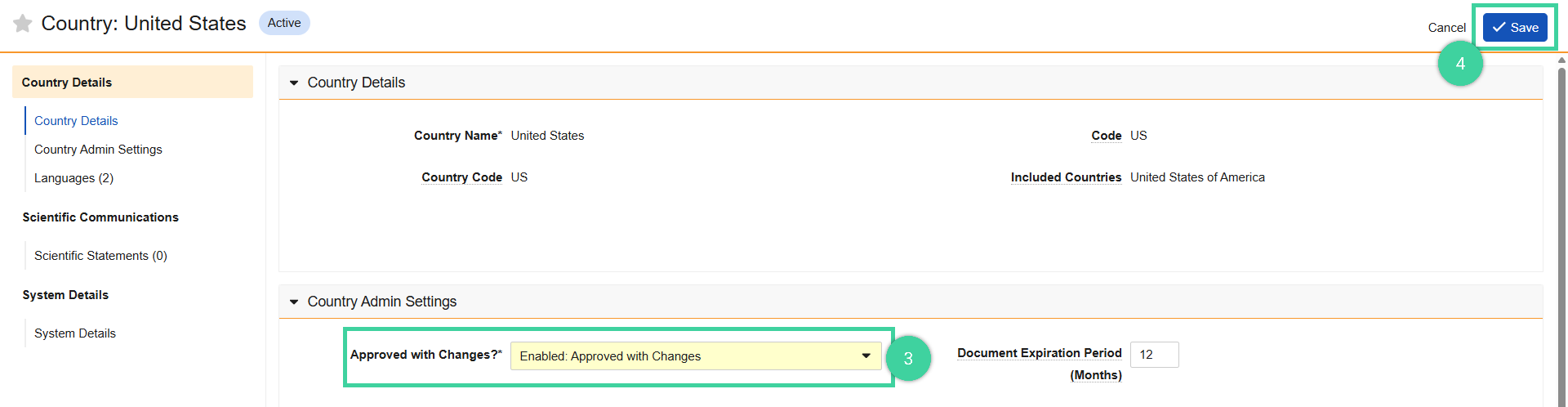
In the Country Admin Settings section, use the dropdown in the Approved with Changes? field to select Enabled: Approved with Changes.
Click Save.
Change Default Document Expiration Period
The Default Document Expiration Period setting defines the standard expiration timeframe for documents under the General Lifecycle. By default, the expiration period is 12 months.
To modify the default document expiration period:
Navigate to the Country Settings tab of the Medical Admin tab collection to select the desired country.
Click the edit pencil ().
In the Country Admin Settings section, use the dropdown in the Default Material Expiration Period field to select a new expiration period.
Click Save.