

Complete Approval Task
Last updated: Apr 17, 2026
Who can complete this task?
Veeva MedComms Basics: Reviewer-Approver
To complete an approval task:
Navigate to Content Workspace > Tasks and open the Approval task.
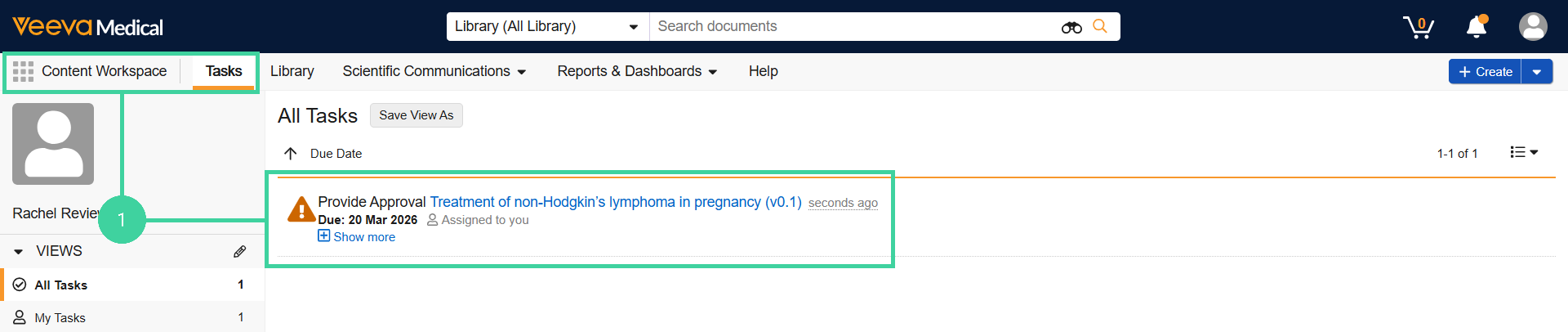
Review the content, then click Complete.

Select a Verdict. If you approve the changes, provide your electronic signature if prompted. If the verdict is Not Approved, provide a descriptive comment.
Click Complete.
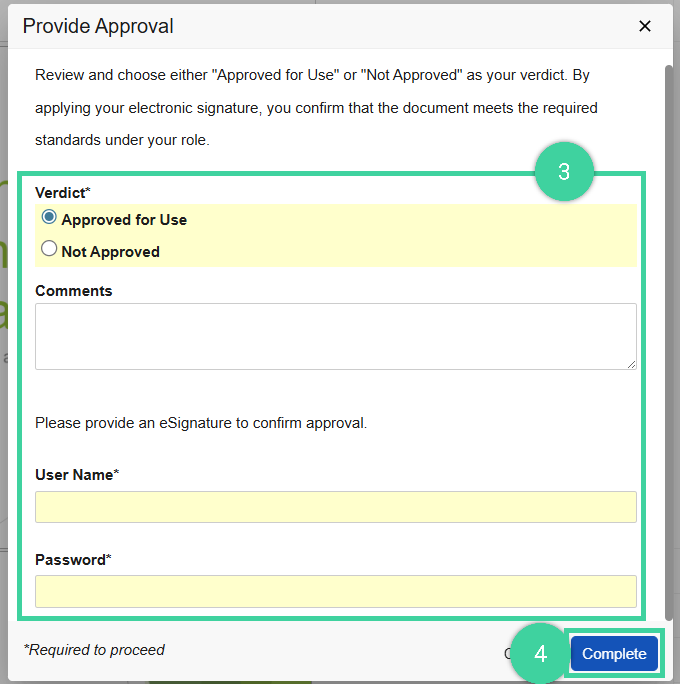
In the Approval process, all approvers must approve a document for it to reach the Approved for Use state. If any approver rejects the document, it returns to the Revise and Resubmit state.
Best Practice
Using the Approved verdict ensures that the verdict is stamped on the exact same version of the document that enters Approved for Use. If enabled, the Approved with Changes verdict should only be used for minor modifications. Additionally, if you plan to select Approved with Changes or Not Approved, ensure you’ve created an annotation to note where any changes are required.