

Create a User
Last updated: Apr 17, 2026
Who can complete this task?
Veeva MedComms Basics: Vault Admin
Create a Domain User
To create a Domain User:
Navigate to Medical Admin > Users, and click Create.

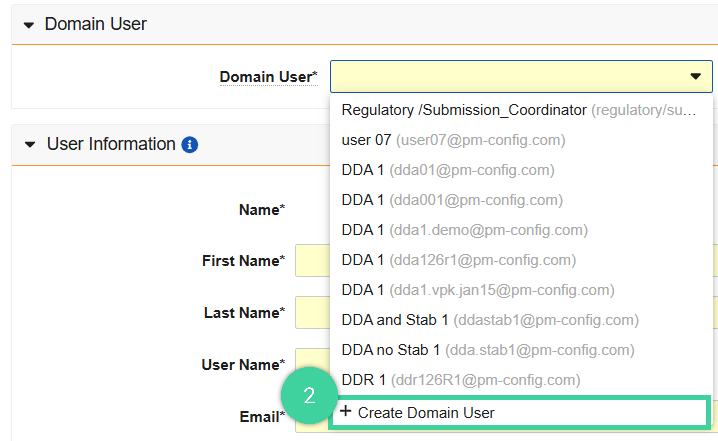
In the Domain User field, select Create Domain User.
In the Create Domain User dialog, enter the user’s First Name, Last Name, User Name, Email, Language, Locale, and Timezone, then click Save to create the Domain User.
Note Avoid using mixed case in user names. For example, usefirst.lastinstead ofFirst.Last.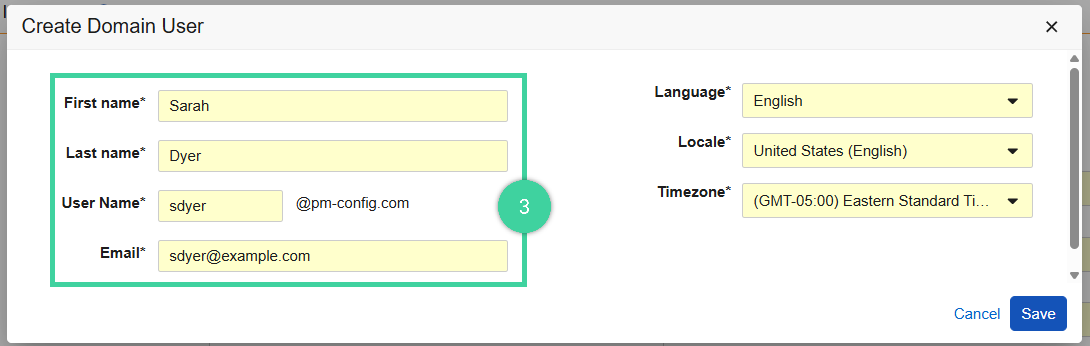
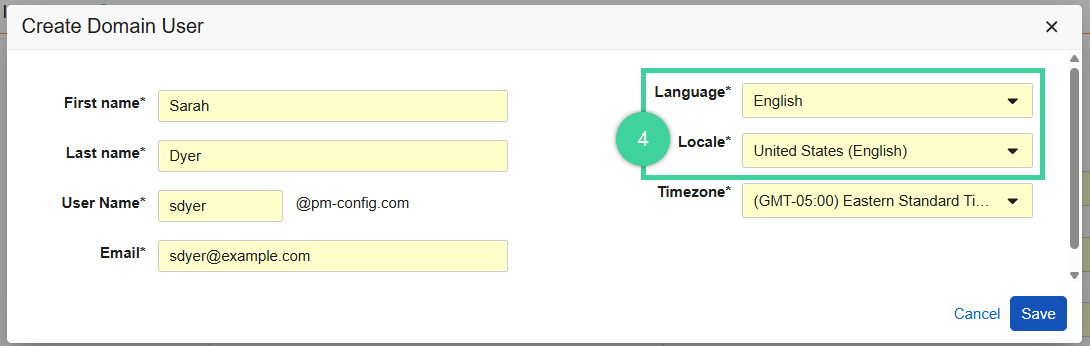
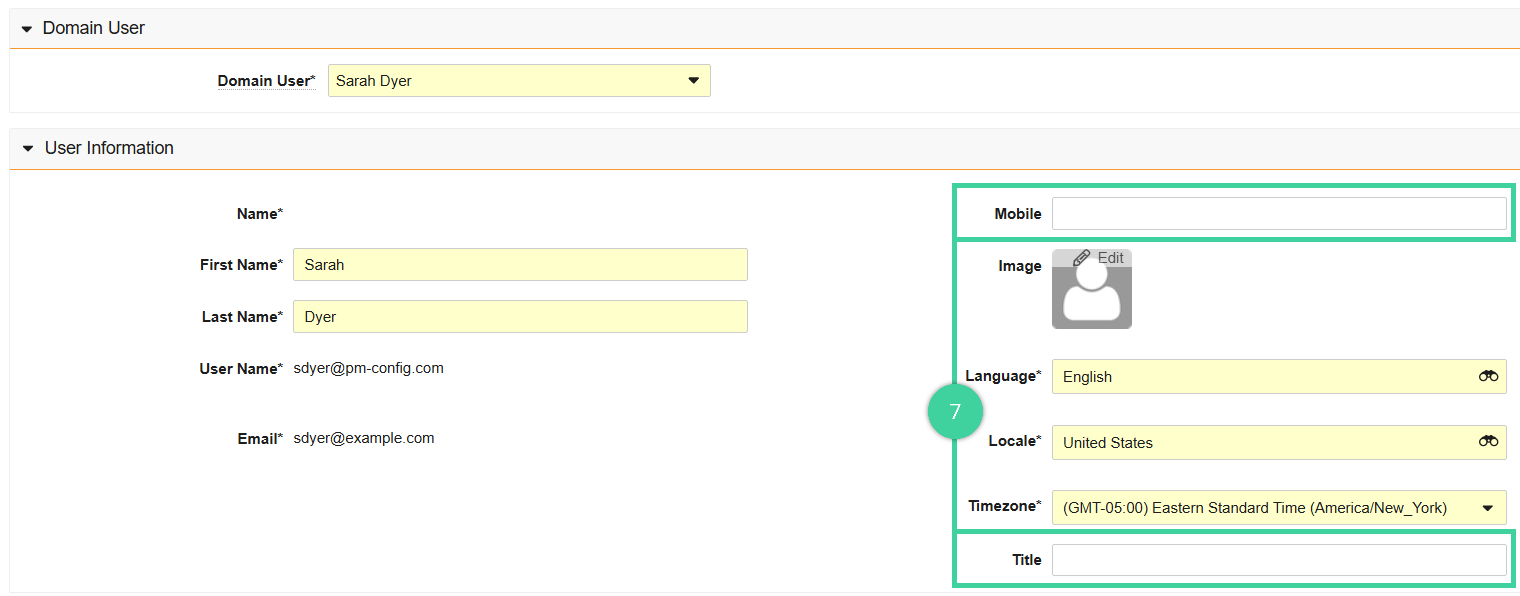
Select a Language and Locale for the user. These options control localization options for the user, such as number and date formats and label language.
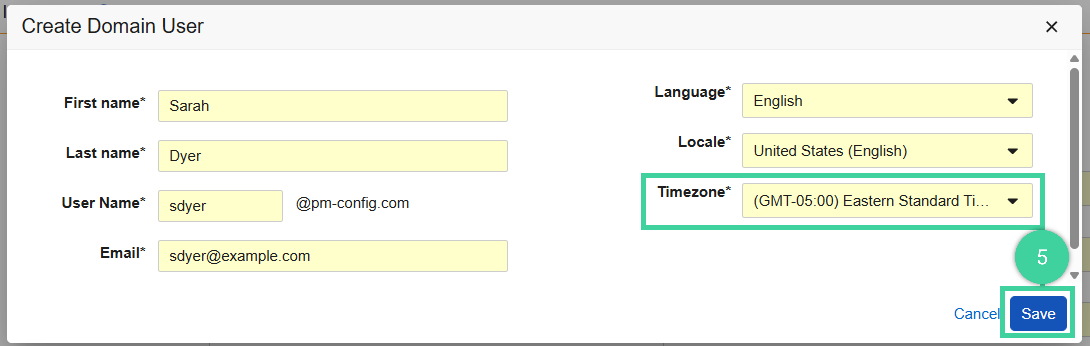
Select a Timezone for the user. Vault stores time and date information in UTC (Coordinated Universal Time) but displays that information to users in their local time zones.
Optionally, click Edit in the Image field, upload an image to use for the user’s record, and click OK.
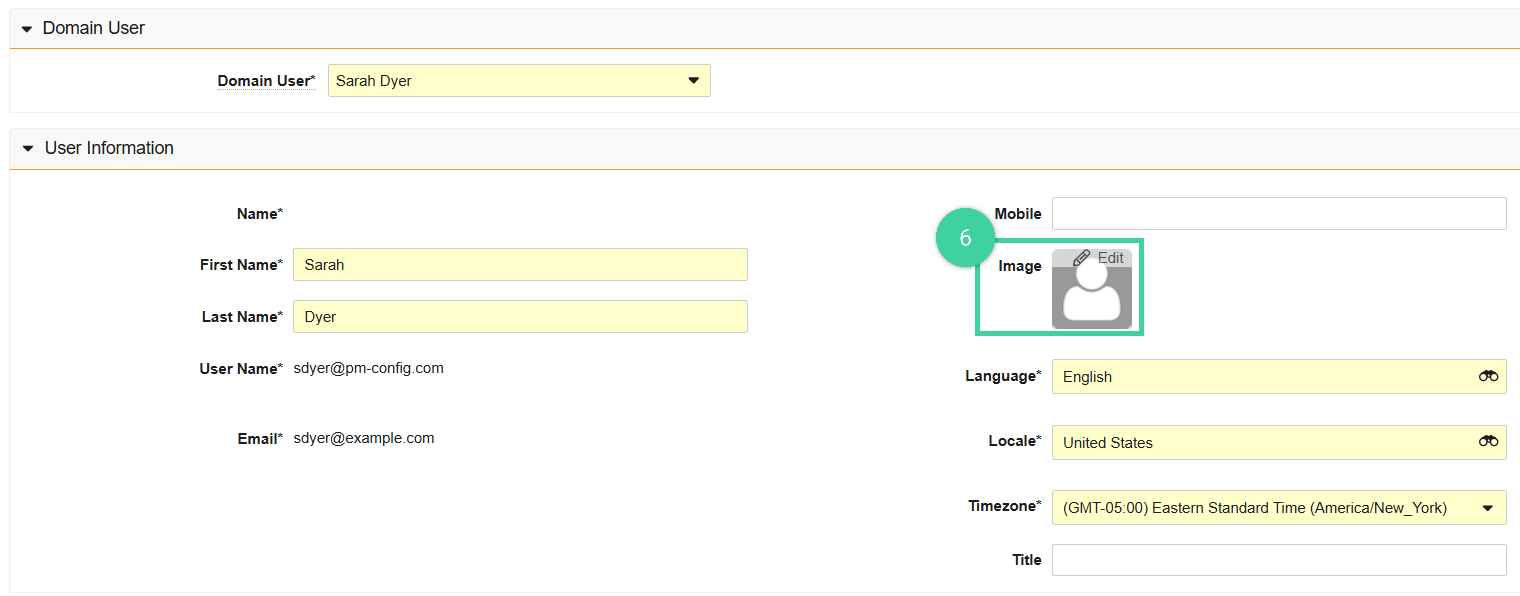
Optionally, enter the user’s Title and Mobile phone number.
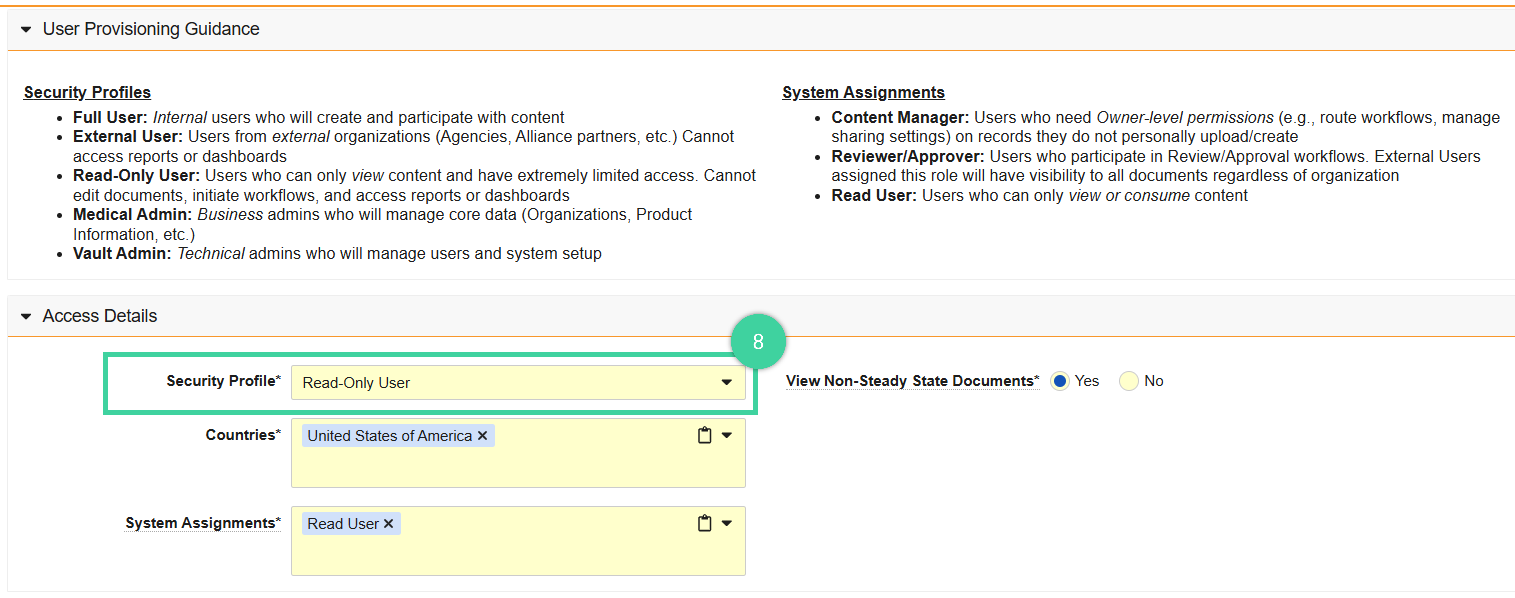
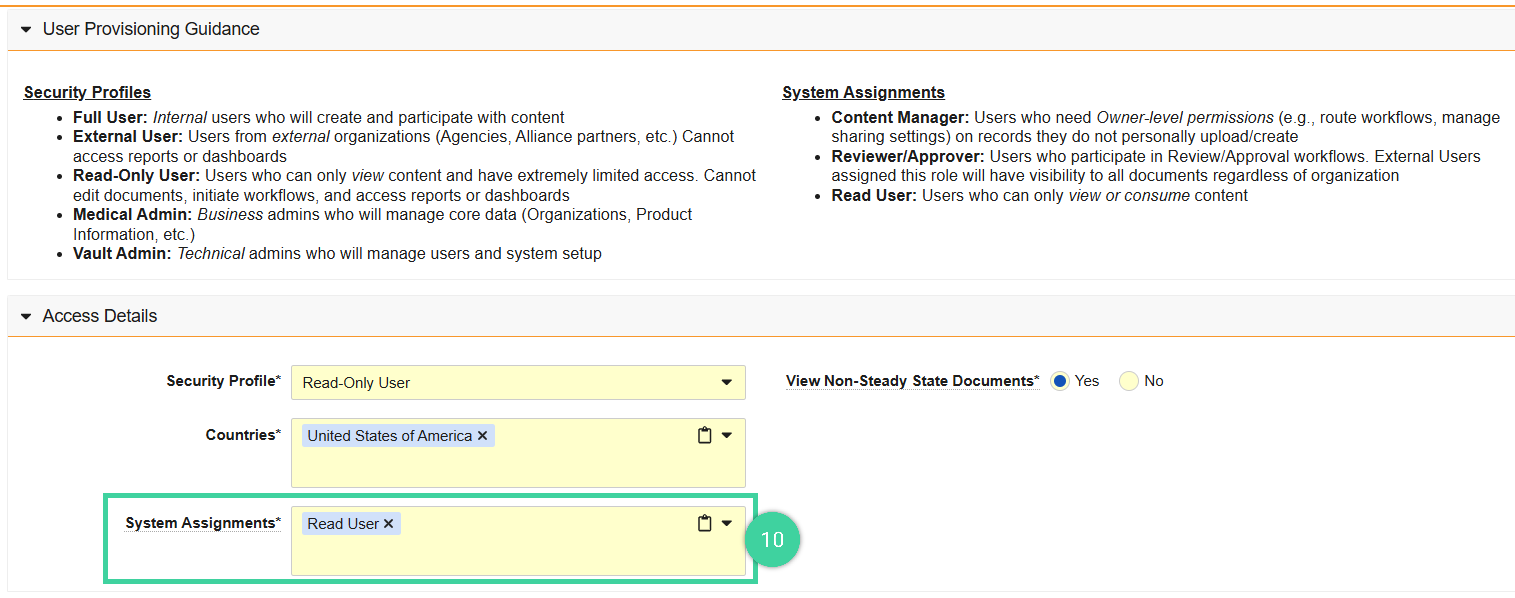
Select the user’s Security Profile.
NoteTwo security profiles cause additional fields to appear that will need to be set:
- External Users reveals an additional External Organization field to set the organization.
- Read-Only Users reveals an additional View Non-Steady State Documents that needs to be set to Yes or No. If No, the user will only see documents in the Approved state. If Yes, the user can see documents in any state.
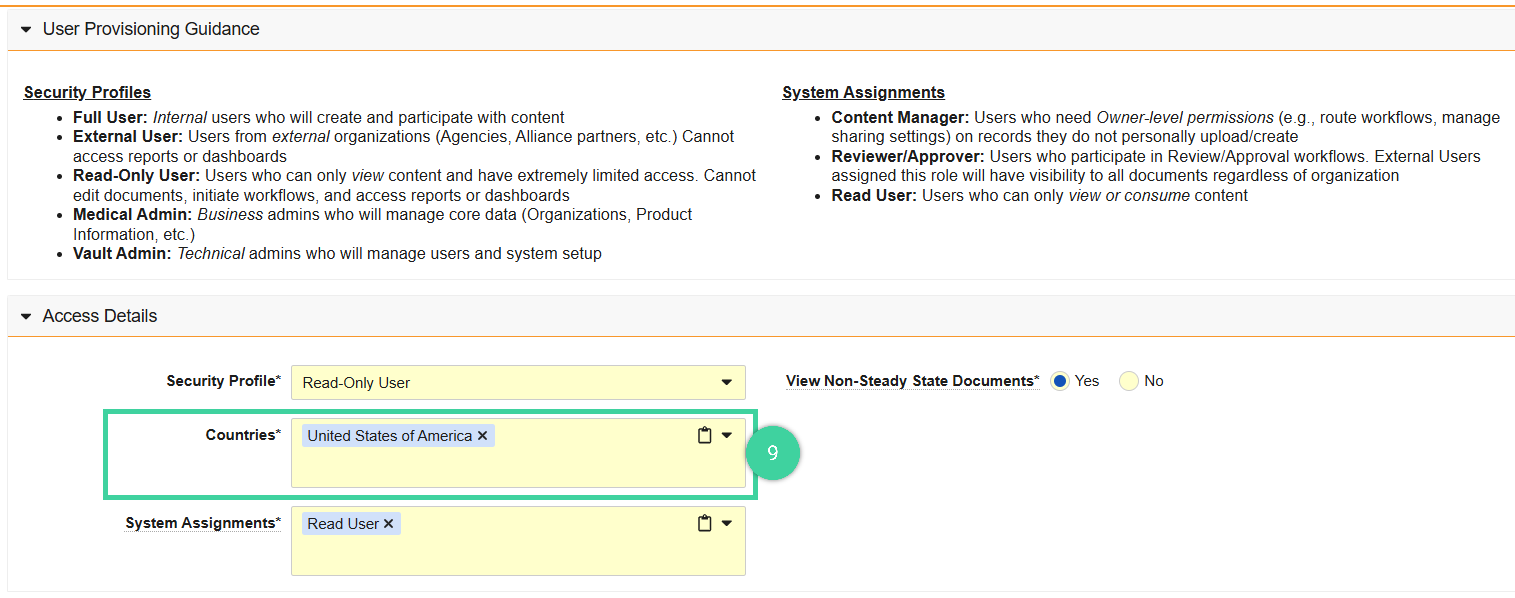
Select the user’s Countries.
Select the appropriate System Assignments. See MedComms Basics Users for help understanding the available system assignments.
Select a Security Policy. Vault requires all new users not using SSO (Single Sign-On) to update their password the first time they log in. If your organization uses SSO, select SSO in the dropdown and enter the user’s Federated ID to associate the user record with the user ID used for SSO.

Select the Activation Date if you want the account to become active at a later date, otherwise click Today. Ensure that Send Welcome Email on Activation Date is checked if you want the user to receive a welcome email.

Click Save. New users are active immediately unless you select a later activation date.

Create a Cross-Domain User
Cross-domain users can log in to any Vault they have access to using their existing home domain login credentials or using SSO if it is enabled for your organization.
Complete the following steps to create a new cross-domain user:
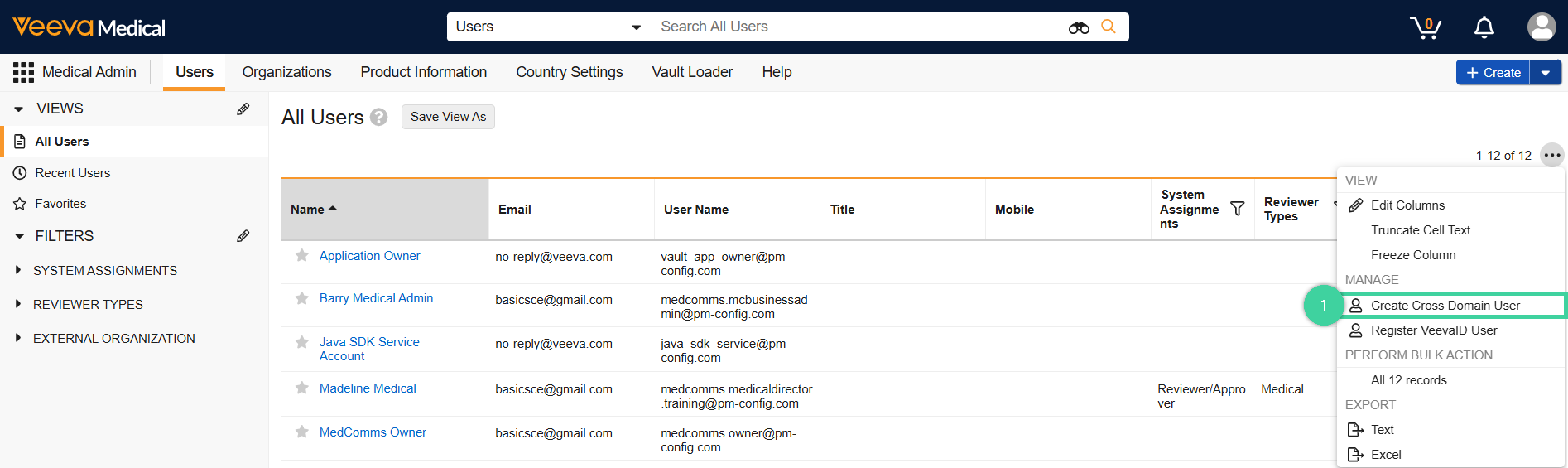
Navigate to the Medical Admin > Users tab and select Create Cross Domain User from the All Actions menu.
In the Create Cross Domain User dialog, enter the full User Name of the existing user.
Select a Security Profile, and ensure that Medical: MedComms, Medical: MedInquiry, and Medical: Multichannel are set to Full User.
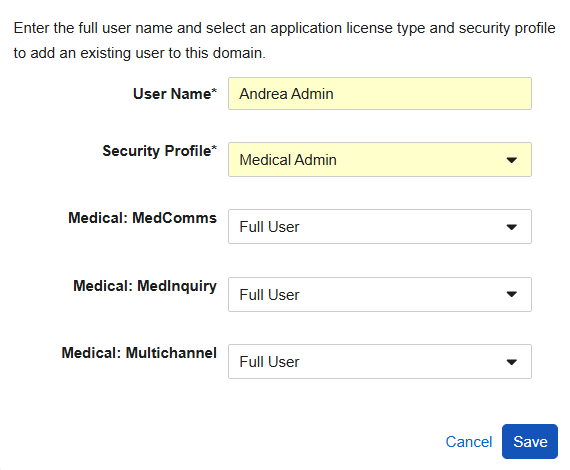
Click Save to save the cross-domain user information. Vault automatically populates the remaining required profile fields based on the existing user information from the home domain.