Create Product Information
Last updated: Apr 17, 2026
Who can complete this task?
Veeva MedComms Basics: Vault Admin, Medical Admin
Product Information is used to organize the product structure with product families serving as the foundation of the core product data. After creating a product family, related product data can be created and associated.
Product Family
The Product Family is the primary framework for the hierarchy of the product information.
To create a product Family:
- Navigate to Medical Admin > Product Information, and then click Create.

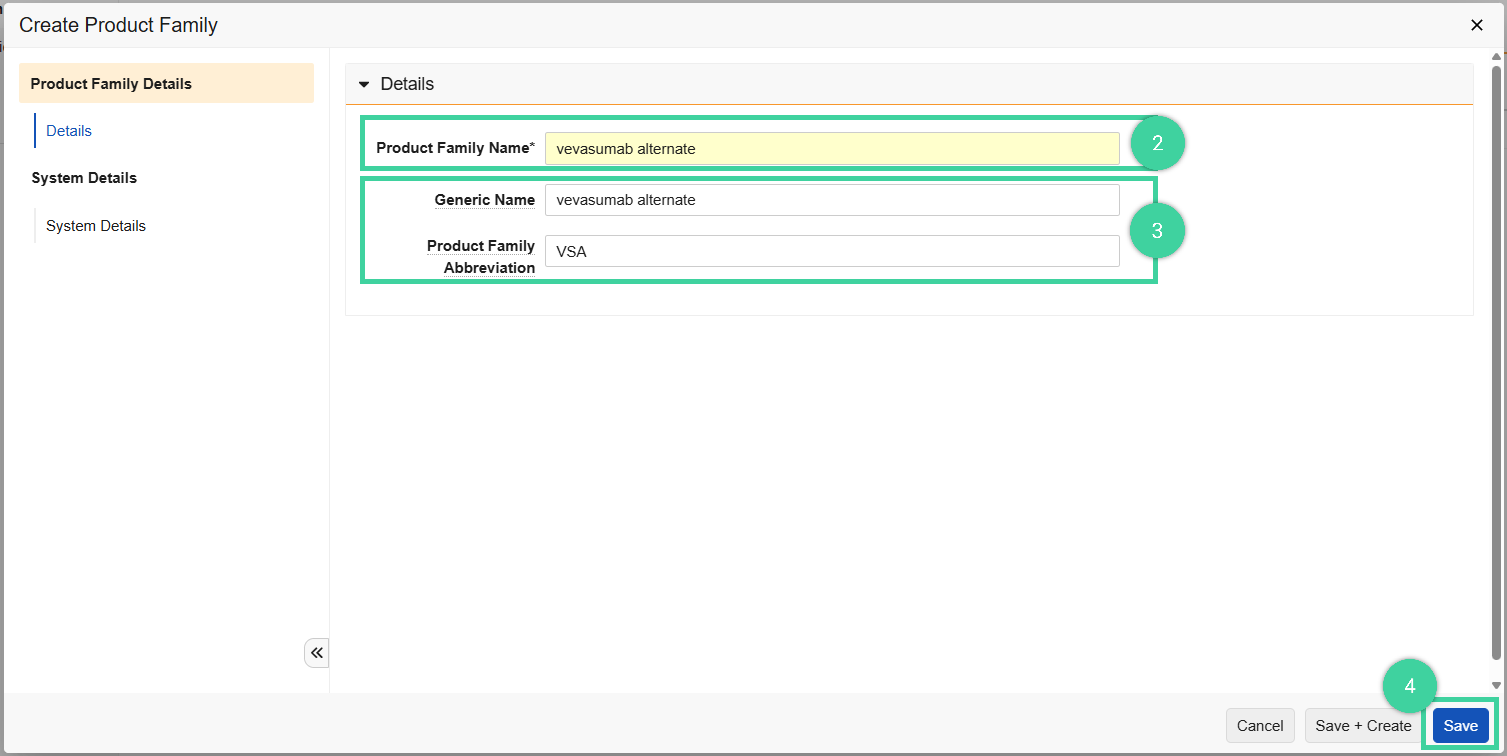
Enter the Product Family Name.
Optionally enter the Generic Name and Product Family Abbreviation
Then click Save.
Local Product
The Local Product is the consumer product in the local market. Typically a brand or trade name, but can also represent an investigational product name.
To create a local product:
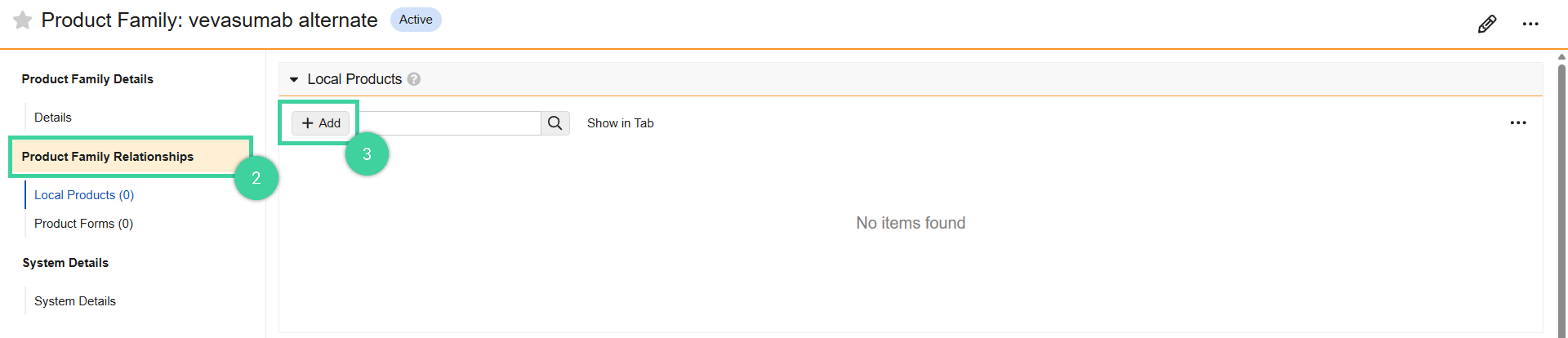
- Navigate to Medical Admin > Product Information, and then select a Product Family.

- Click on Product Family Relationships, below the Local Products section, click Add.
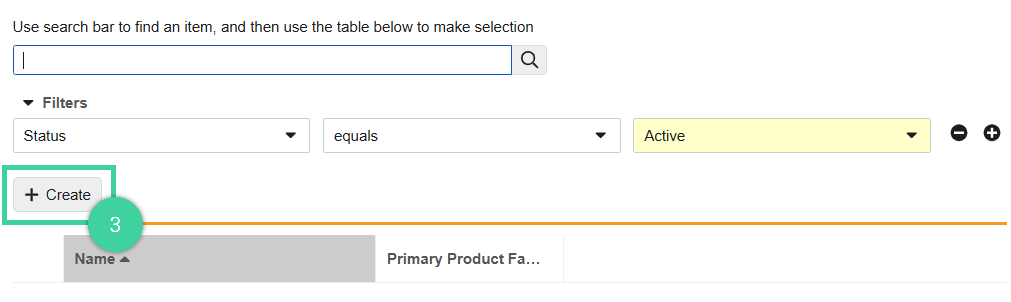
- Click Create.
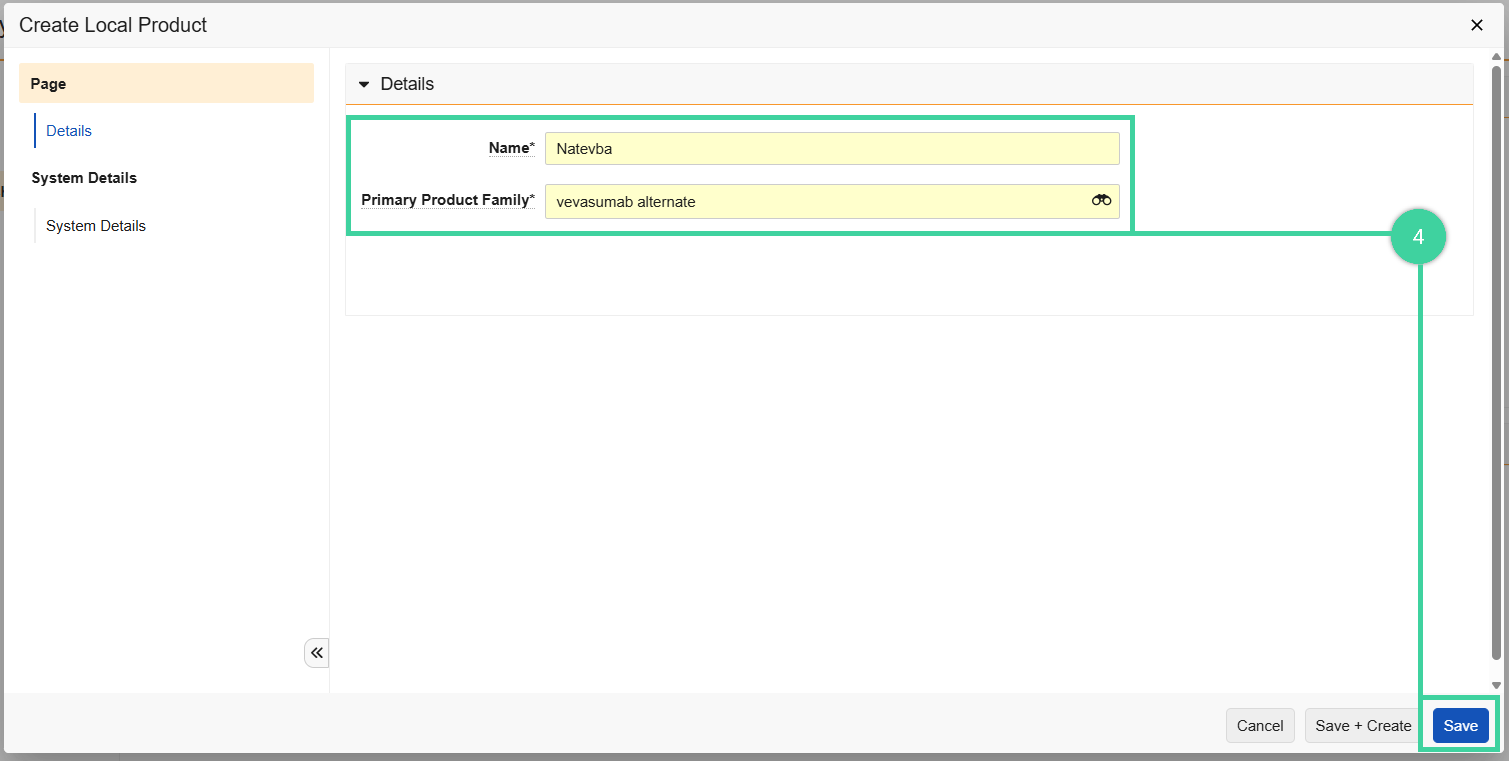
- Enter the Name and choose the Primary Product Family. Click Save.
Product Form
The Product Form is the way the product is presented, such as a tablet, capsule, or solutions for injections.
To create a product form:
- Navigate to Medical Admin > Product Information, and then select a Product Family.
- From the Product Family Relationships, below the Product Form section, click Add.
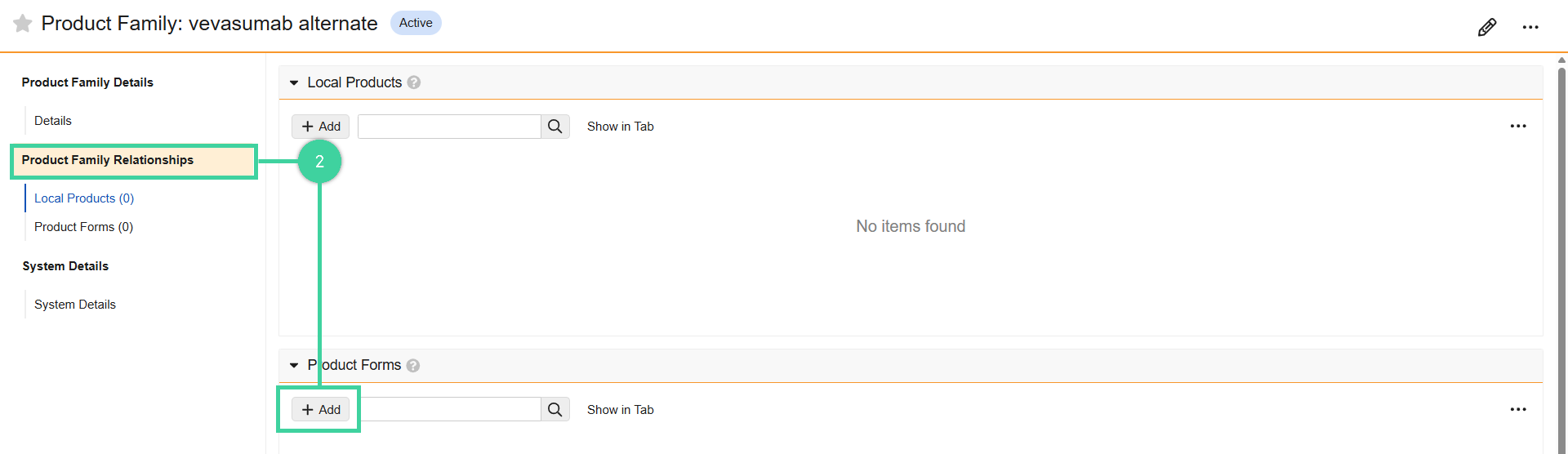
- Click Create.
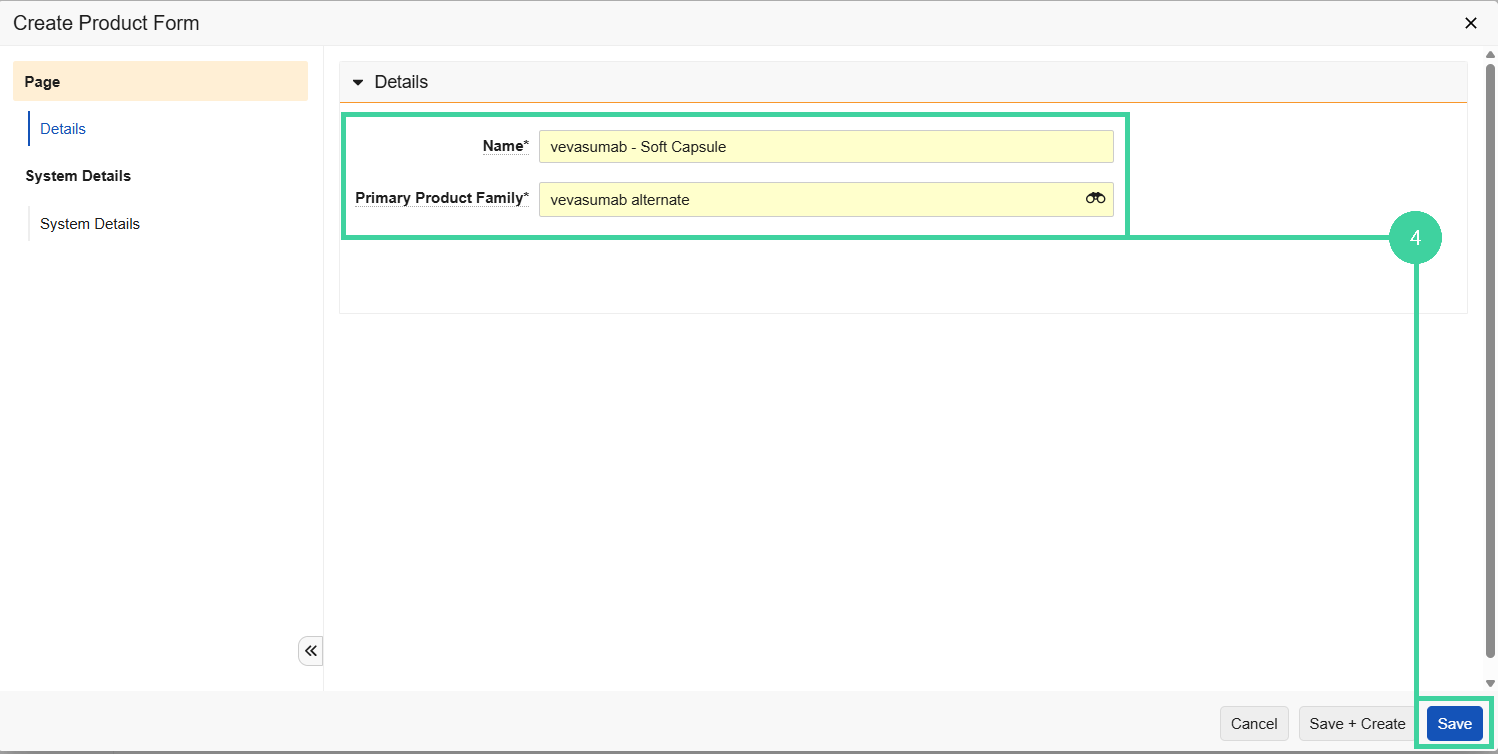
- Enter the Name and the Primary Product Family of the product form. Click Save.
Product Variant
Product Variants are created from an existing Product Form and are typically the different options of the Product Form, typically identified by strength.
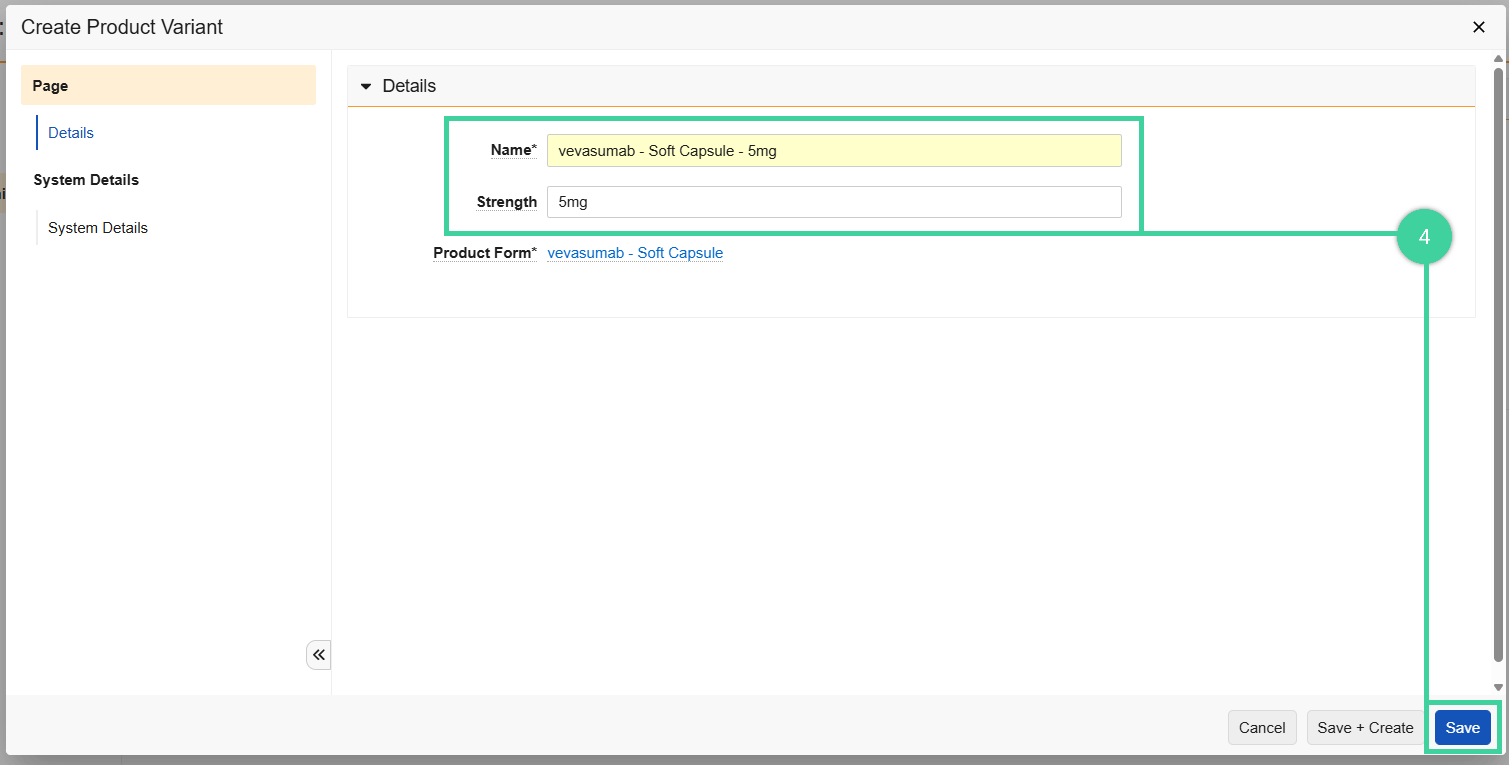
To create a product variant:
- Navigate to Medical Admin > Product Information, and then select a Product Family.
- From the Product Family Relationships, click on existing Product Form.
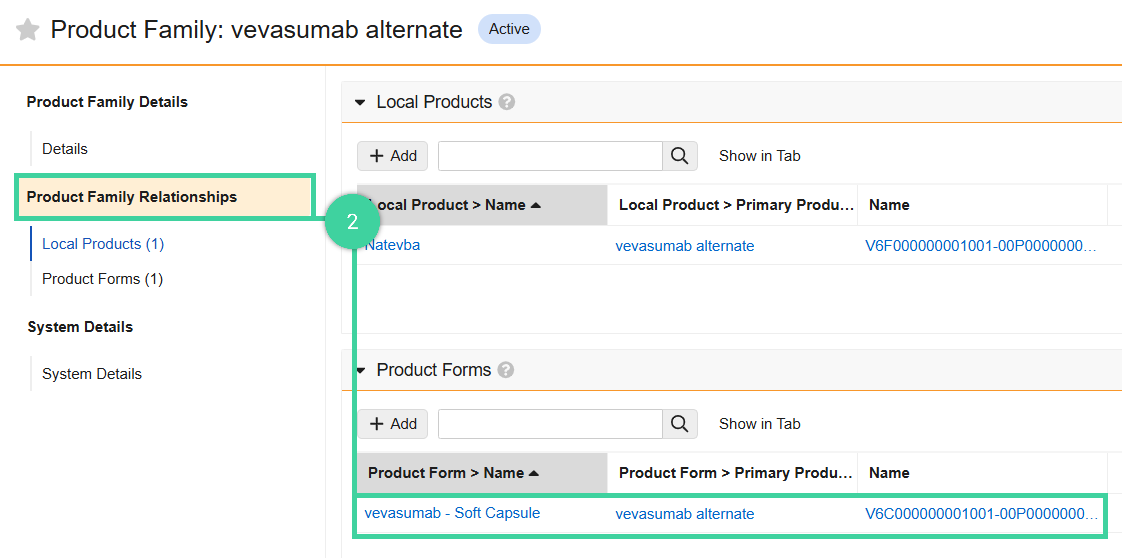
- Navigate to Product Form Relationships > Product Variants, click Create.
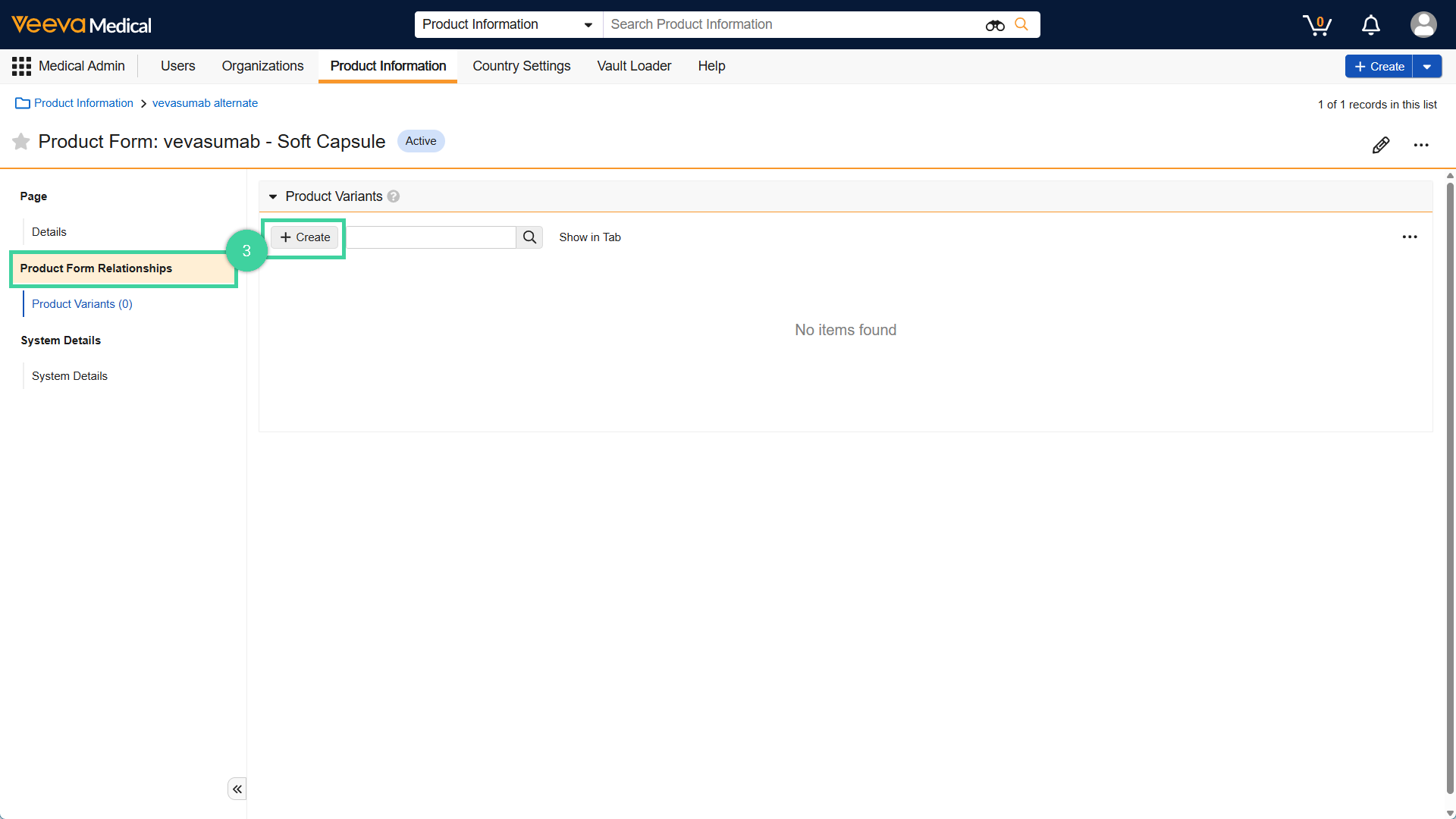
- Enter the Name of the product variant. Optionally add the Strength of the product variant. Click Save.