

Upload a New Version of a Document
Last updated: Apr 17, 2026
Uploading a new version of a document often occurs on a document in the Revise and Resubmit state, or, in more rare cases and if enabled by your organization, the Approved with Changes state.
To upload a new version of a document:
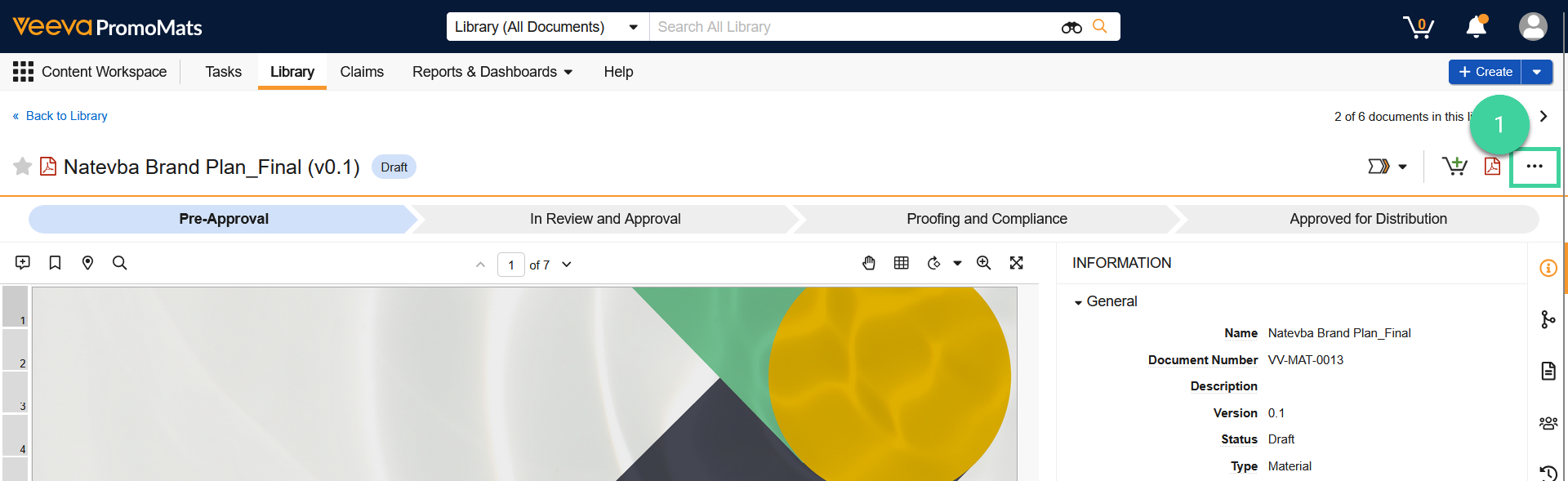
While viewing the document you want to upload a new version of, click the All Actions menu.
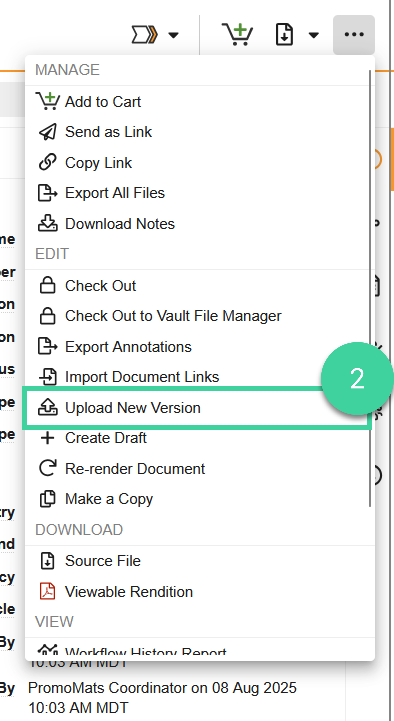
Select upload a new version.
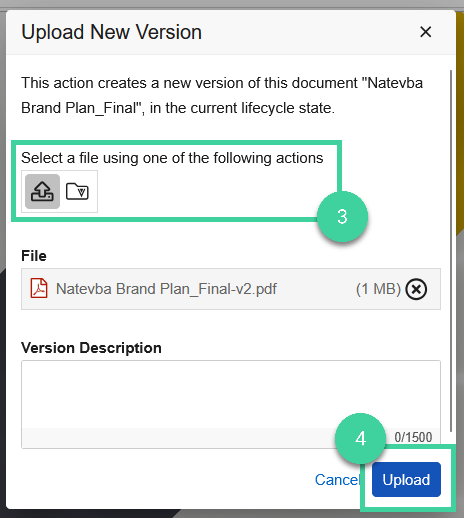
Click the file picker icon () and select the new version.
Click upload.
The version number of the document is automatically increased.

Best Practice
If the Approved with Changes workflow is enabled for your organization, ensure that you bring forward annotations after uploading a new version of a document.