Change Organization States in Bulk
Last updated: Apr 17, 2026
Who can complete this task?
Veeva Quality Basics: Vault Admin, Quality Admin, QA User
Organizations can be an Internal Facility, External Organization, or External Site. When you have many lifecycle state changes to make for your organizations, you can save time by changing their lifecycle states in bulk.
To change the state of an organization in bulk:
Navigate to one of the following:
- Quality Admin > Quality Data > Organizations
- QMS > Audits & Organizations > External Organizations
Note QA Users can manage External Organizations and External Sites from the Audits & Organizations tab on the QMS tab collection.Use the views, search, or filters to narrow down the list of records. Once you’ve started the bulk editing process, you can deselect individual records, but you can only access filters and search at this stage.
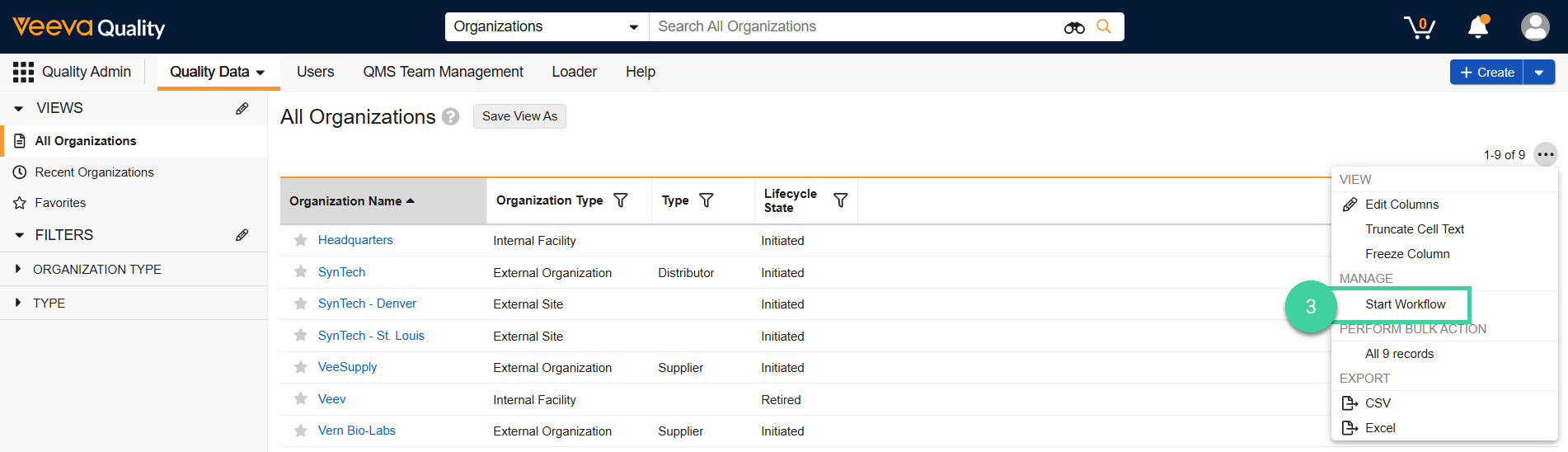
Select Start Workflow from the All Actions menu.
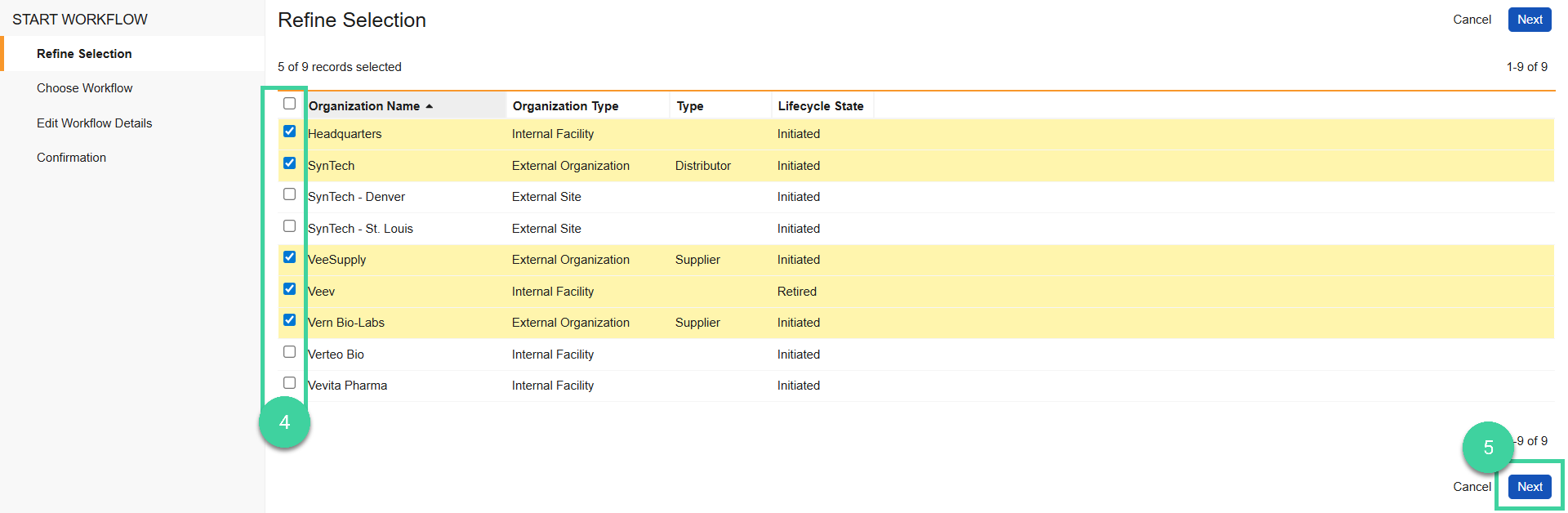
Review the list of selected records and deselect any that you do not want to include in the bulk update.
Click Next.
Select the new Lifecycle state for your records. You can only change the state of records that are in the same lifecycle and lifecycle state, so Vault displays only the available states by lifecycle and state.
Click Next

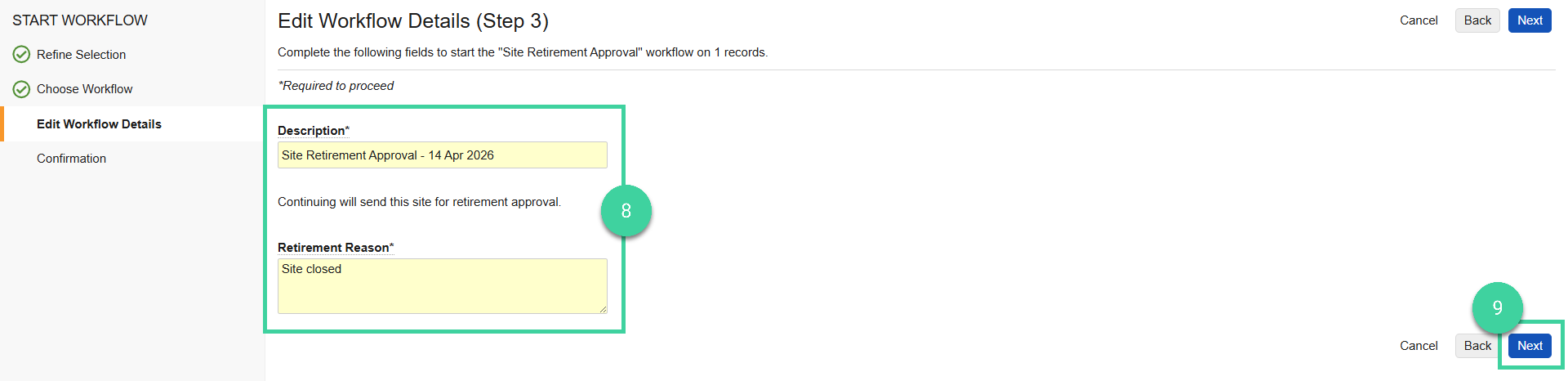
Edit the Description (if needed), enter a Retirement Reason (if sending for Retirement Approval).
Click Next.
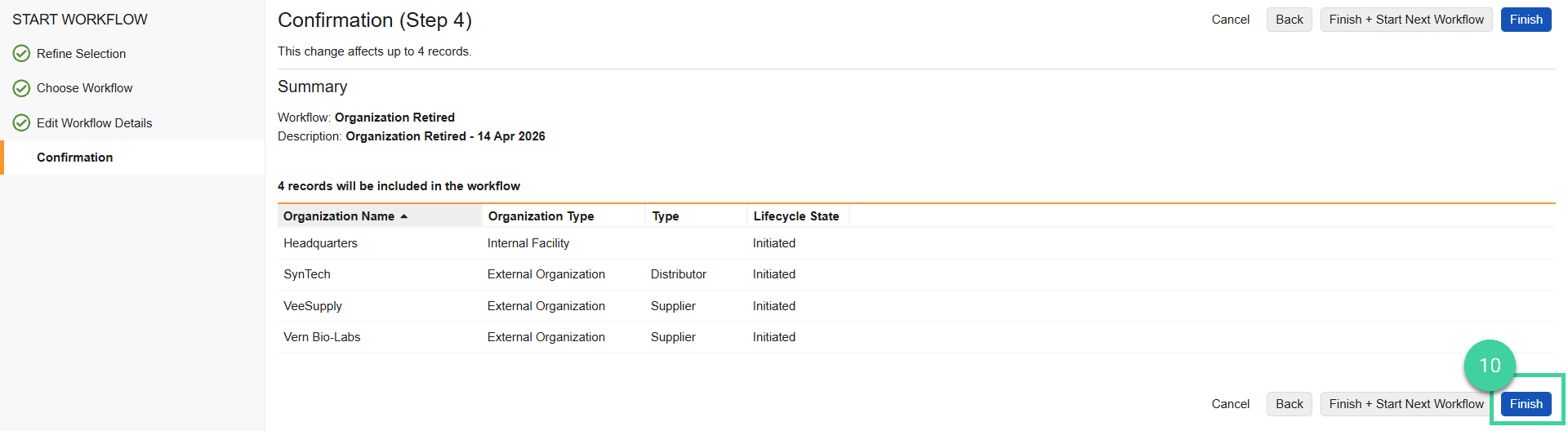
Review the summary of changes. Click Finish to proceed. You will receive a notification when the changes are complete.