

Create a Learner Role
Last updated: May 6, 2026
Who can complete this task?
Veeva Quality Basics: Training Admin
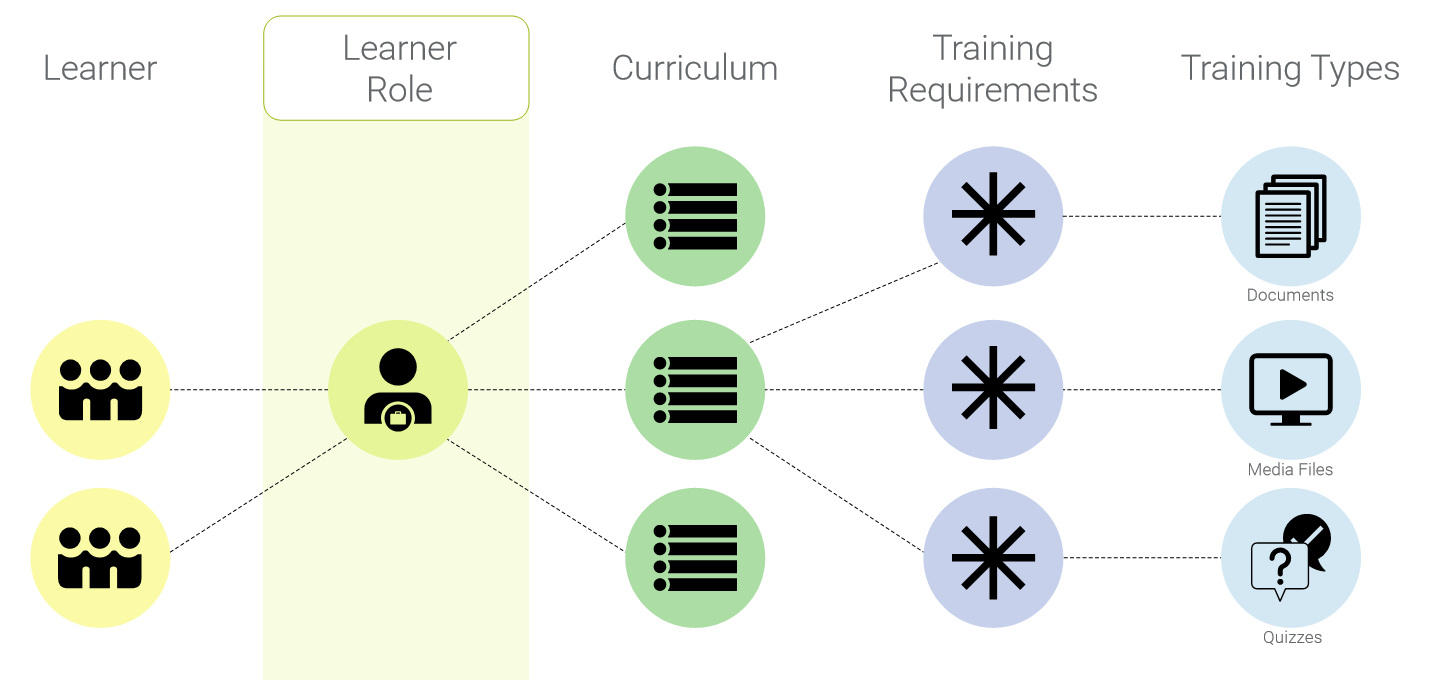
Learner Roles are a way of grouping Learners that need to complete the same Training Assignments. A Learner can have multiple Learner Roles.
Steps to setting up a Learner Role:
Create Learner Role
Associate Curricula
Associate Learners (if not enrolling automatically)
Change State to Ready for Use
Create a Learner Role
Complete the following steps to create a Learner role:
Navigate to Training Admin > Training Matrix > Learner Roles and click Create.
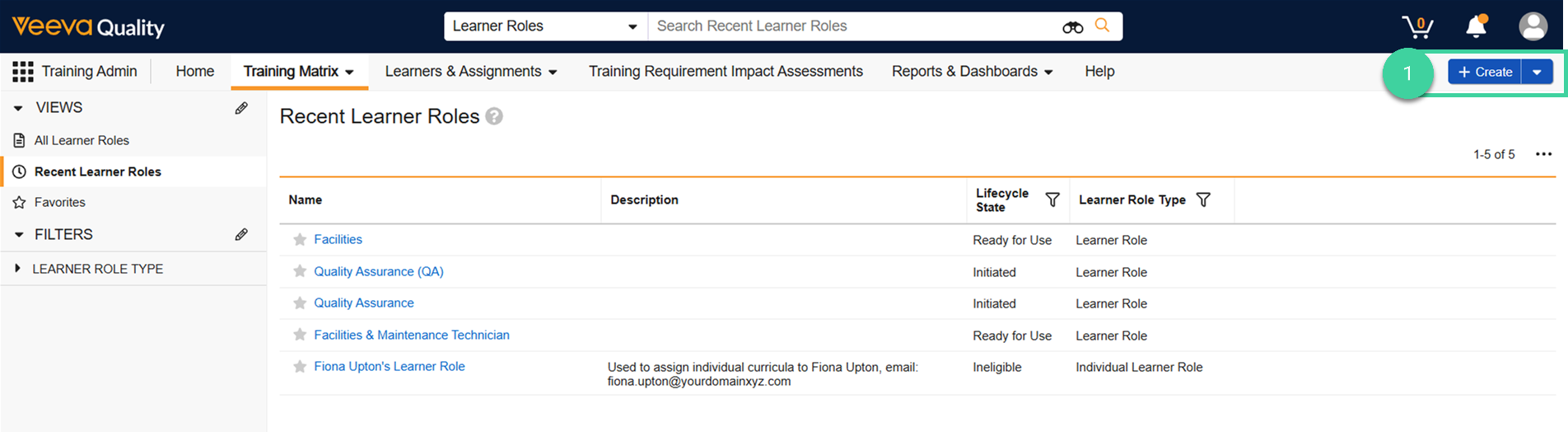
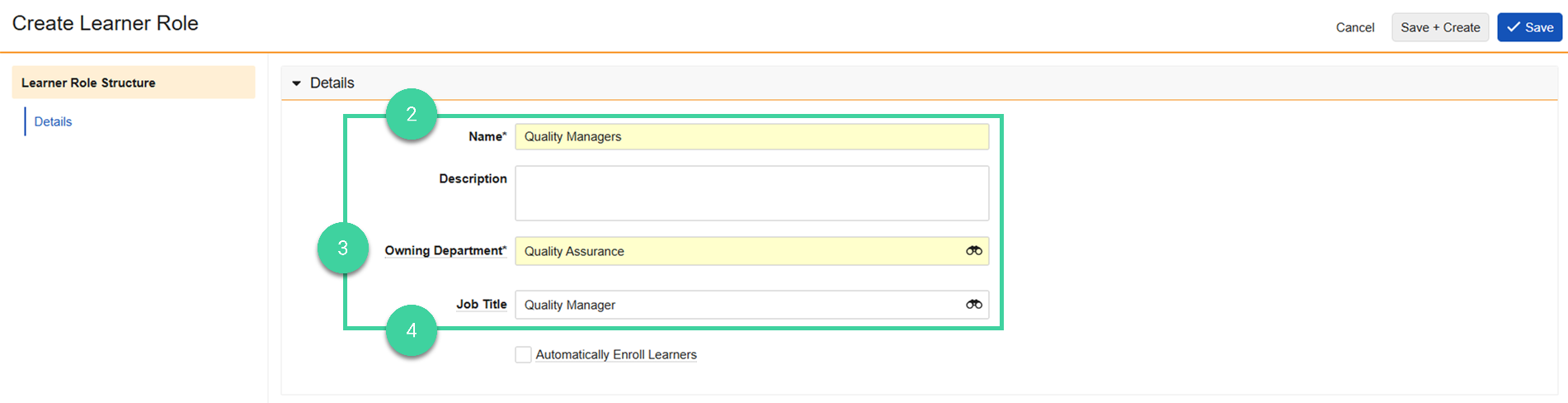
Enter the Name of the Learner Role and an optional Description.
Specify the Owning Department that owns the management of this Learner Role.
Optionally, specify the Job Title associated with this Learner Role.
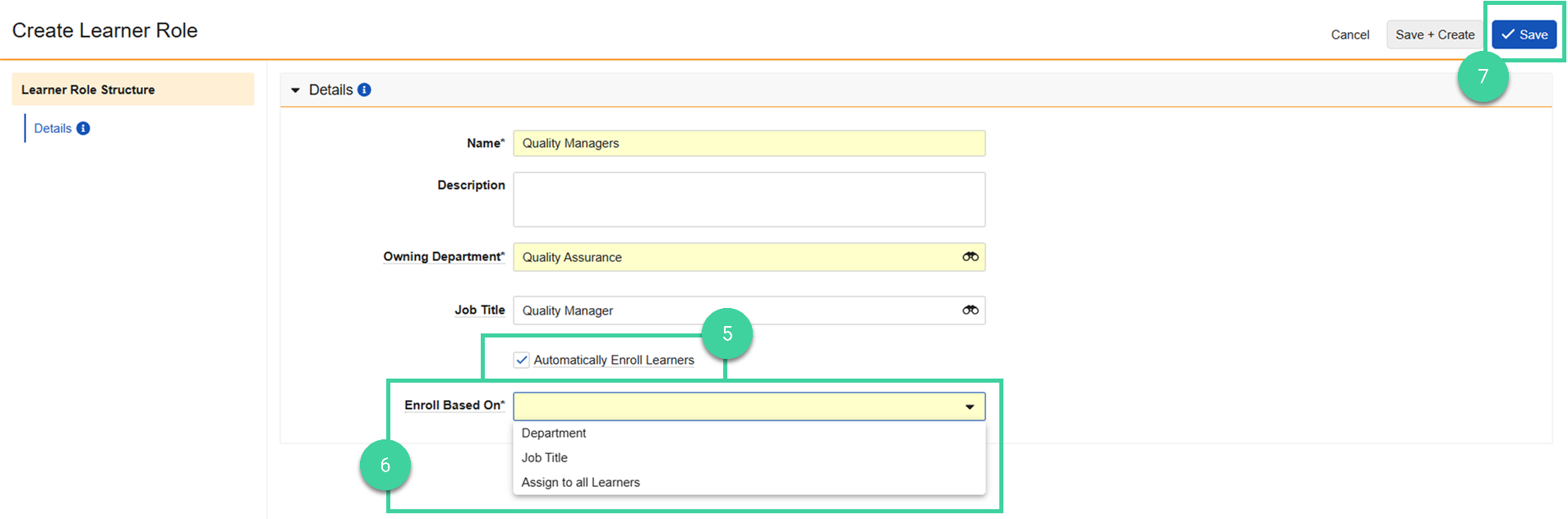
If you want Vault to automatically enroll Learners in this Learner Role, check Automatically Enroll Learners.
If Automatically Enroll Learners is checked, specify if you want to enroll learners based on their Department or Job Title. Or you can select Assign to all Learners to automatically assign this Learner Role to all Learners.
Click Save.
The Learner Role is saved in the Initiated state. Learner Roles need to be in a Ready for Use state for before Training Assignments can be sent to Learners in this role.
Warning
Take care when using the Automatic Enrollment in Learner Roles Feature because it will result in training being sent out to your users.
Add Curricula to a Learner Role
Note
When building your Learner Roles, it’s possible that your Curricula don’t yet exist. You’ll have the opportunity to associate your learner role to your curricula when you are creating your curricula.
To add Curricula to a Learner Role:
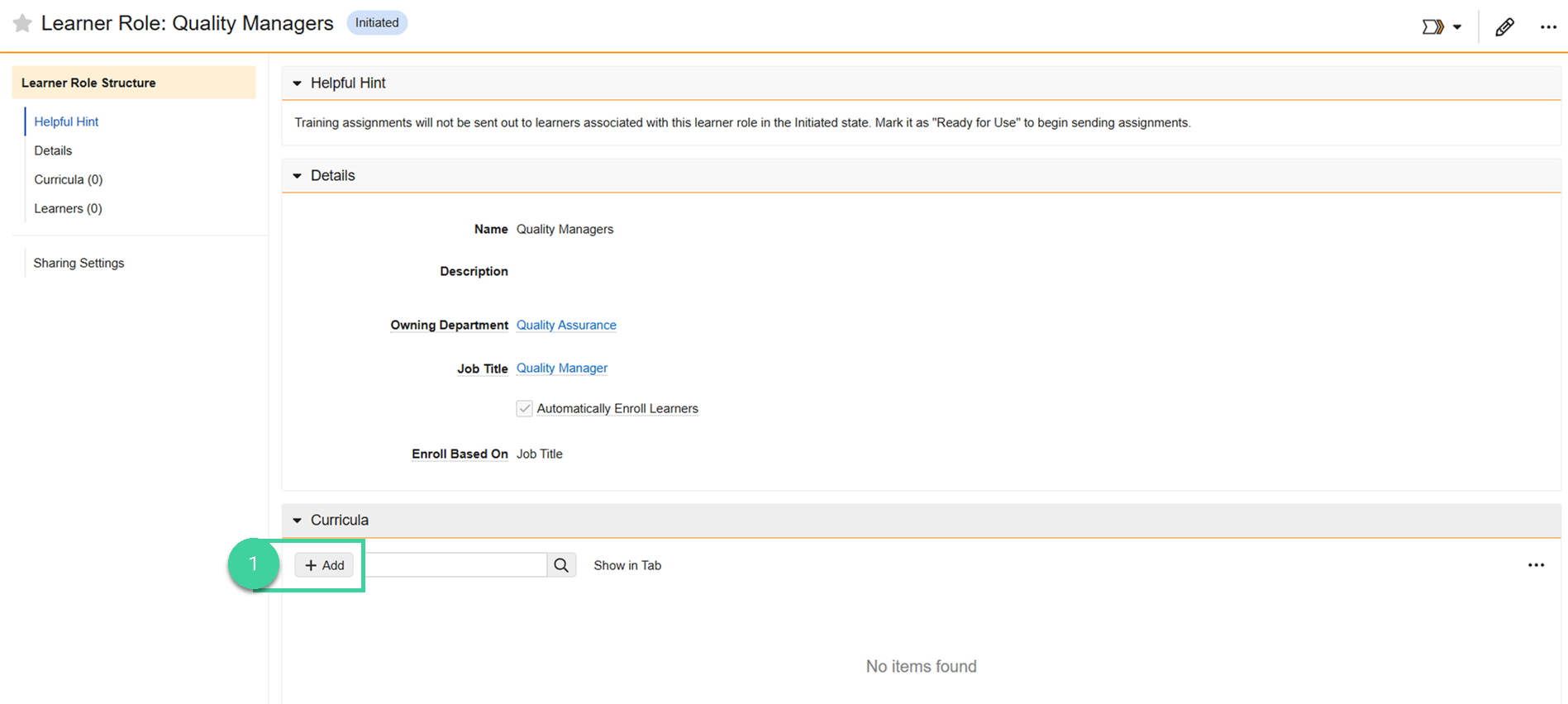
From the Learner Role record, open the Curricula section and click Add.
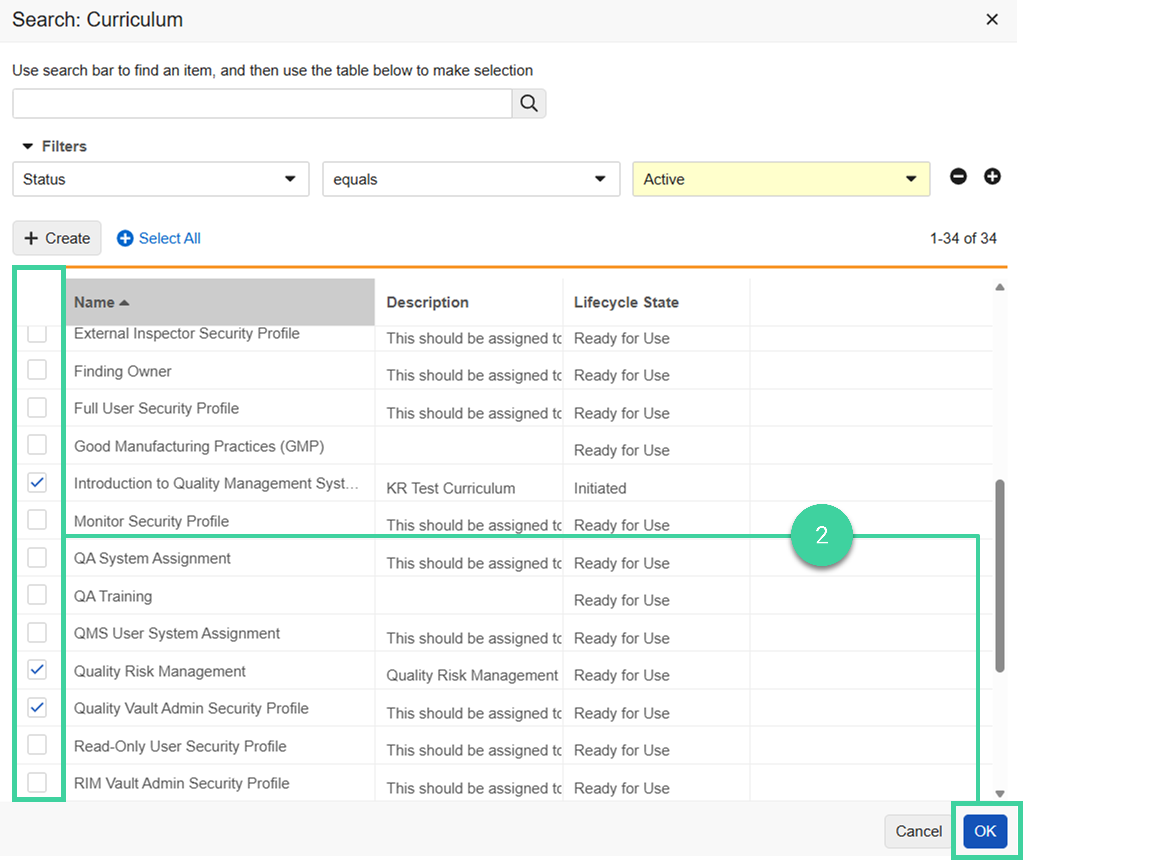
Select one or more curricula and click OK.
Best Practice
Curricula need to be in a Ready for Use state before Training Assignments can be sent to Learners in this role. While actively working on updates to the training matrix, it is best practice to leave records in an Initiated state until updates are complete so that training is not sent to learners before it is fully ready.
Curriculum Sequencing
You can set the order you want Curricula within a Learner Role to be shown to the learner. For example, if you want to sequence the curricula from introductory training to more advanced training.
You can choose to make the sequence a visual recommendation only, or you can choose to enforce the sequence of how learners must complete the training.
To set up a curriculum sequence for a learner role:
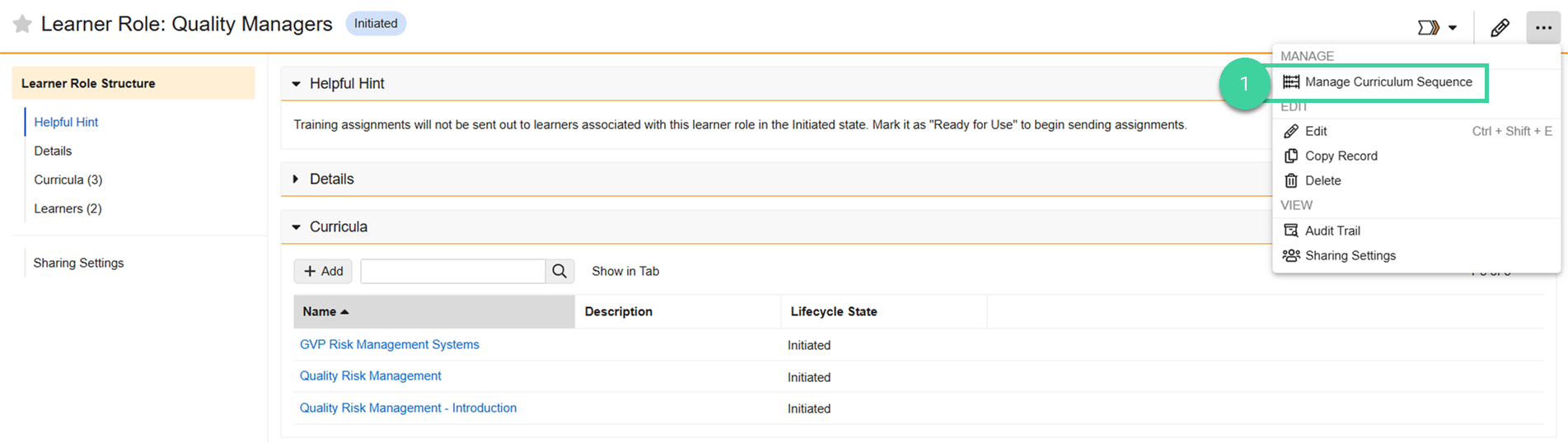
From the learner role, select Manage Curriculum Sequence from the All Actions menu.
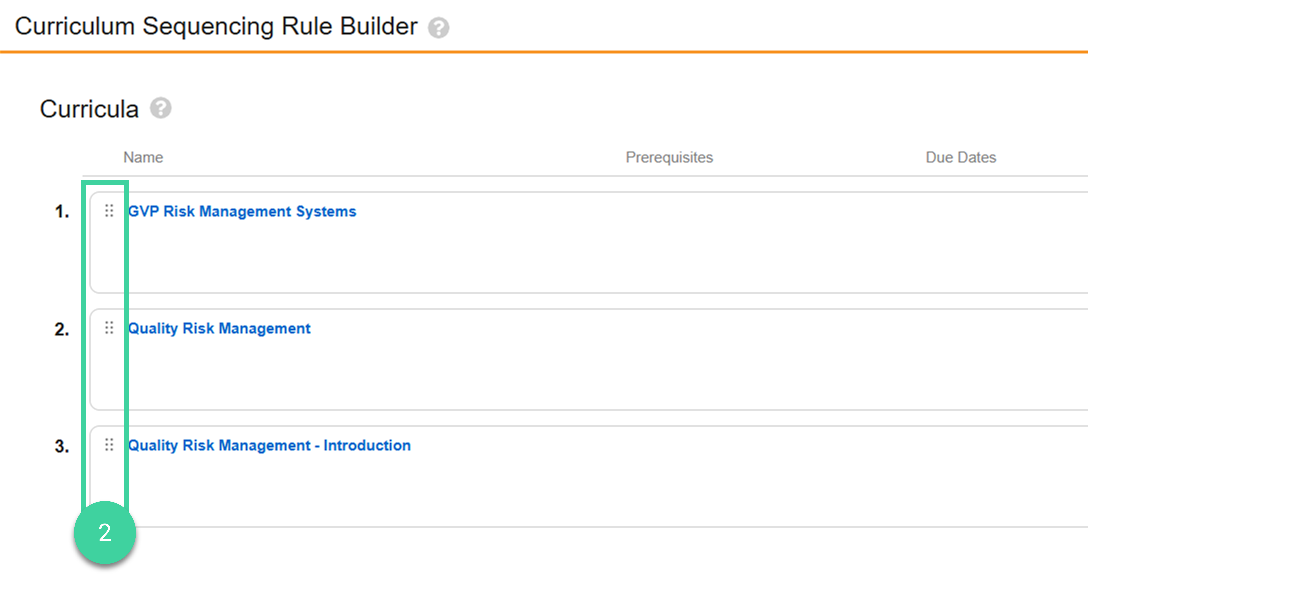
Drag and drop the curricula in the order you want learners to complete them. If you don’t do anything else, this order is a recommendation only. Learners will see the curricula presented in this order but they are not required to complete them in this order.
To enforce the sequencing, click Enforce Sequence.
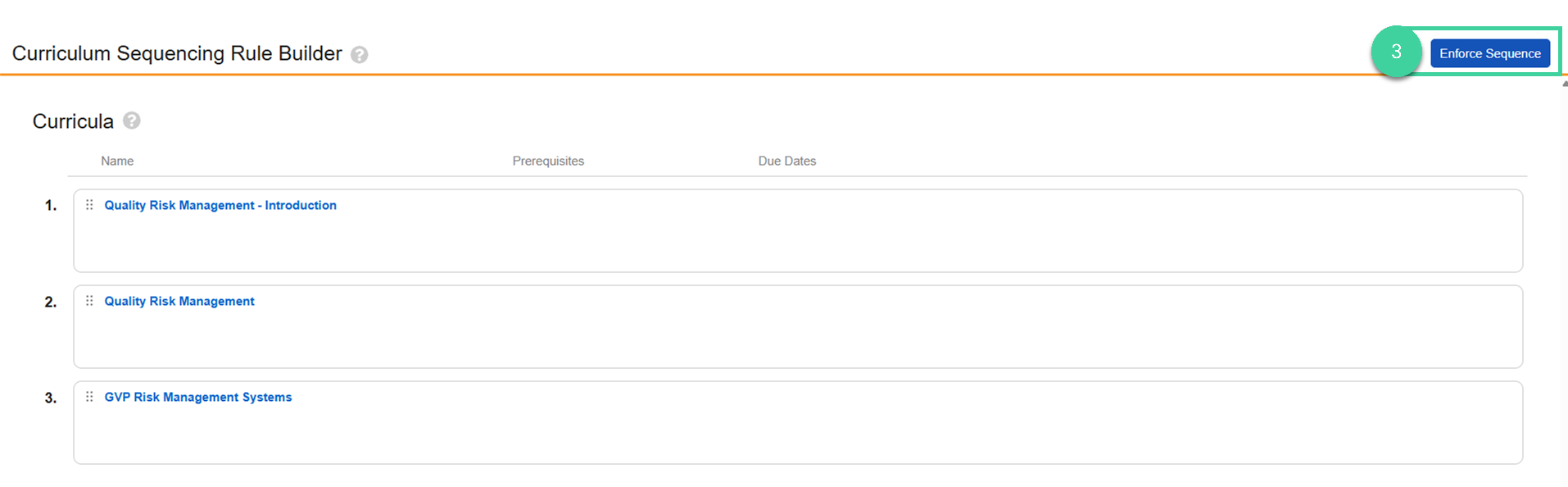
Select the Duration start for all Curricula and click Save.
Durations start when Learner Role is assigned (default): Due dates are calculated from when the learner is assigned to the Learner Role.
Durations start when Curriculum is available (offset due dates): Due dates are calculated based on when the curriculum becomes available to the learner.
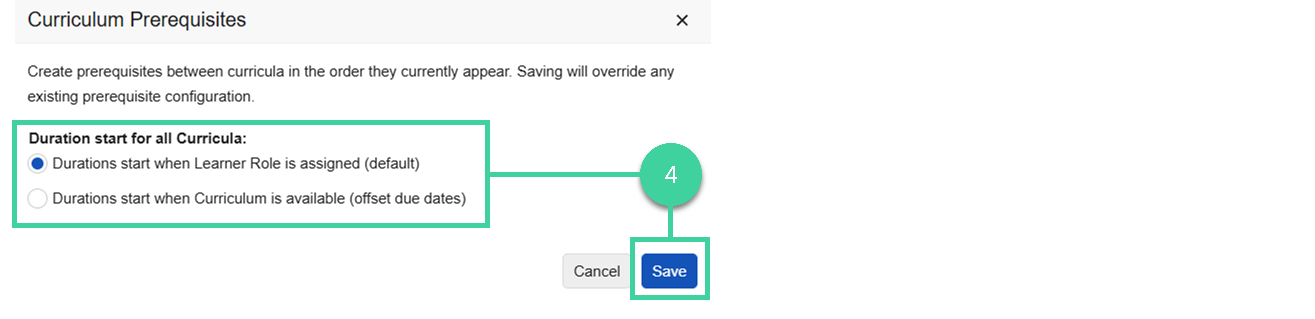
Click a prerequisite link.
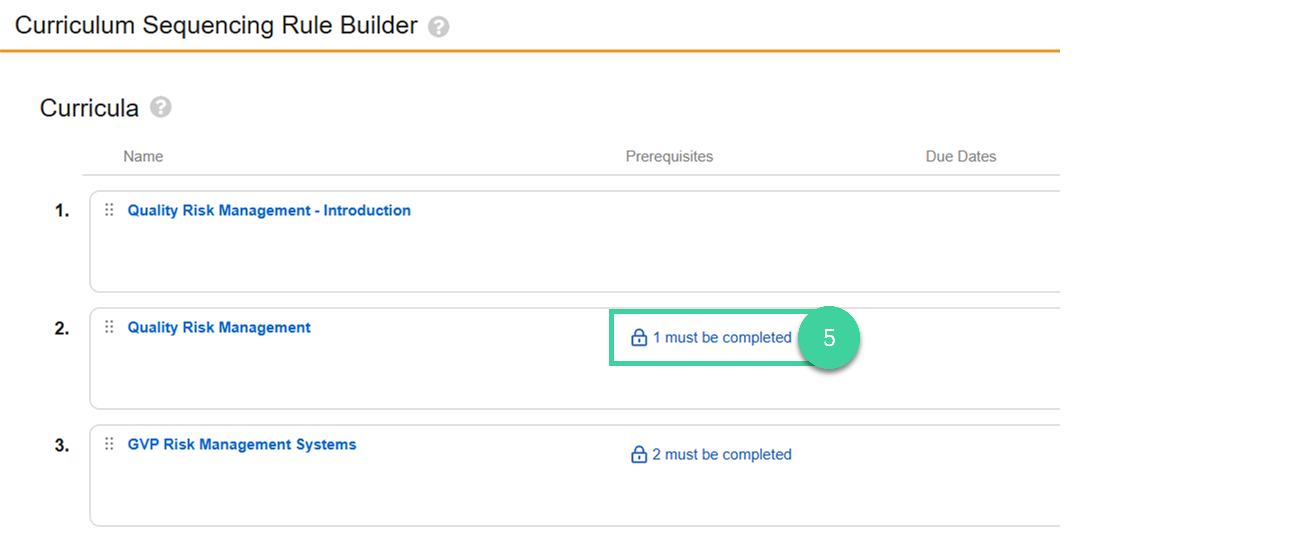
Specify if it should be:
Completion Based: As soon as the learner completes one curriculum in the sequence, the next one becomes available.
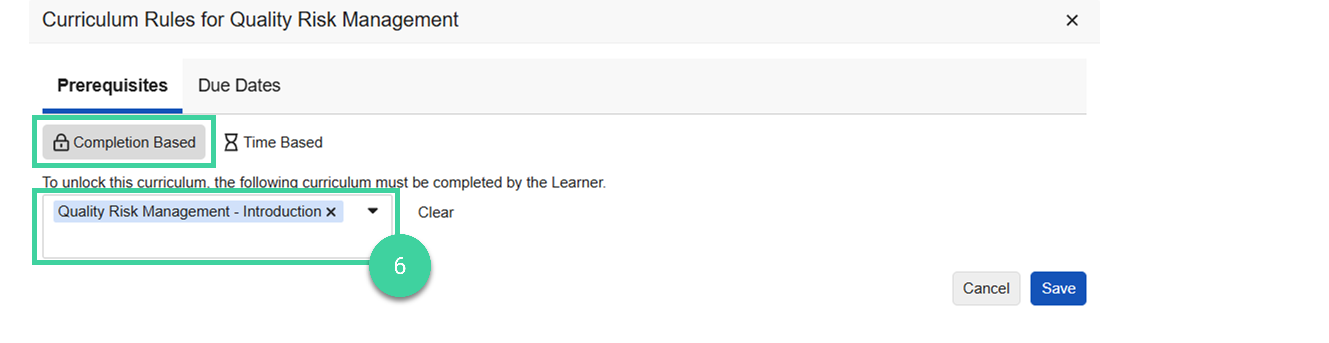
Time Based: Curriculum in a sequence is unlocked a specified number of days or weeks after the learner activation date.
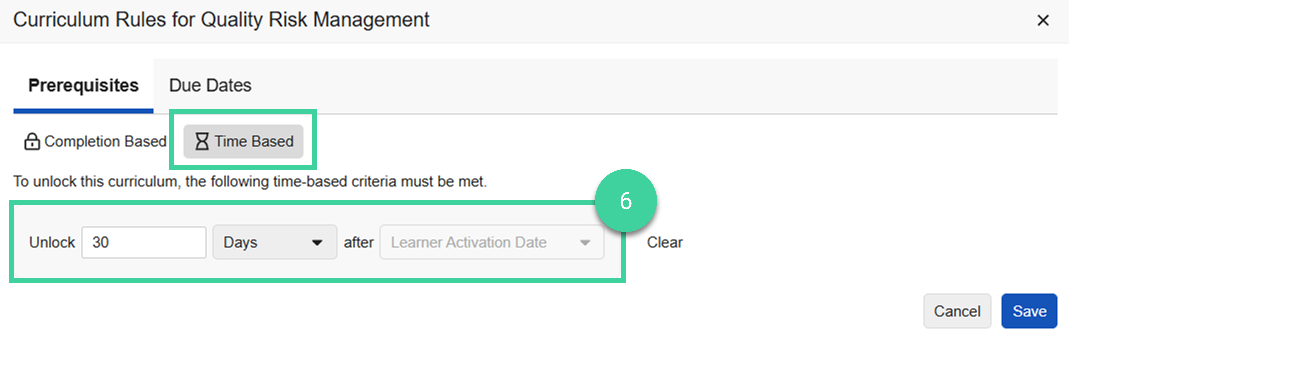
Click Save.
Repeat for each prerequisite as needed.
Note
While they can be used together, Curriculum Sequencing is independent of the Training Requirement prerequisite functionality.
Remove a Curricula
To remove a Curriculum from a Learner Role:
From the Learner Role record, open the Curricula section.
Hover over the Curriculum and click Remove.
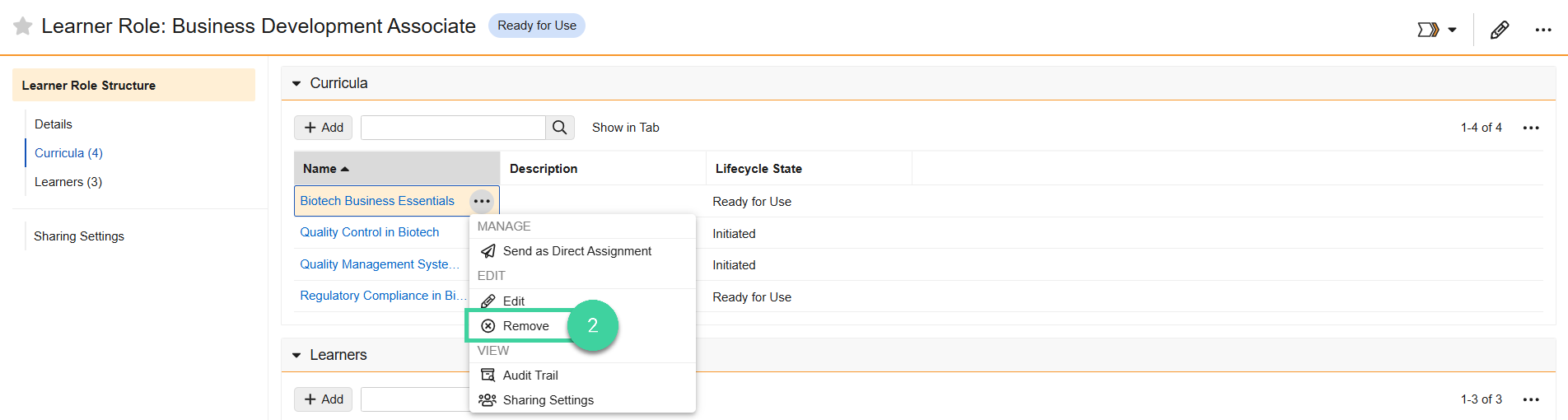
Click Continue.

Add Learners to a Learner Role
In addition to automatically enrolling Learners in a Learner Role, you can also manually add them when needed.
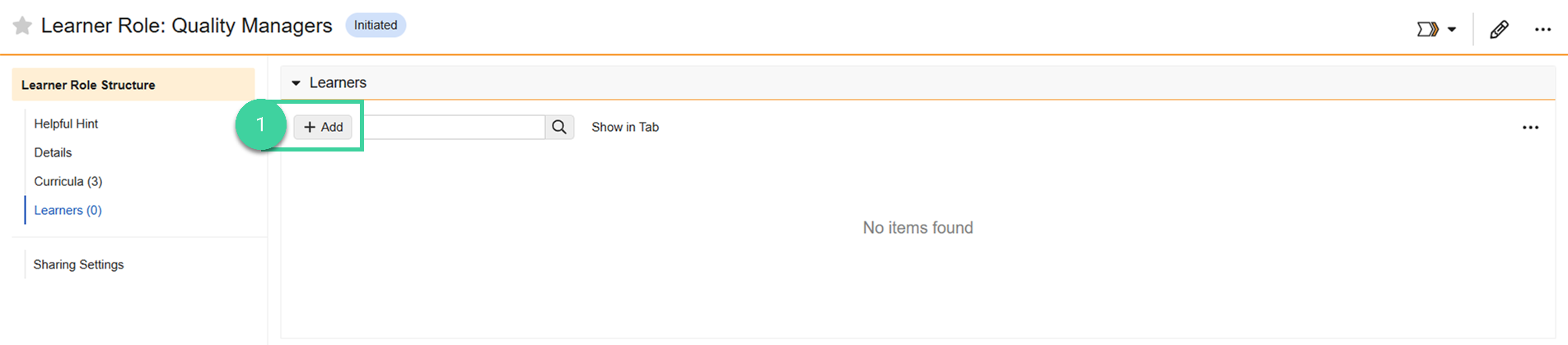
To manually add Learners to a Learner Role:
From the Learner Role record, open the Learners section and click Add.
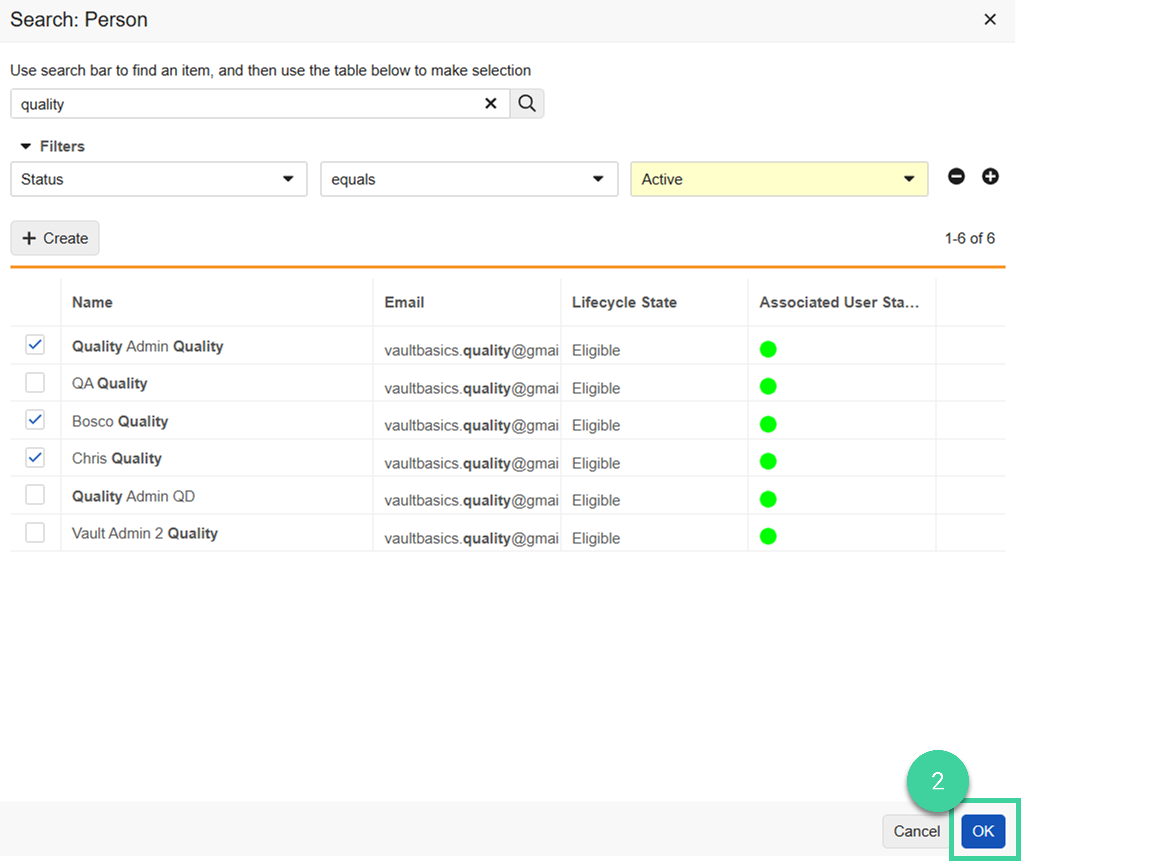
Select one or more Learners and click OK.
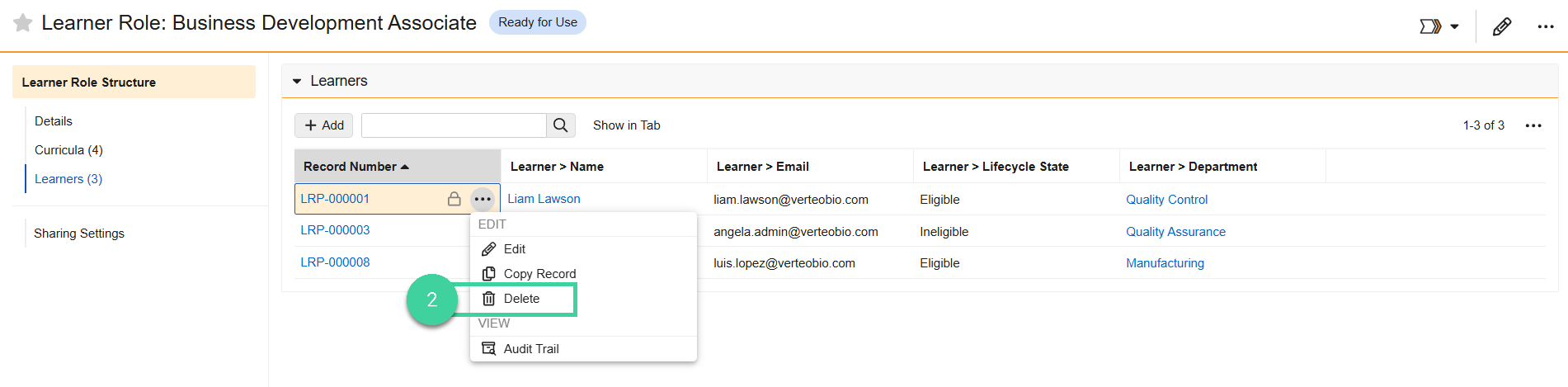
Remove a Learner
To remove a Learner from a Learner Role:
From the Learner Role record, open the Learners section.
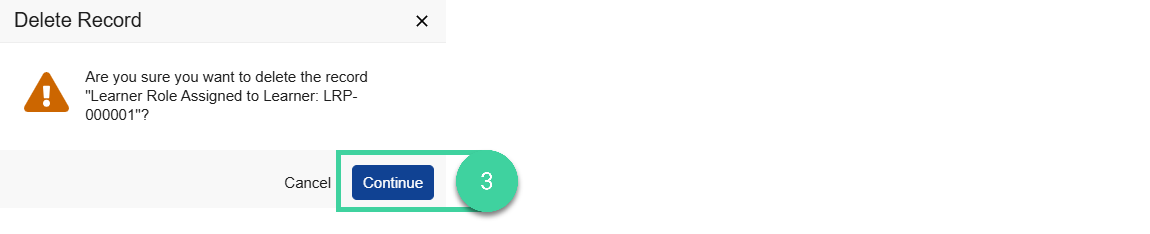
Hover over the Learner and click Delete.
Click Continue.
Make a Learner Role Ready for Use
When you first create a Learner Role, it is in the Initiated state. You must set it to Ready for Use before Training Assignments can be sent to Learners in this Learner Role.
Training is evaluated on an hourly basis, at the half-hour mark. Any applicable training will be assigned to learners.
Best Practice
While actively working on updates to the training matrix, leave Learner Role, Curricula, and Training Requirement records in an Initiated state until updates are complete so that training is not sent to learners before it is fully ready.
To make a Learner Role Ready for Use:
From the Learner Role record, select Mark as Ready for Use from the Workflow menu.
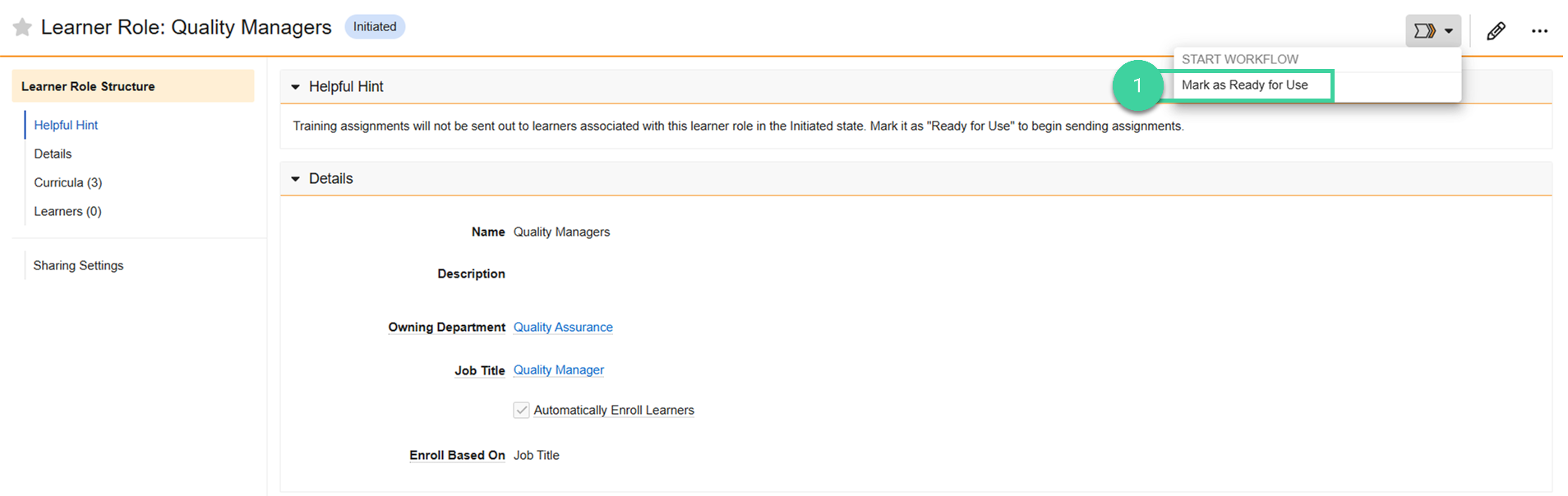
Click Start.

Note
Training is evaluated on an hourly basis, at the half-hour mark. Any applicable training will be assigned to learners.
Retire a Learner Role
When a Learner Role is no longer applicable and should not be used to assign training, you can change its state to Retired, which cancels any open training assignments associated with the Learner role.
To change a Learner Role to Retired:
From the Learner Role record, select Mark as Ready for Use from the Workflow menu.
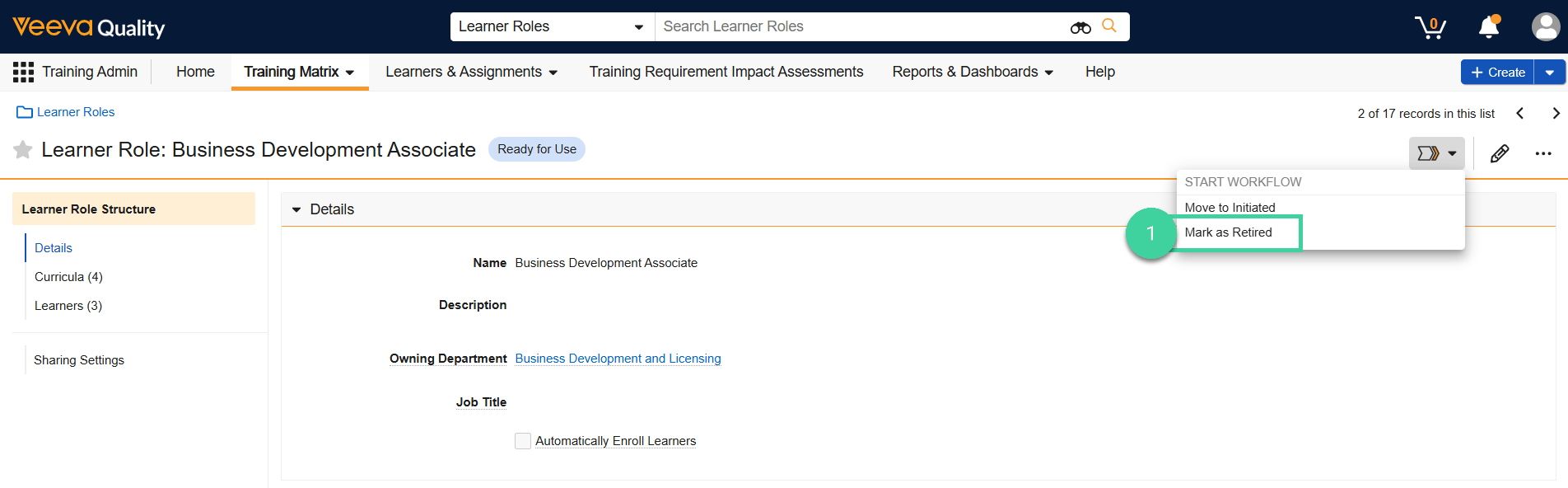
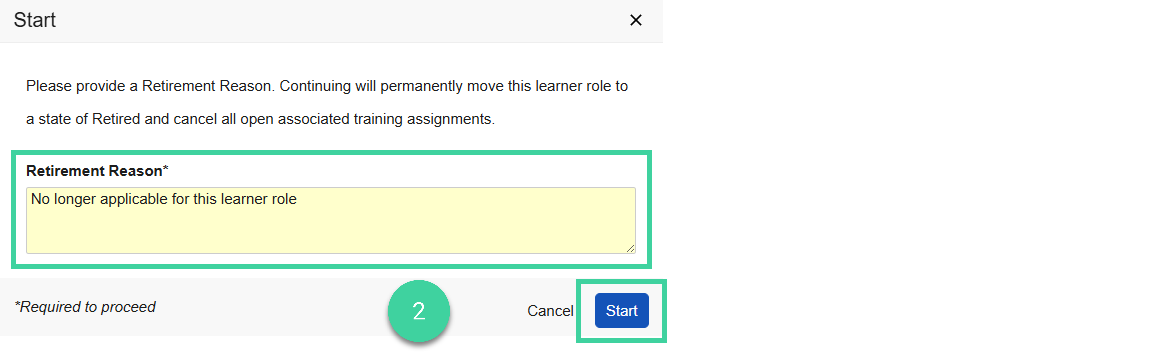
Enter the Retirement Reason and click Start.
 Note When you have many lifecycle state changes to make in your trainig matrix, you can save time by changing the states of Learner Roles, Curricula, or Training Requirements in bulk.
Edit a Learner Role
Note
Certain changes, such as turning on or off automatic enrollment, require you to change the Learner Role back to the Initiated state before editing. Remember to move it back to Ready for Use after making the change. Training Assignments will not be sent unless the Learner Role is Ready for Use.
To edit a Learner Role:
Navigate to Training Admin > Training Matrix > Learner Roles.
On the All Learners page, click the Name of the Learner role you want to update.
On the Learner role page, click Edit ().
Edit the Learner Role information as needed and click Save.