Self-Enroll in a Training Requirement
Last updated: Apr 20, 2026
Who can complete this task?
Veeva Quality Basics users with Learner system assignment.
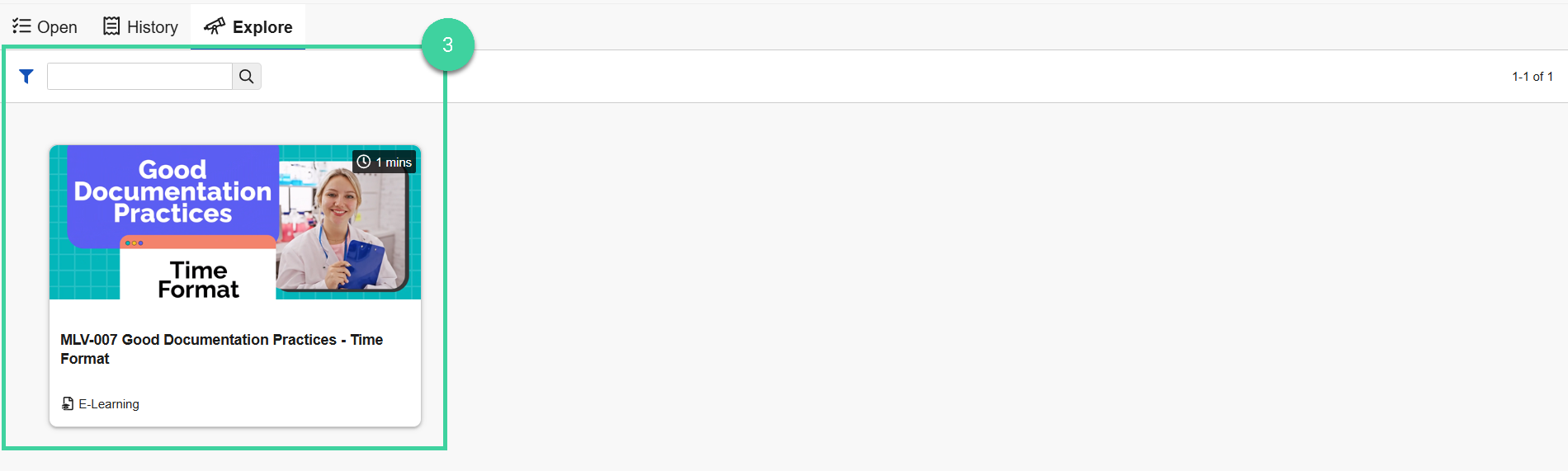
You can self-enroll in available training requirements in the Explore tab on the My Learning tab.
To self-enroll in a training requirement:
Navigate to Quality Consumer > My Learning and select the Explore tab.
Scroll through the available training requirements, use the filters to narrow down your available training requirements, or search for the training requirement you want.
Hover over the training requirement you want to self-enroll in and click Enroll. Vault opens the training assignment page where you can complete the training.
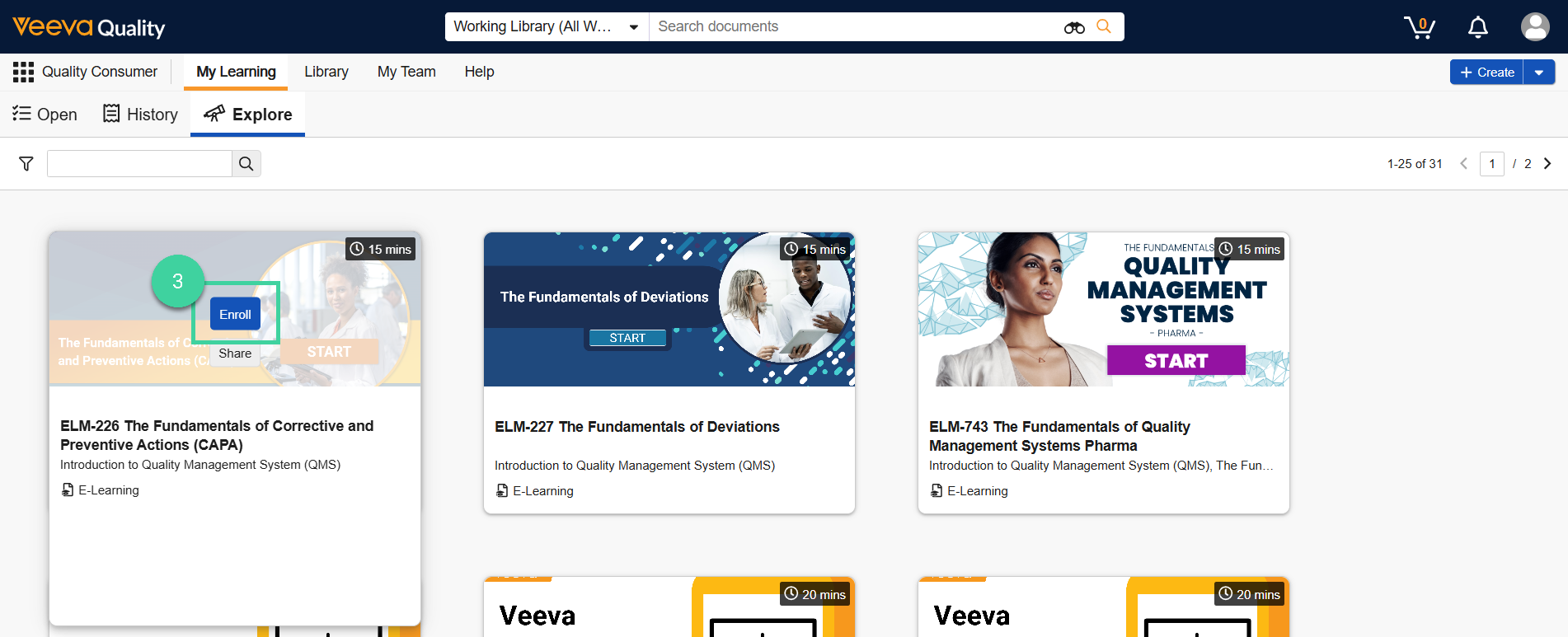
To unenroll from the training requirement, hover over the training requirement and click Unenroll. Vault unenrolls you and cancels the open training assignment.
Share Link to Training Requirement
You can easily share a link to any training requirement shown in the Explore tab.
To share a link:
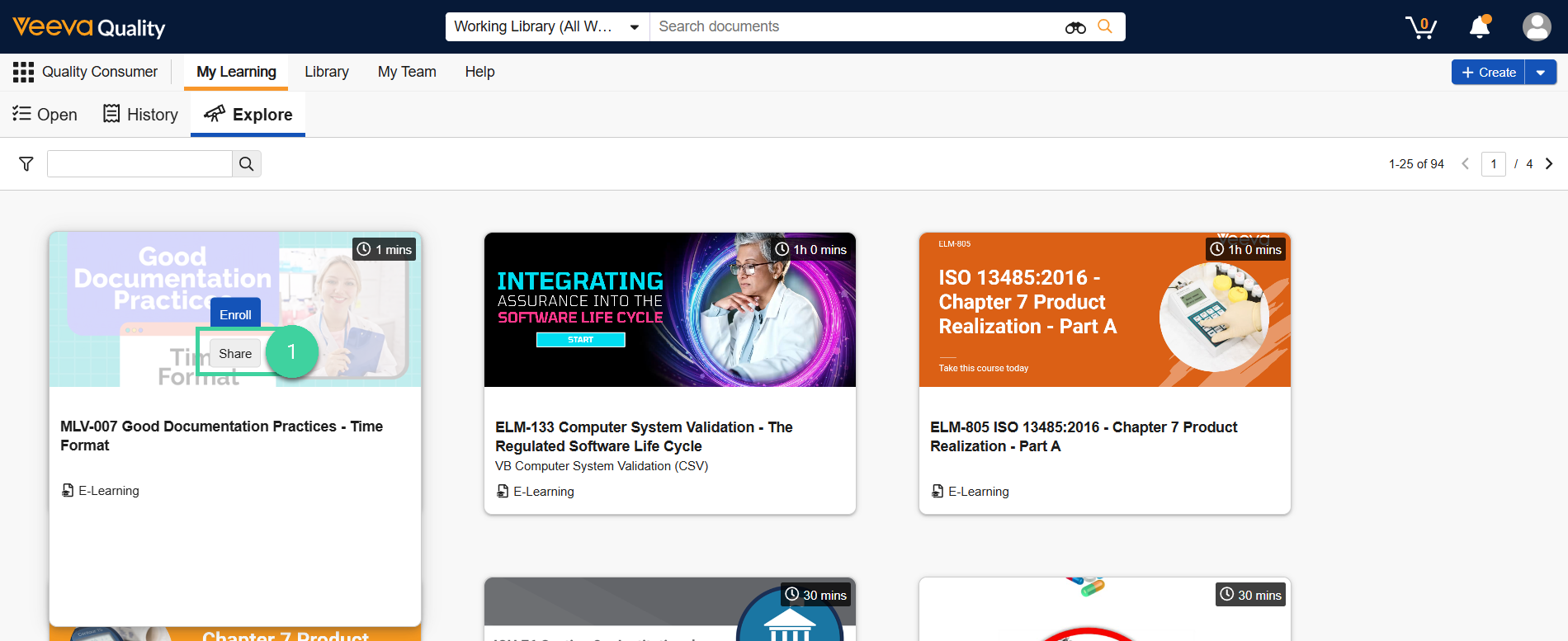
Hover over the training requirement and click Share.
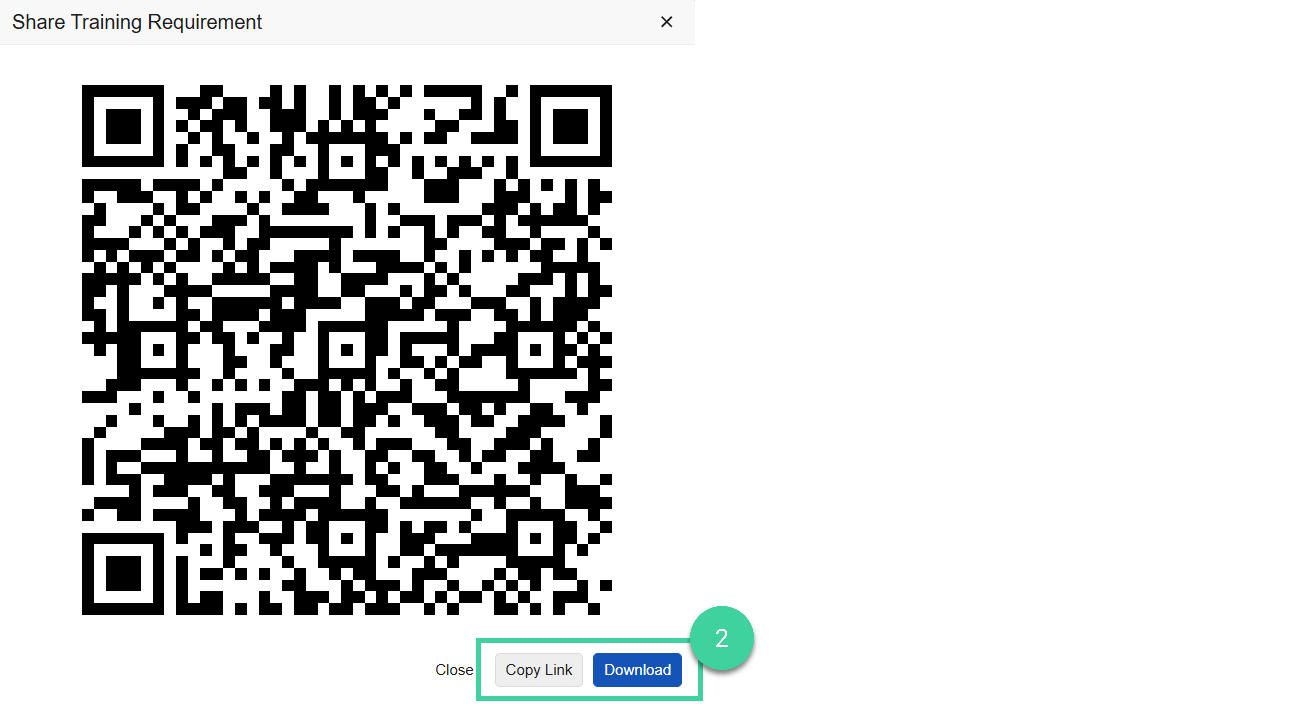
A QR code linking to the training requirement displays. You can share it with your direct reports or team members via chat, email, or other communication channel. using either of the following methods:
Copy Link: Copy the link as a URL.
Download: Download a PDF of the QR code.
When a learner clicks the shared link or navigates using the shared QR code, the Explore tab will be automatically filtered to show just the shared training requirement. The learner can then self-enroll if desired.