

Set Up Production Gateway
Last updated: Mar 23, 2026
Prerequisites
Complete all preceding Test Gateway steps for the Sandbox environment
Receive email from the FDA indicating that you are approved for a Production Account
The Veeva Publishing application is active in your Production Vault.
The FDA must have provided you with the following:
.P7B Certificate for Production
Health Authority ID ZZFDA
Healthy Authority URL https://upload-api-esgng.fda.gov:4080/as2/receive
Procedure
Production FOLLOW-UP
Next steps:
- Wait for instructions from the FDA regarding the Production account.
Create FDA ESG User / Security setup in Production. Follow Steps listed in Section 2.3.1.
This includes:
Confirming Security Policy (No Password Expiration)
Creating FDA User Account
- Resetting & Recording Password for FDA User Account
Please note, the FDA will need the Production Username and Password to successfully login to the Production Environment.
Copy Production Vault AS2 URL
FDA ESG User Login Information and Vault AS2 URL
This info is needed to complete the registration below.
The Vault AS2 URL. To acquire your Production Vault’s AS2 URL:
Navigate to Admin > Settings > Gateway Profiles
Click on the US FDA Async ESG profile
In the AS2 Profile Confirmation section, click on the Copy URL button to grab the Vault AS2 URL to be provided during registration.
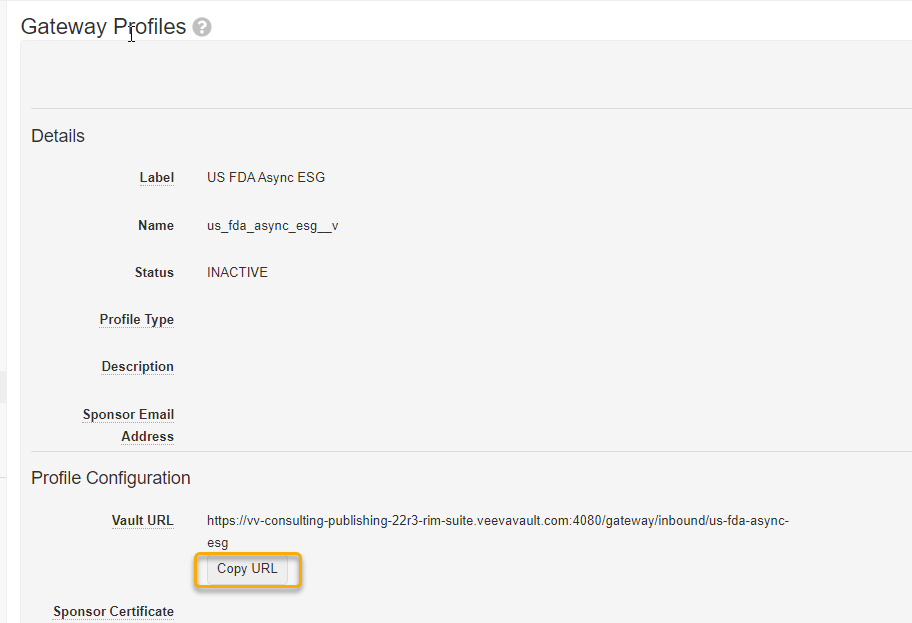
Following the successful transmission of a Test Submission, FDA will respond via email and provide guidance as applicable. To finalize the Production configuration you still need to:
Install the FDA Public Production Certificate as provided in the AS2 guide
Utilize the Production URL
Update the Routing ID: Note that this must be different than the Routing ID that was used for Sandbox.
Note
This information below must be provided to Veeva to perform on your behalf. You can submit a ticket to GSC with the certificates and your completed AS2 ESG NextGen Gateway Configuration Information.docx form.
The following steps in the Production environment include:
Editing the FDA Async Gateway with Production Information
Setting the Gateway Profile to Active
Access US FDA Async ESG Gateway Profile
Navigate to Admin > Settings > Gateway Profiles
Click on the US FDA Async ESG profile. Select Edit.
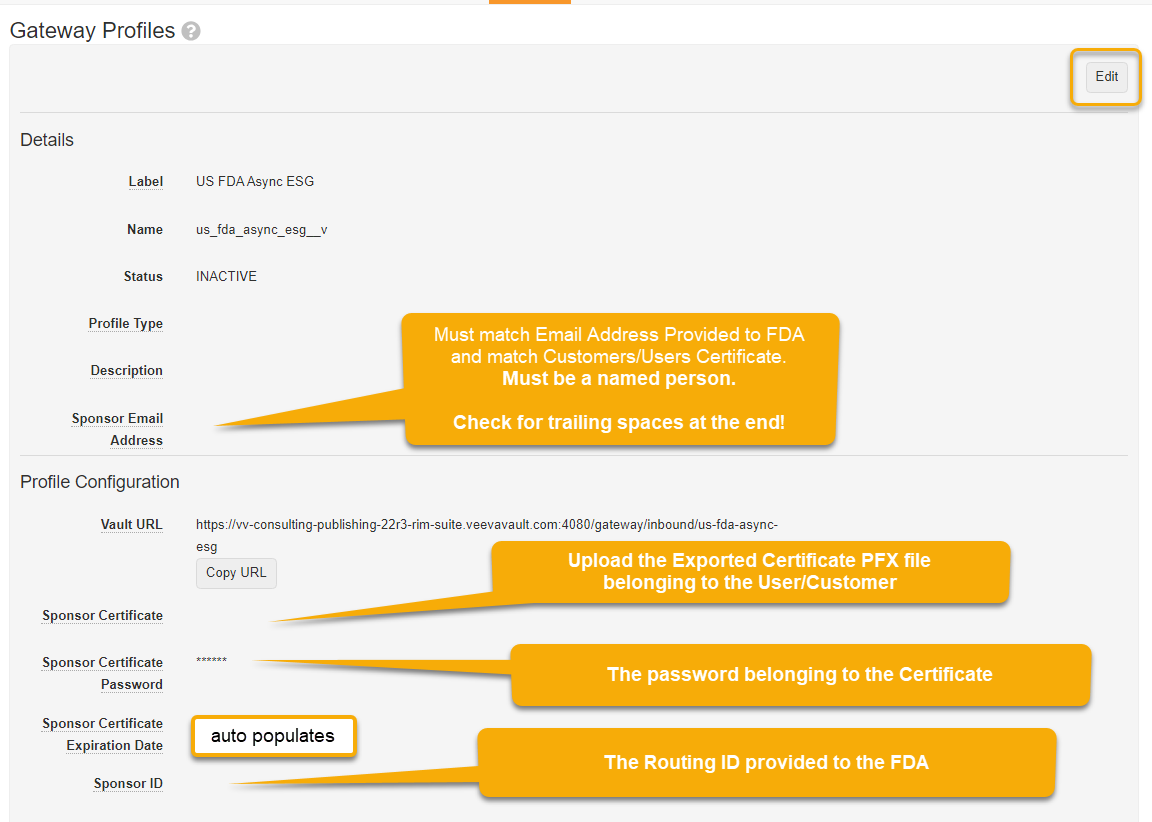
Enter fields:
NOTE: People often copy and paste values here. LEADING & TRAILING SPACES MAY CAUSE FAILURES.
Description
Sponsor Email Address: Enter same as used in the FDA account application form
Sponsor Certificate: Upload your digital certificate (the .pfx file exported in Step 5 of Section 2.2.2 .
Sponsor Certificate Password: Enter certificate password
Sponsor Certificate Expiration Date: The system will look this up from the certificate
Sponsor ID: Your Routing ID that was used to register
Enter fields:
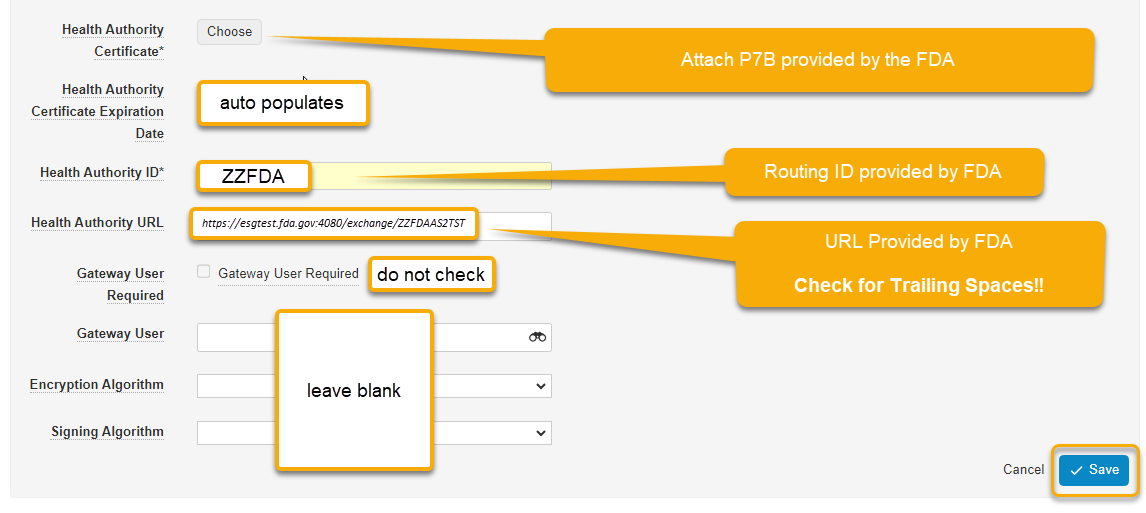
Health Authority Certificate: This is provided in the account activation email from the FDA].p7b
Health Authority Certificate Expiration Date: The system will look this up from the certificate
Health Authority ID: This is provided in the account activation email from the FDA
Health Authority URL: This is provided in the account activation email from the FDA
Gateway User Required: Do not check this
Gateway User: Leave blank
Encryption Algorithm: Leave blank
Signing Algorithm: Leave blank
After saving in step 3, set the profile to ACTIVE (Using the Set Active button). This must be done anytime the profile is edited.
Review the Production Environment Details from the original form sent to the FDA when you registered your test account. Confirm the details correspond to the information in your Production Vault.
Production Environment Details ESG NextGen USP Information Email address associated with profile registered on USP Routing ID (Typically in this format: COMPANYNAMEABBREVIATIONRIMAS2PRD, for example, VVARIMAS2RIMPRD, can be the registered RoutingID) Gateway HTTPS URL (only ports 443, 4080 are accepted) (Described in Vault User Account Setup/Configuration for Production) Gateway Credentials (if applicable) FDA User Login at Veeva. (Described in Vault User Account Setup/Configuration) Point of Contact Name for Account (First and Last) Point of Contact Name for Account (Whoever the Certificate is registered to) Point of Contact Email for Account Point of Contact Email for Account (Whoever the certificate is registered to) Attach Signing Certificate This should be the certificate provided in original form and should not be changed Attach Encryption Certification (if different) N/A SSL certificate N/A: ESG NextGen does not pin SSL certificates, therefore this is not needed. Whitelist IPs N/A: ESG NextGen does not need to know IPs for whitelisting. If URL or Credentials submitted in original form differs from the URL or Credentials in Production Vault, open a support ticket with the FDA by sending the updated form to ESGNGSupport@fda.hhs.gov.
Use the following text in the email body:
Please update the URL and credentials for existing connection for Production Environment as per the updated form attached.
Note
Anytime you communicate with the FDA regarding the initial gateway setup for both Sandbox and Production, you should ensure the completed AS2 ESG NextGen Gateway Configuration Information.docx form is attached.
- Wait for confirmation from the FDA.