

Set a Reference Leaf
Last updated: Apr 17, 2026
Who can complete this task?
Veeva RIM Basics: Vault Admin, RIM Admin, Submission Manager
A reference leaf is a file that has already been submitted but needs to appear in the XML to indicate it is part of the current submission. You can use a previously-submitted and reviewed Submissions Archive document as a reference leaf, reducing the review time at the relevant Health Authority.
Note
This feature is only available in RIM Submissions Publishing and RIM Submissions Archive.
Vault supports reference leafs to documents in previous submissions within the same application or to documents in separate applications with the same Lead Market. Additionally, you can only choose a reference leaf from a Submission with an Actual Submission Date (actual_submission_date__rim) and Dossier Status which is not Publishing Active.
When you set a reference leaf, Vault does not republish the document, but instead links to the document using its Published Output Location. Vault populates document fields that appear in the published output with values from the referenced document’s submission metadata. All other attributes come from the current content plan.
Note
Reference leafs can only be set on Content Plans in the Draft or Ready for Use states.
Across Submissions & Applications
To set a reference leaf for submission documents in separate applications with the same Lead Market:
- Navigate to a Content Plan Item record with a Node Type (
xml_node_type__v) of Leaf or Reference-Leaf. From the Actions menu, click Set Reference Leaf.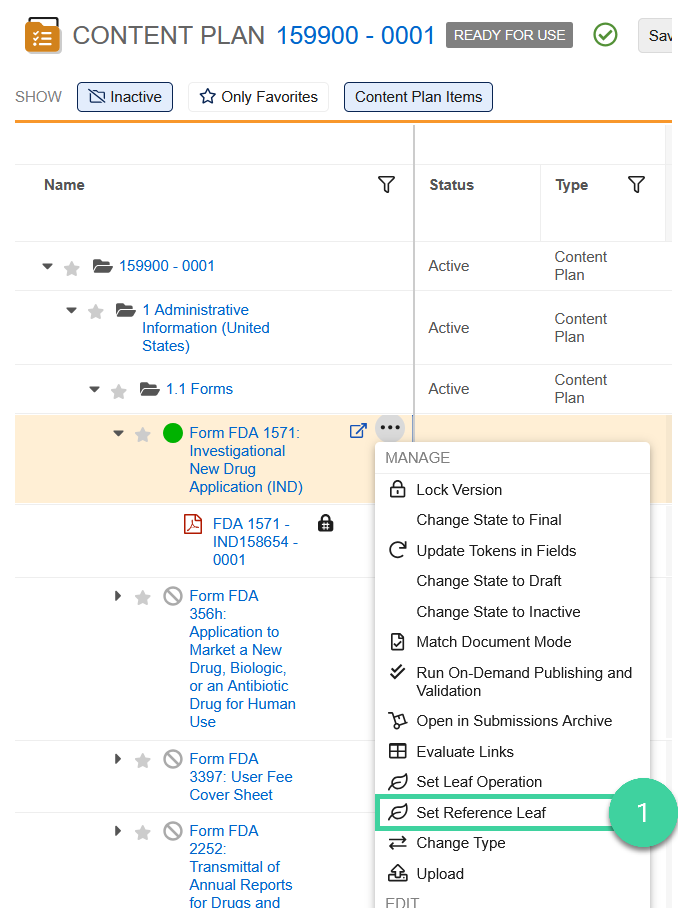
- In the Set Reference Leaf dialog, confirm the selected Application based on the record’s Primary Application field. You can select a different application for any country except Canada (CA). (Cross-application reference leafs are generally not recommended outside of the US, but are only prevented for CA submissions.)
- Optional: Select a Submission.
- Click a document from the hierarchy to use as a reference leaf. Vault highlights your selection in blue and populates the Name and Published Output Location at the top of the dialog. To change your selection, single-click the new item.
- Click Save.
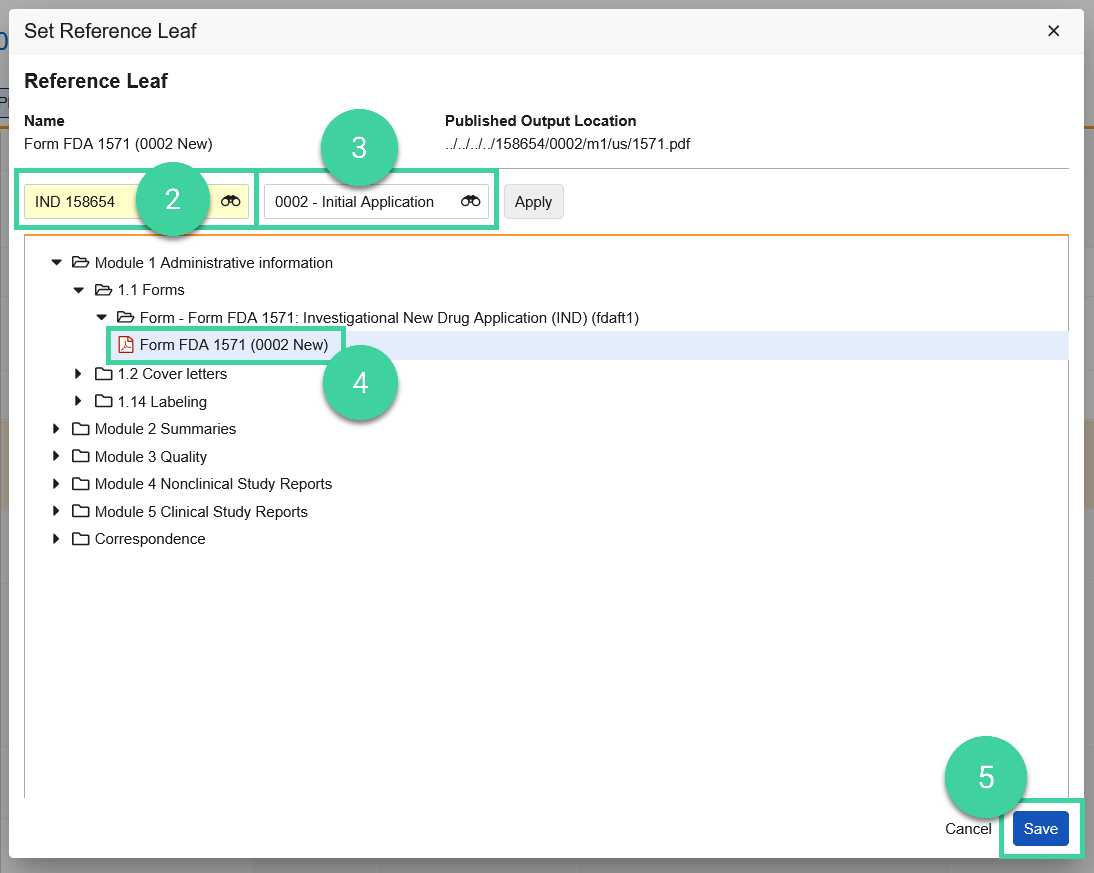
Vault uses the target file’s checksum to populate the Checksum field for the current leaf element and updates the Node Type and Published Output Location to the new reference leaf. Items with a reference leaf are indicated by the icon.
Within a Submission
To create a reference leaf within the same submission, match the same document to all applicable Content Plan Items. During publishing, Vault uses the first instance of the matched document within the structure to populate the Published Output Location field with the location of the new reference leaf.
To replace a reference leaf when one is already created, update matched documents and then update the Published Output Location with the new location.