

Add a Correspondence with Health Authority
Last updated: Mar 20, 2026
Who can complete this task?
Veeva RIM Basics: Vault Admin, RIM Admin, Submission Manager
You can upload and manage correspondence with health authorities and other organizations in two ways. You can forward email conversations and attachments straight to your Document Inbox or you can manually add correspondence documents by uploading them directly to the Library.
Note
When uploading a Microsoft Outlook Mail Message (MSG) and Electronic Mail File (EML) document source file to Vault, Vault automatically generates a PDF viewable rendition. The rendition shows the Sent date and time in the GMT time zone.
Email to Your Vault
To email a correspondence to your Vault:
Send an email to: inbox@domainurl.veevavault.com. You can find your Vault URL in the address bar in your web browser.
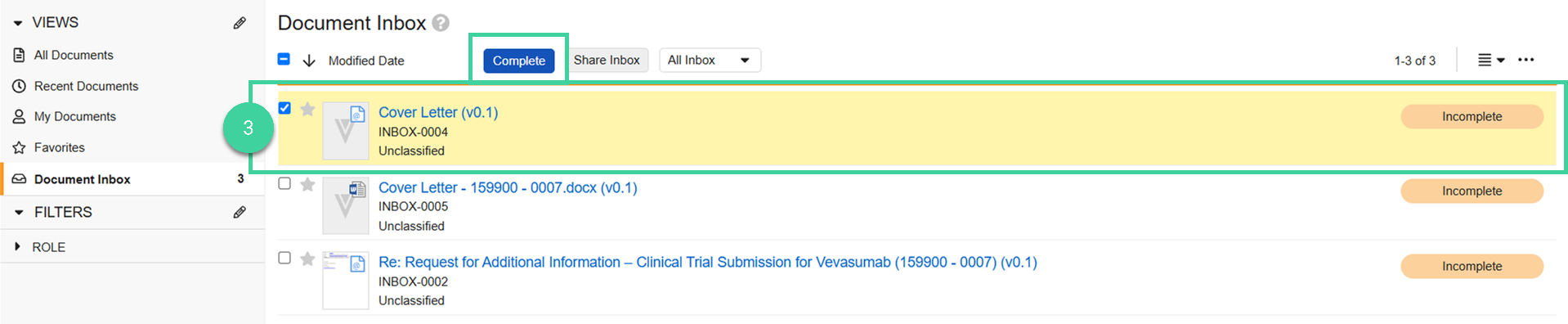
You can find any correspondence that you email to your Vault in the Document Inbox. Attachments are added as a separate item. The documents in the inbox are Incomplete.
To complete them and add them to your Library, select one or more of the documents and click Complete.
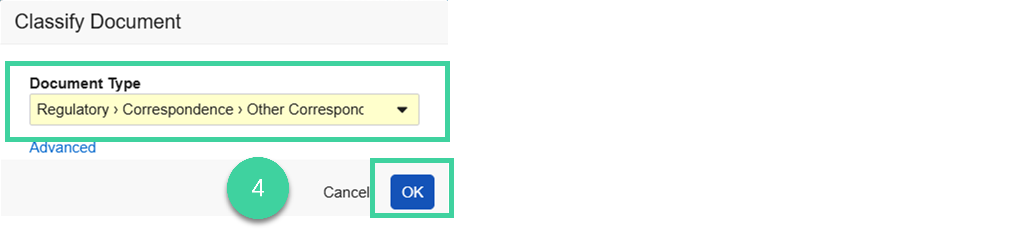
Select a document type and click OK.
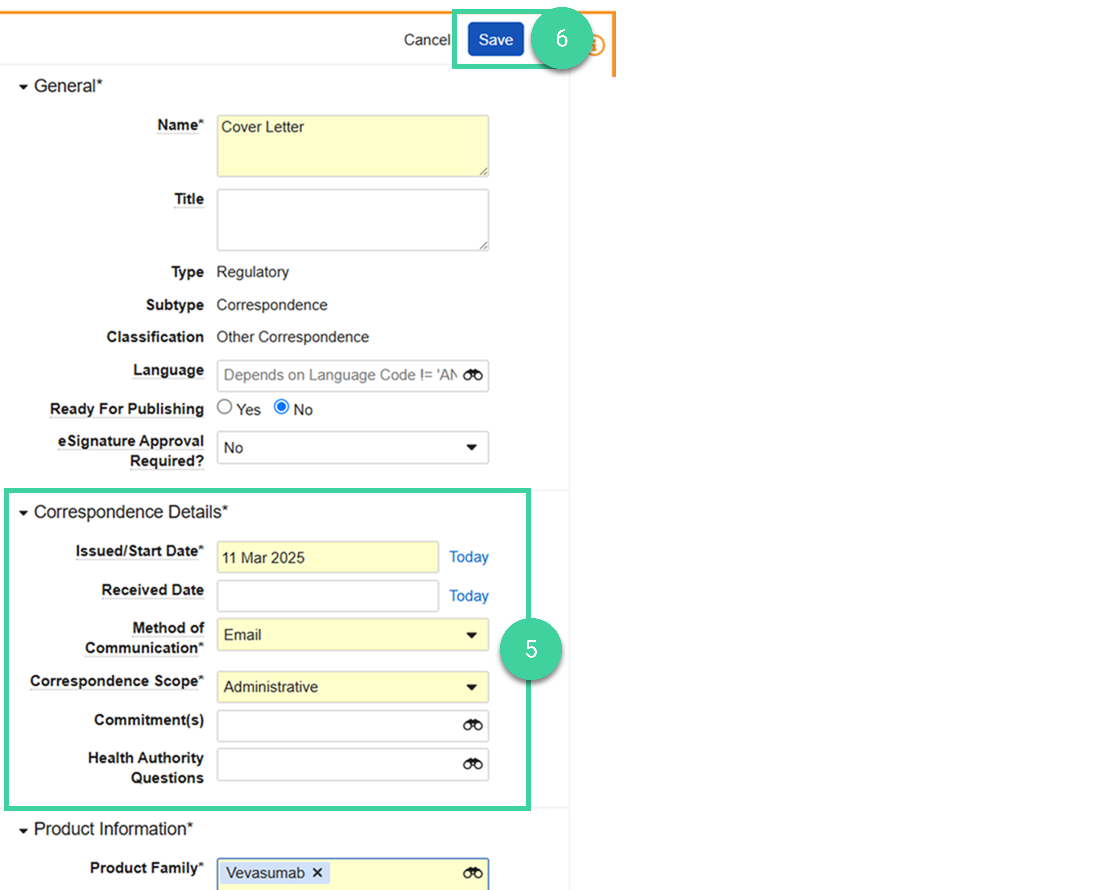
Add the Correspondence Details. You can associate the correspondence to commitments and Health Authority Questions if needed.
Click Save.
Upload to Library
You can add a correspondence to your library just as you would any document.
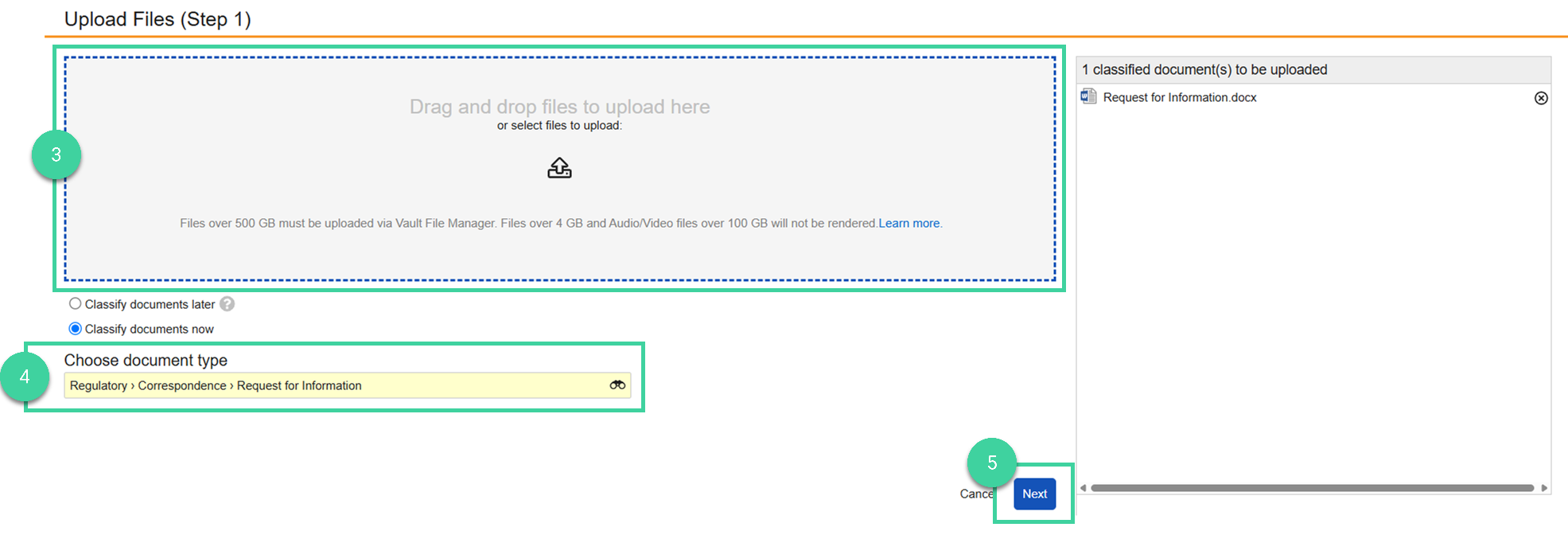
To upload a correspondence to your Vault:
Navigate to Submission Mgmt > Library and click Create.

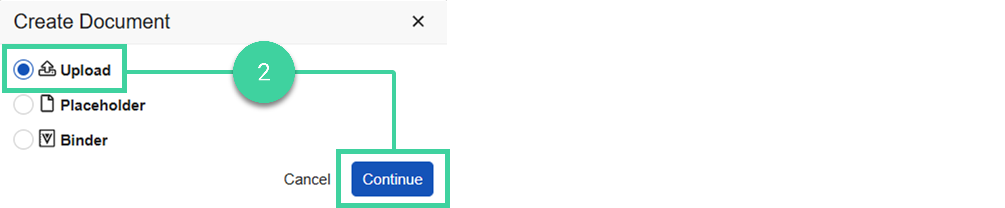
Select Upload and click Continue.
Drag and drop the correspondence document.
Specify a Document Type with a Correspondence Subtype.
Click Next.
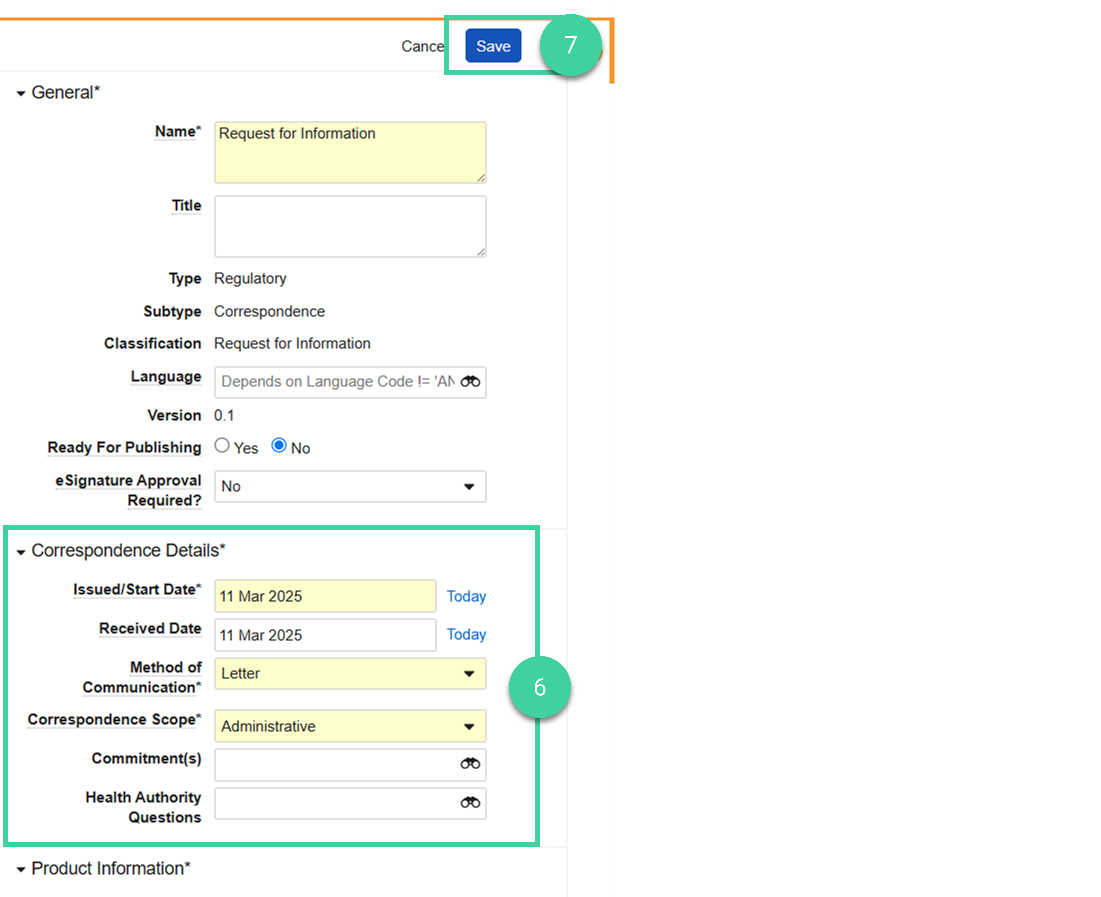
Add the Correspondence Details. You can associate the correspondence to commitments and Health Authority Questions if needed.
Click Save.
View Correspondence Documents in Viewer
You can view correspondence documents tied to a Submission in the Viewer tab. The correspondence documents you see depend on the related Application or Submission record and the Submission record’s Dossier Status or Submissions Archive Status. You’ll only see correspondence documents when the submission is in one of the following statuses:
| Field | Status |
|---|---|
| Submissions Archive Status | IMPORT_SUCCEEDED |
| Dossier Status | Import Successful |
| Dossier Status | Publishing Inactive |
| Dossier Status | Transmission In Queue |
| Dossier Status | Transmission In Progress |
| Dossier Status | Transmission Failed |
| Dossier Status | Transmission Successful |
Note
To see these documents in Viewer, you need to associate the correspondence to the corresponding Application and/or Submission only after they have reached the statuses noted in the table above.
If you had associated the fields with the Application and Submission before reaching those statuses, you can temporarily remove the association, save the document, repopulate, and save. This will allow the documents to be displayed properly in Viewer.