

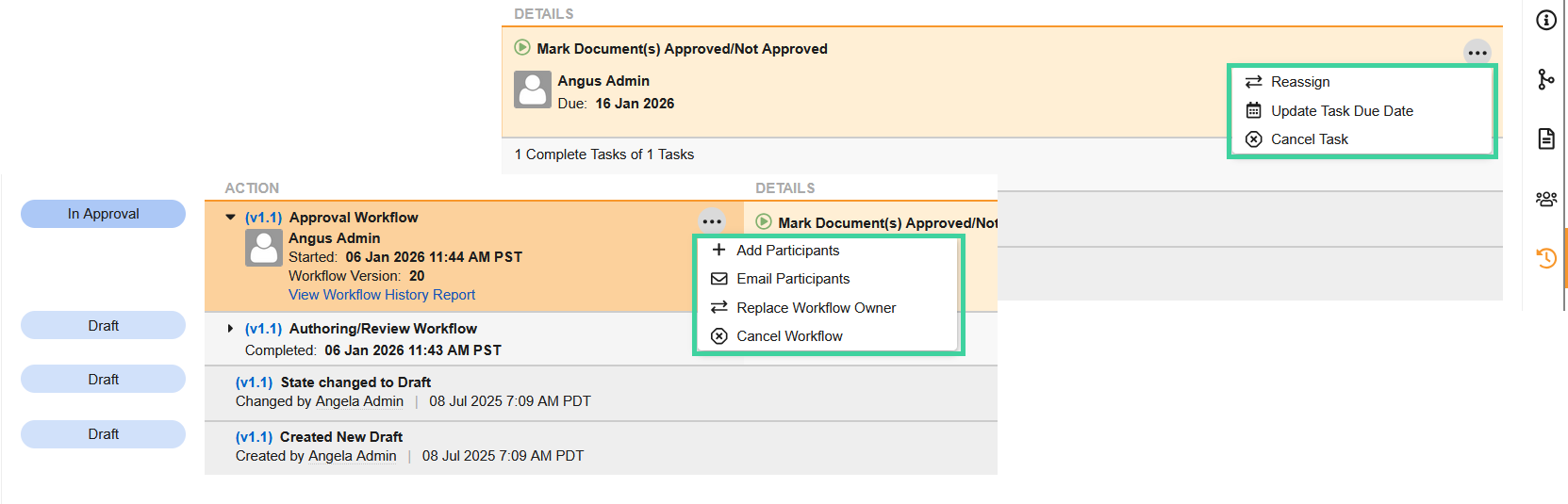
When a document is in an active workflow, the Timeline View gives you options to act on the workflow or its individual tasks. There are two separate menus, accessed via the ellipsis () icon:
- To the right of the workflow name (e.g., “Approval Workflow”): actions that apply to the entire workflow, such as Add Participants, Email Participants, Replace Workflow Owner, or Cancel Workflow.
- To the right of the task name (e.g., “Mark Document(s) Approved/Not Approved”): actions that apply to that specific task, such as Reassign, Update Task Due Date, or Cancel Task.
Note
The ability to see and execute these actions depends on your security profile and role on a specific document.