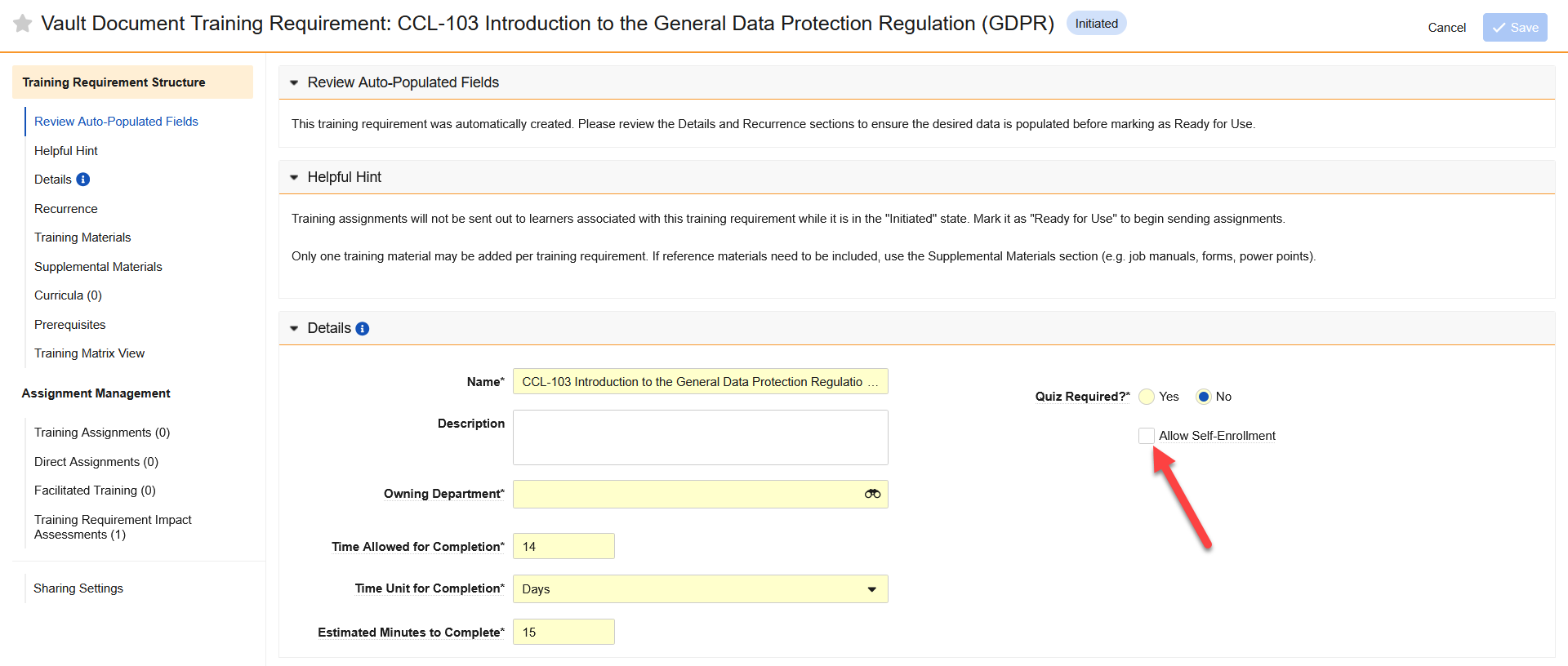
Enabling self-enrollment on a Training Requirement is as simple as a Training Admin checking the Allow Self-Enrollment checkbox when creating or editing a Vault Document or External Training Requirement.
Make sure it’s Ready for Use after, otherwise it won’t be visible to users.
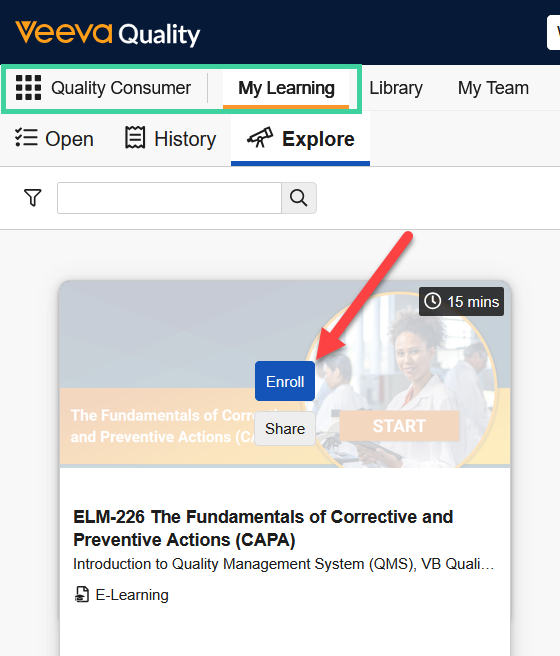
Once a Training Requirement is enabled for self-enrollment, users can navigate to the Quality Consumer > My Learning > Explore, mouse over a training, and click Enroll to get started. Similarly, you can unenroll by mousing over the training and clicking Unenroll.
Note
If you self-enroll in a training that is one day added to your training matrix as required learning, you will not be assigned the training a second time.